In this article we look at how multiple supplier invoices can be allocated to a single purchase order in Jiwa Shipments.
Before preceding please ensure you have read the article Jiwa Landed Costing - Shipments.
When creating a new shipment you will notice that when a purchase order is added to the shipment a corresponding single invoice entry is added to the Invoices tab on the shipment. Jiwa assumes that there is a one to one relationship between the purchase order and the invoice which is the case in many instances and is very handy.
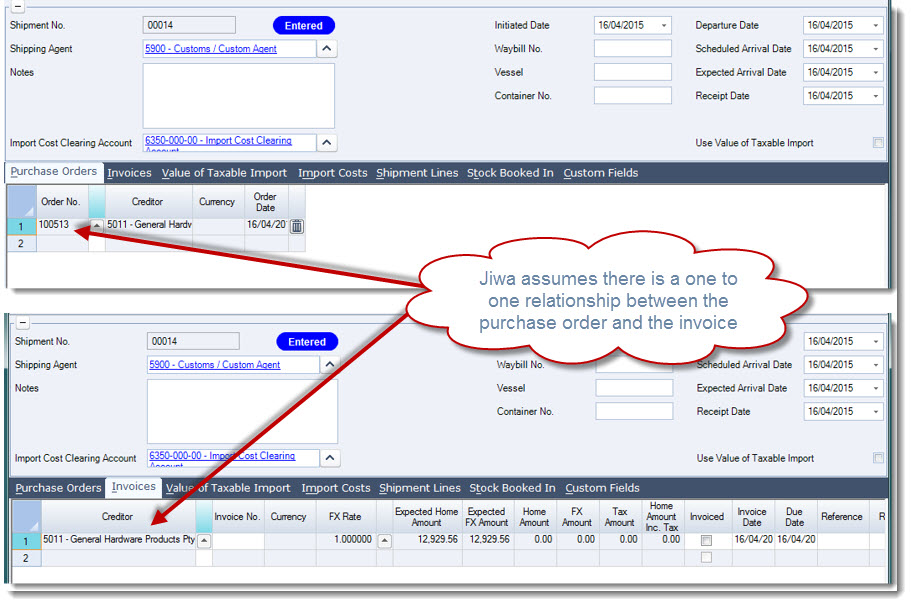
However, there are times when the overseas supplier decides to send you two (2) or more invoices for the single purchase order even though you may have received the full order in a single shipment.
In these circumstances we want add another invoice to the Invoices tab however when you do this the Expected and Amount fields are all greyed out so they cannot be edited.
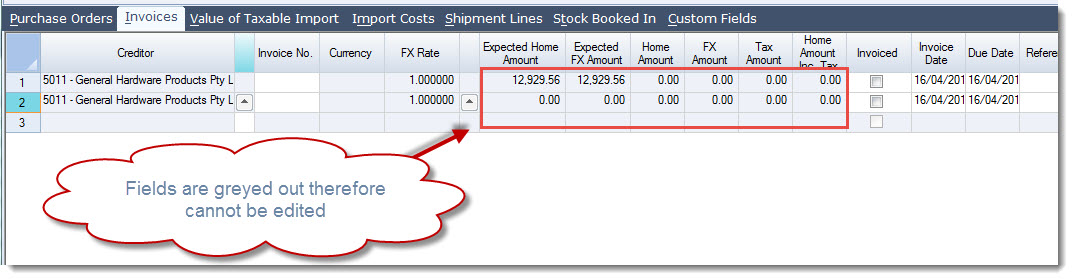
This is because the Expected amount fields are calculated based on the Shipment Lines and the Home Amount and FX Amount fields are based on the actual stock booked in.
To link the shipment lines to an invoice we need to add the invoice number to the Invoice No. field as soon as you do this you will notice that the Shipment Lines are automatically linked to the first invoice.
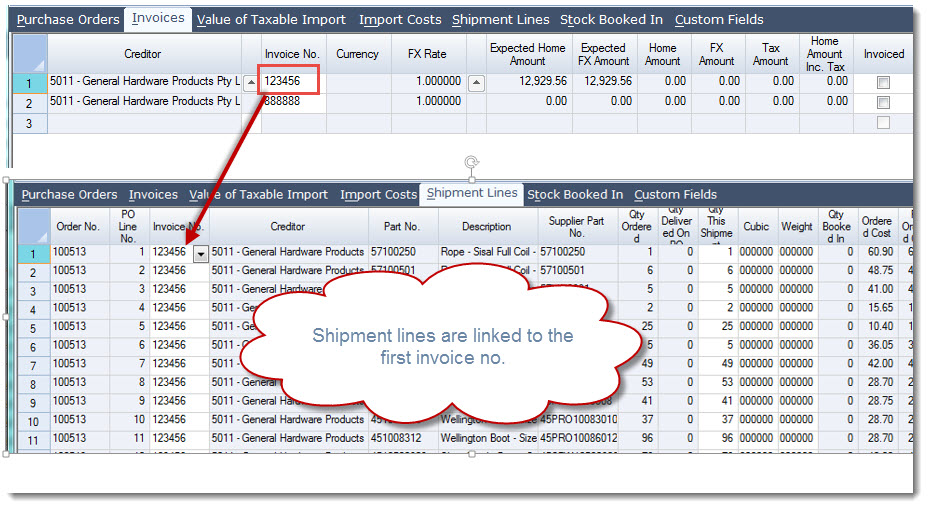
To apportion our costs across the two (2) invoices we need to link the shipment line/(s) to the appropriate invoice.
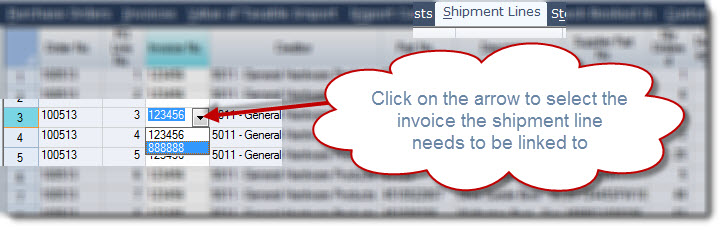
To do this we click on the arrow next to the Invoice No. field on the required shipment line and select the invoice that the line needs to be linked to.
When the shipment line is linked to the second invoice you will notice back on the Invoices tab the Expected fields are updated automatically.
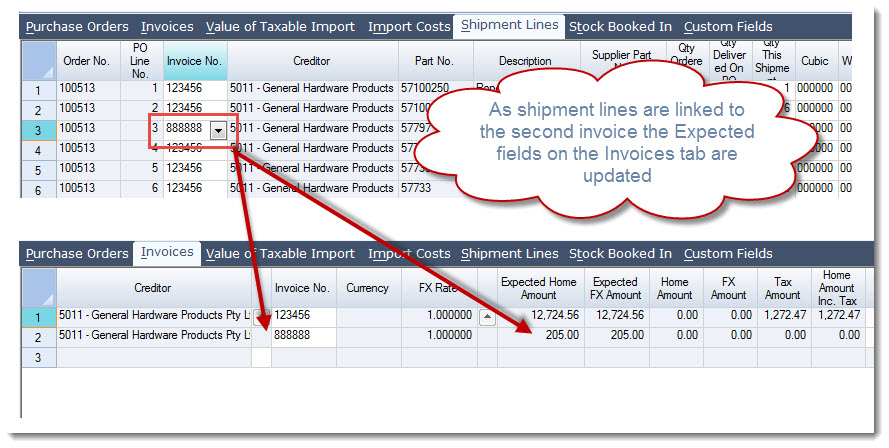
Repeat this process until the invoice values on the Invoices tab match the physical invoices you have received.
This video is best seen on the full screen. Just click on the icon at the bottom right of the video (see image below). To exit full screen just press escape