Inventory lines may need to be cancelled from a job when the items are no longer required, were added incorrectly, or will not be used as part of the job.
This article explains how to cancel inventory lines from a job in Jiwa and how this affects the job transaction. Cancelling an inventory line helps ensure that the job reflects the correct items, costs, and quantities before further processing or invoicing occurs.
Before cancelling inventory lines, review the job to confirm that the line is no longer required and that cancelling it is the correct action for the job process.
Cancelling Inventory Lines from a Job
In the following example we have an installation job where Wellington Boots have been added to the job incorrectly.

In order to cancel the line we need to produce a finished good which will remove the item from the job and put it back into stock.
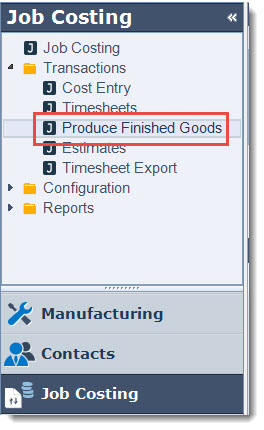
From the menu select Job Costing | Transactions | Produce Finished Goods.
From the menu ribbon select New to create a new batch

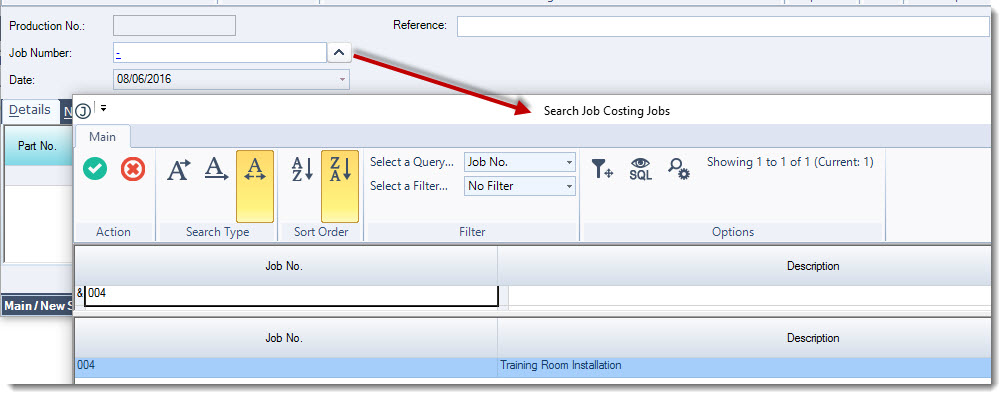
Click on the lookup icon next tot he Job Number field to select the required job
Add a meaningful comment in the Reference field

In the Details tab add the part/(s) that are to be returned to stock
In the Qty field enter in the number of units to be returned to stock, in this example all 6 units are being cancelled from the job
Use the Remark field to add a comment that is specific to the part, this is useful as this comment will also appear in the transaction tab on the job.
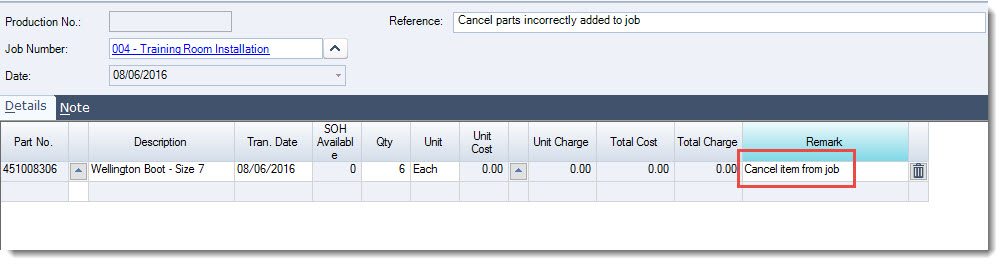
You will notice that the unit cost is zero that is because we have not selected the cost to be cancelled from the job as yet
Click on the lookup icon next to to the Unit Cost field to bring up the Job Costing - Cost Allocation window
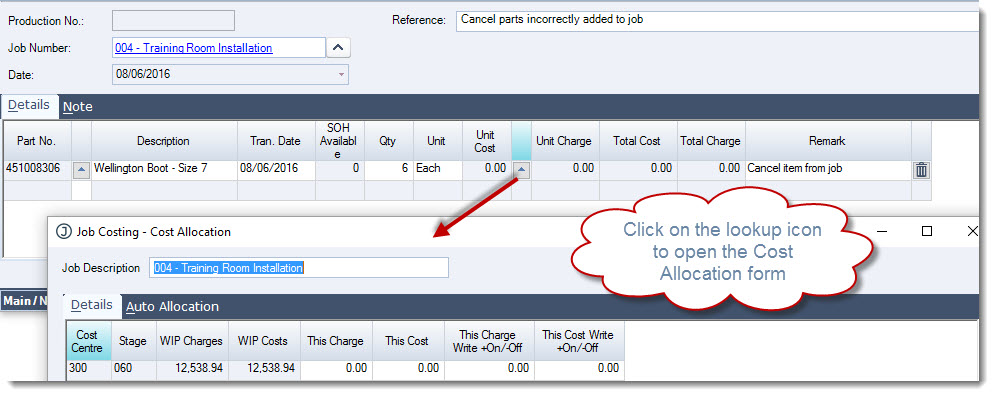
The cost allocation form displays all the cost on the job and what is still sitting in WIP
Locate the line that needs to be cancelled and enter the cost value in both the This Charge and This Cost field
In this example all 6 units are being cancelled from the job however if only 3 units were to be cancelled from the job then the cost value needs to be set to reflect only 3 units
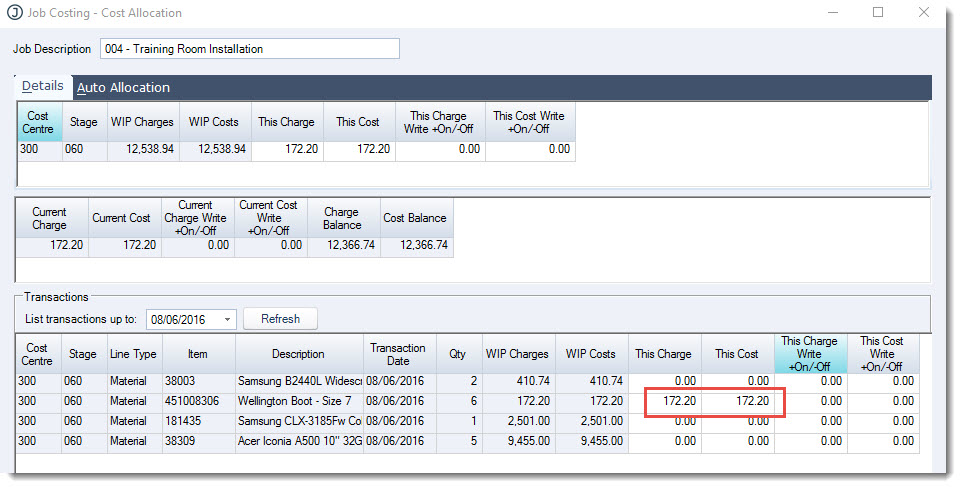
When you have selected the costs to be cancelled click on the OK icon to return to the batch entry form
The batch is now updated with the applicable cost
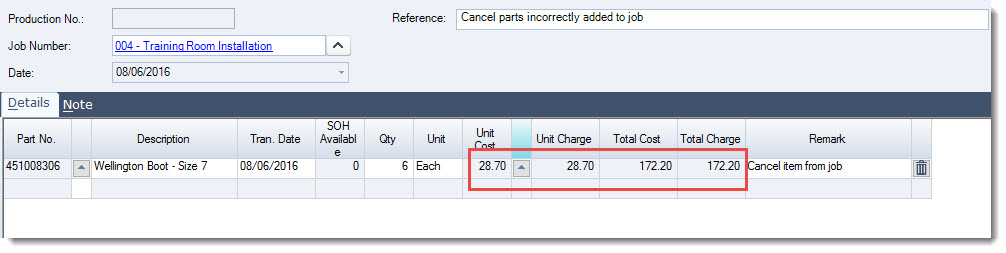
Save and Activate your batch
Reviewing Job Transactions
Back at the job we can see the cancelled line in the Transaction tab
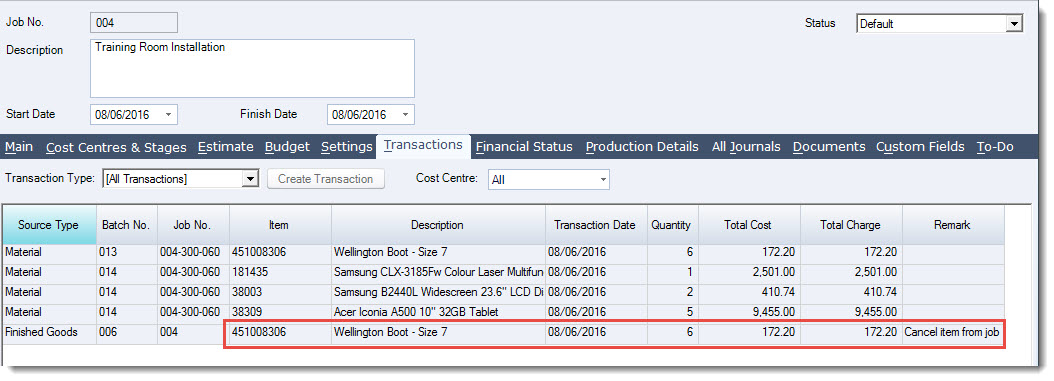
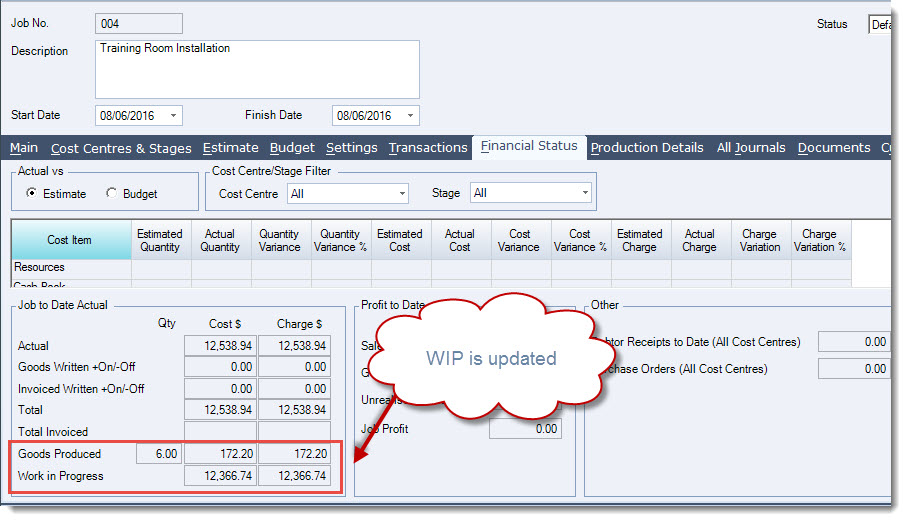
On the Financial Status tab the Work in Progress value is also updated
Stock Ledger
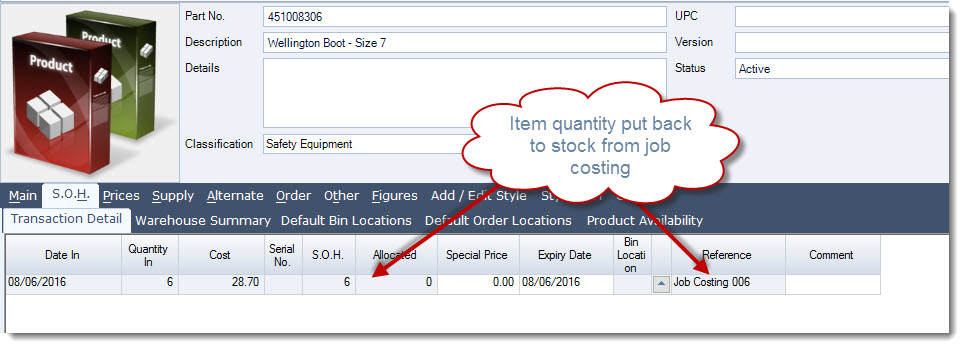
Stock is now returned to the stock ledger at the correct cost.