When using AppStream, any files you upload must first be placed into the Temporary Files folder before they can be accessed within Jiwa.
In this article, we’ll walk through how to upload documents into Jiwa via AppStream.
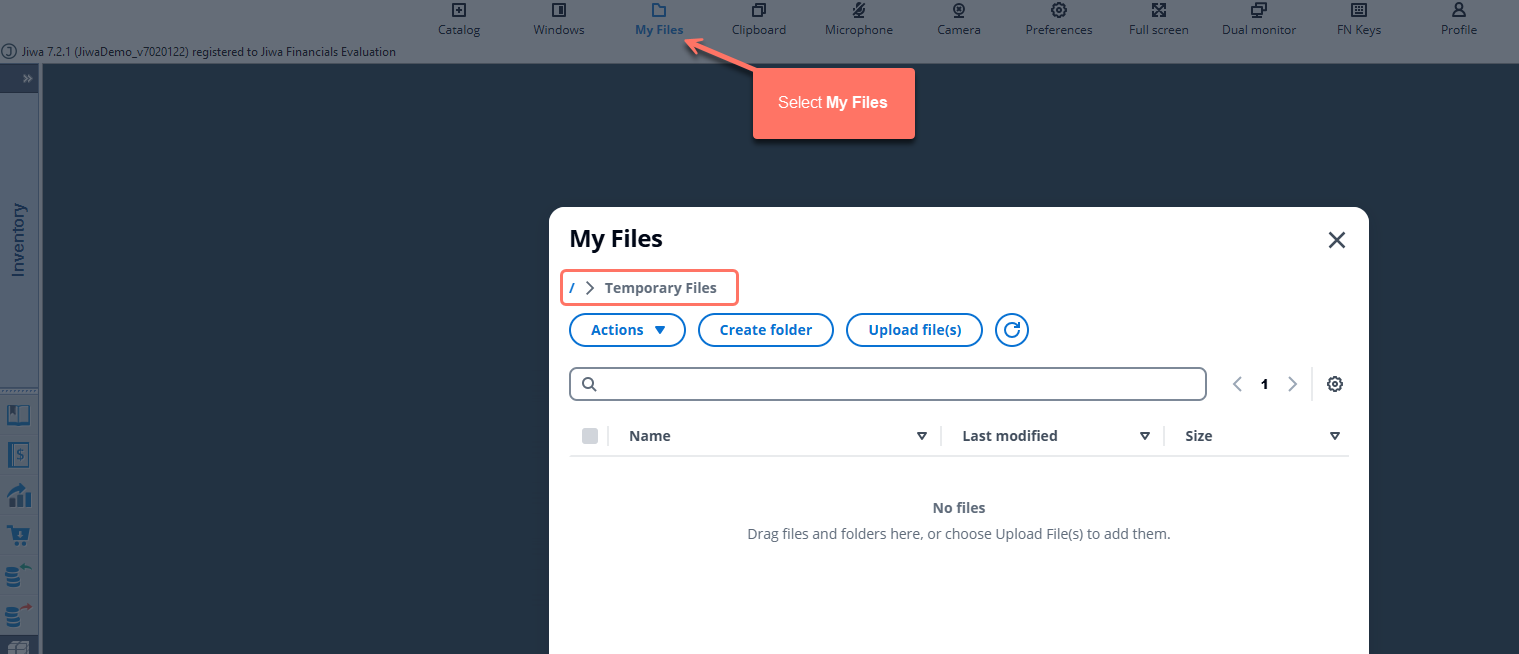
From the AppStream menu, select My Files > Temporary Files
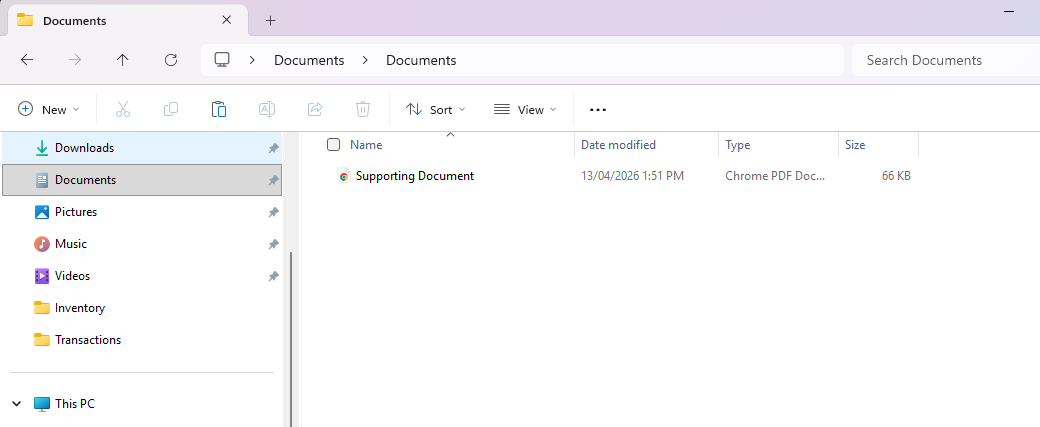
Open the location of the document on your local workstation
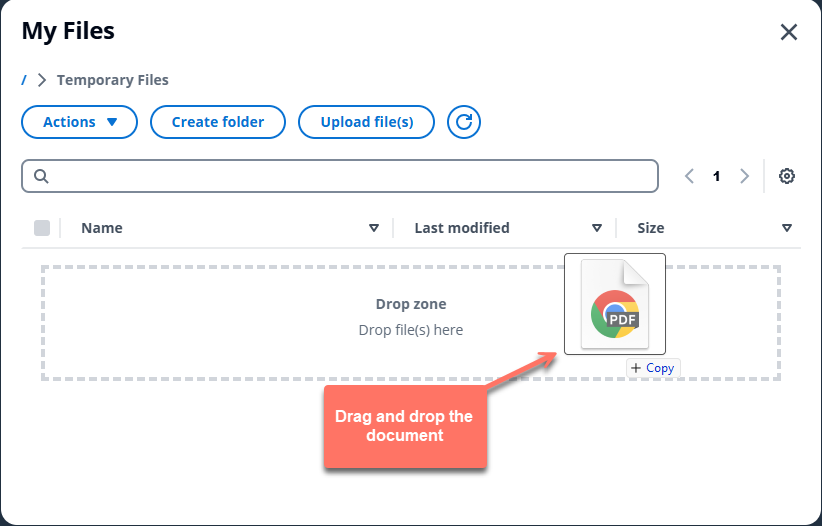
Drag and drop the file into the Temporary Files folder within AppStream.
Once uploaded the file will appear in the Temporary Files folder. Press exit.
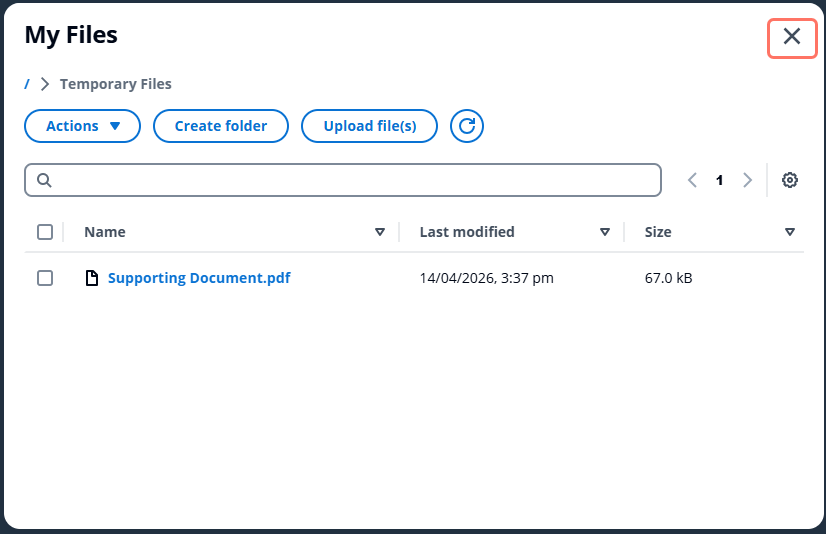
AppStream Temporary Folder
Documents saved to the temporary folder are cleared when you exit out of AppStream.
This folder cannot be used for storing files.
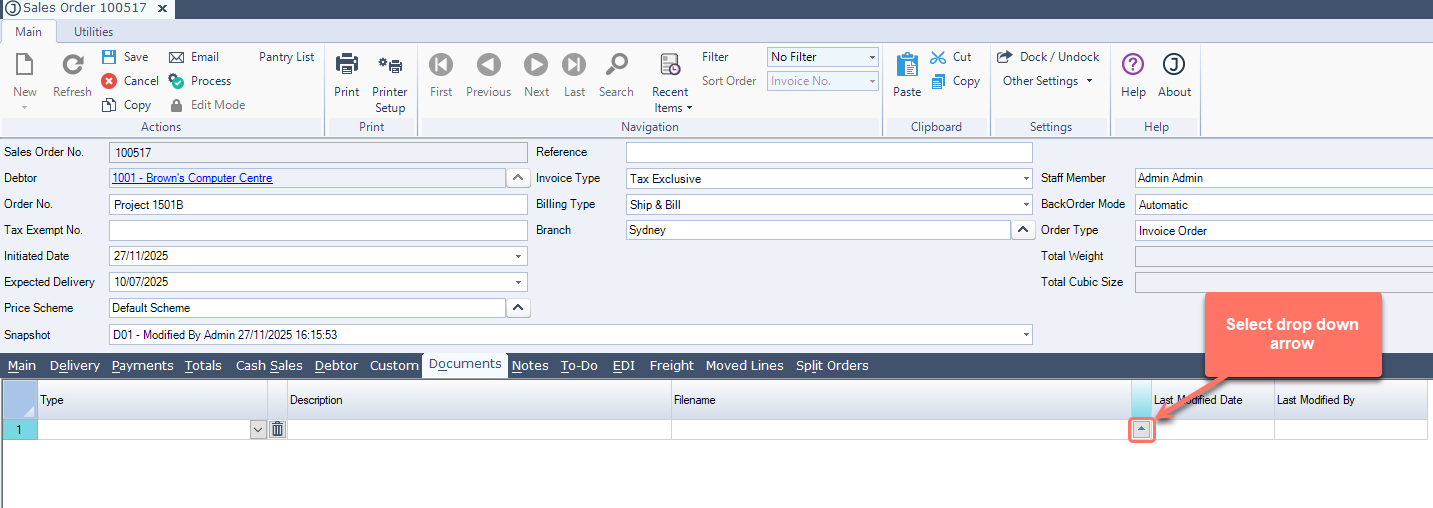
Navigate to the relevant form in Jiwa where the document needs to be attached.
Go to the Documents tab.
In the Filename field, click the dropdown arrow.
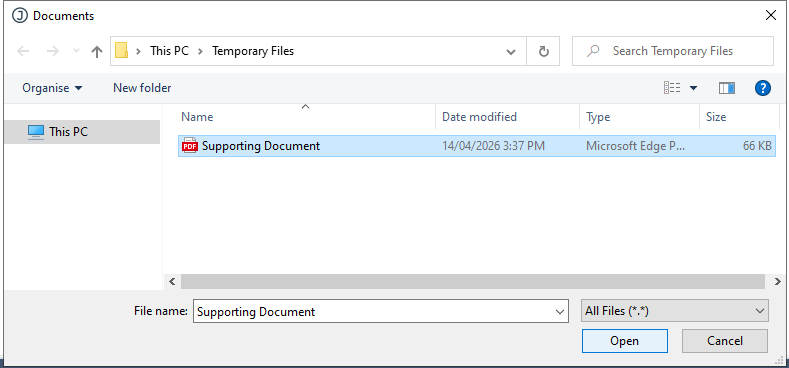
Select the document from the Temporary Files list.
Press Save
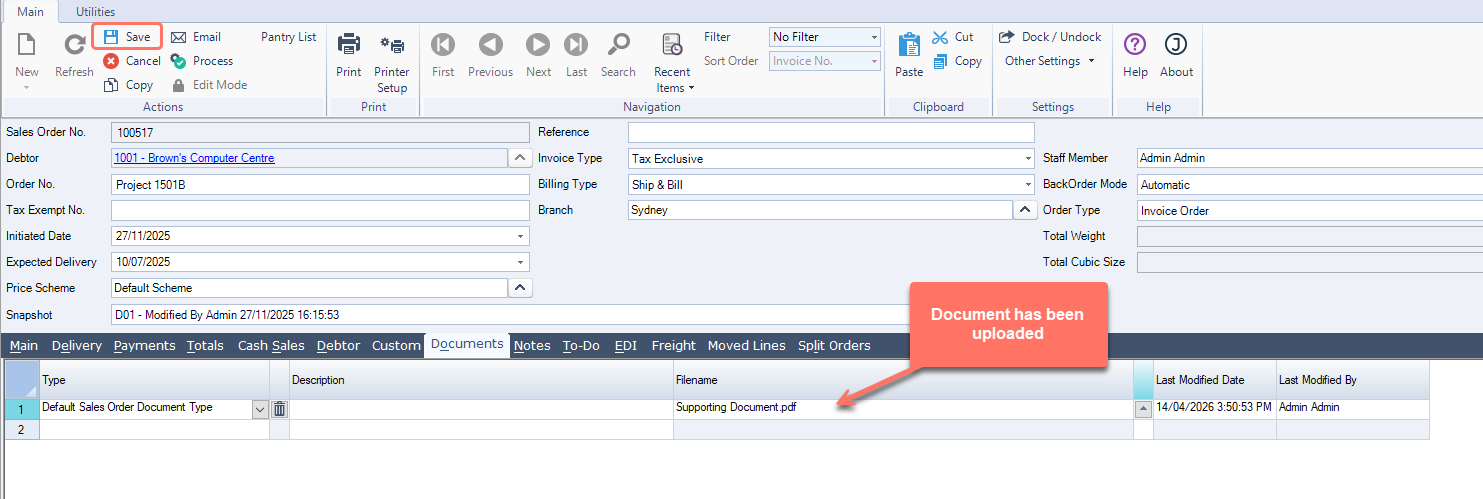
The document has been uploaded successfully.