
In this article we look at the Period Roll Over process in Jiwa 7.
Before proceeding we recommend that you have in place an end of month check list that details the steps required in completing all month end tasks.
If you do not have a check list already we have created a generic Jiwa End of Month Check List that can be used as the basis for your own check list.
Overview
The Period Roll Over process in Jiwa ages Debtor and Creditor balances by one period for the statement period types that have been selected for processing.
This process also ages out fully allocated transactions. What this means is that the transactions are locked and therefore cannot be unallocated.
The period roll over process must be completed in the new period, for example the January period roll over must be completed in February. If you attempt to roll over January in January your Debtor and Creditor balances will not be aged correctly.
NOTE: If you have allocated receipts and payments in the new period (month) these should not be activated until after the Period Roll Over process has been run to ensure that these new period transactions are not aged out.
Period Roll Over
The Period Roll Over option from the default Jiwa menu is available from System Settings | Roll-Over | Period Roll-Over.
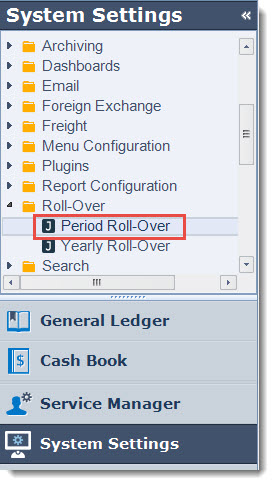
This will activate the Period Roll Over form
General Options

The Period Rollover Date will default to the users current login date, and represents the date that the period roll over process is run. This date can be left at the default.
Only Recalculate Balances - this option is used to recalculate aged balances as displayed on the Debtor / Creditor Maintenance Financials tab. When this option is checked transactions are not aged.
Debtor and Creditor Options
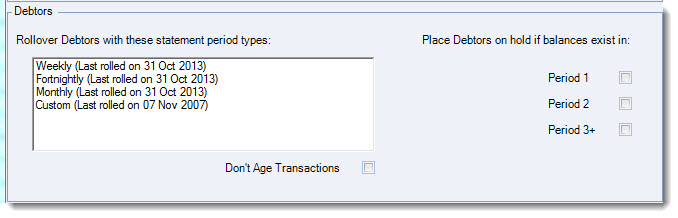
Debtors in Jiwa can be assigned different statement period types which have the following period parameters;
-
Weekly - Sunday to Saturday,
-
Fornightly - Sunday to the following Saturday week,
-
Monthly - Calendar month, and
-
Custom - Determined by system setting (Debtors only)
Each period type in use therefore will need to be rolled.
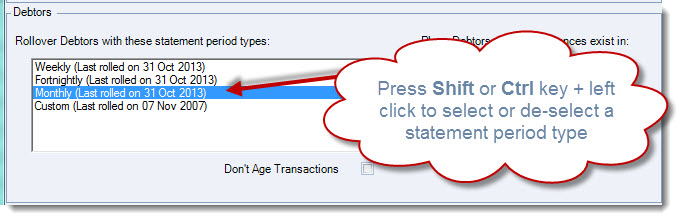
To select or deselect a period type press the Shift or Ctrl button on your key board and left click on the required period type.
The selected period type will be highlighted as shown in the example below.
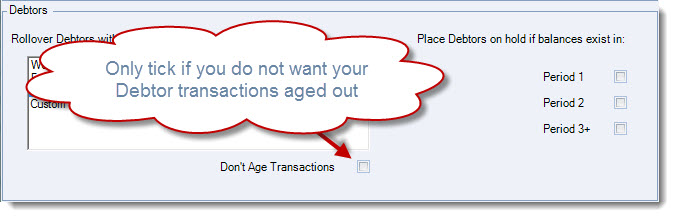
If you do not want to age out your transactions tick the option Don't Age Transactions
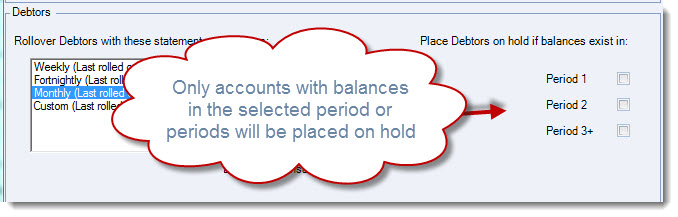
Debtors can be automatically placed on hold if balances exist in any of the periods selected to be placed on hold.
Rolling Over
Once you have select the statement period types to roll over,
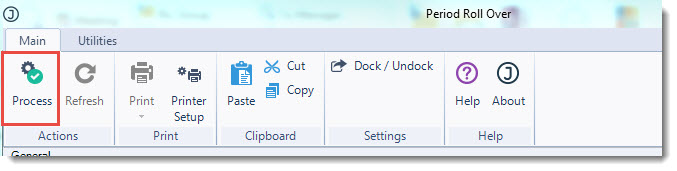
From the menu ribbon select Process
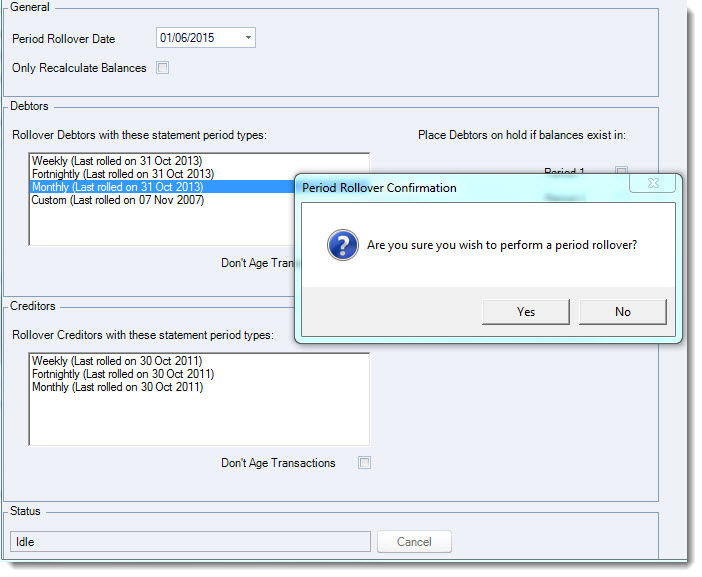
The Period Rollover Confirmation popup will appear select Yes if you are ready to roll over.
The status bar displays when the roll over process have been completed.
