
Reversing a General Ledger journal is used when an existing Journal Set needs to be reversed rather than manually entered again with opposite debit and credit postings.
This article explains how to use the Reverse option on Journal Sets in Jiwa. The Reverse option can be used to create accrual journals that reverse in a selected period or on a selected date, or to reverse an incorrect General Journal entry.
Where a transaction has been created from another Jiwa module, the reversal should be completed from the original source ledger or module wherever possible. This helps ensure that the related sub-ledger, transaction history, and General Ledger postings remain aligned.
Important
Only Journal Sets with a source of Local should be reversed using the Reverse option on the Journal Set form.
Accrual Journals
Create your GL journal as normal.
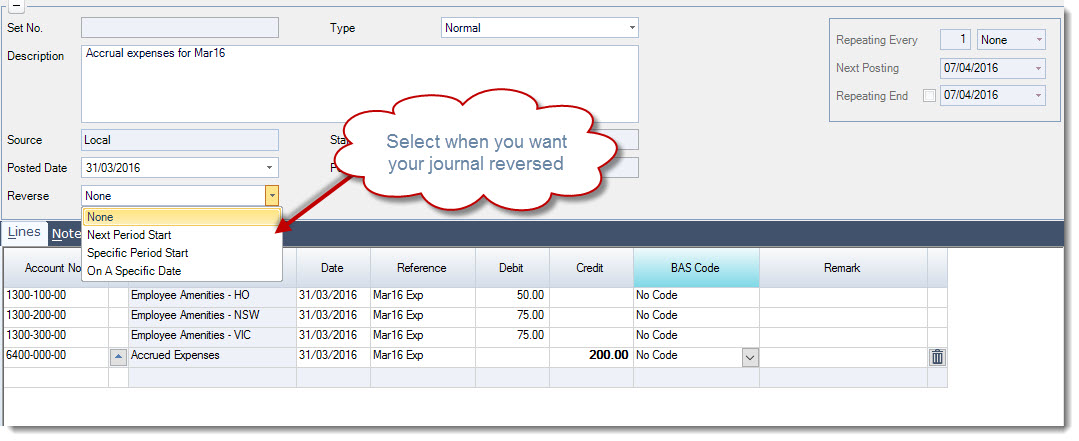
Prior to saving the journal set ensure that you set the Reverse option by selecting when you want the accrual reversed, the following options are available;
-
Next Period Start,
-
Specific Period Start, and
-
On a Specific Date
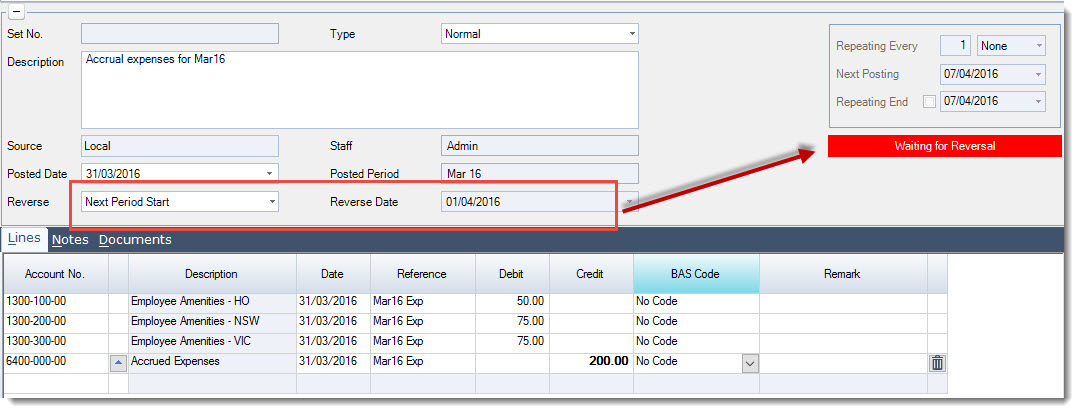
The journal set is updated with the status of Waiting for Reversal
When you have completed your accrual journal select Save from the menu ribbon to save your accrual.

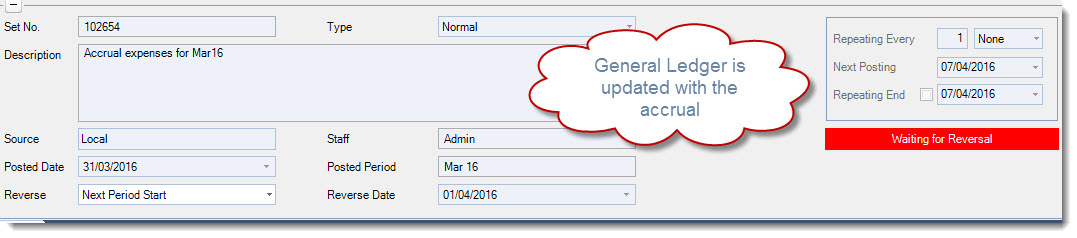
The General Ledger is updated and the journal set is locked from further editing. The reversal is still waiting to be processed.
Processing Reversals
The reversal entry is then posted to the General Ledger using the Automatic Journals form.
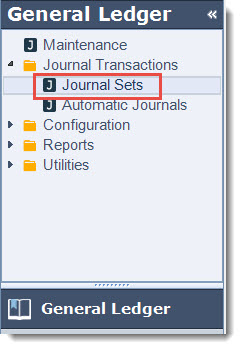
From the menu select General Ledger | Journal Transactions | Automatic Journals
From the menu ribbon select New to create a new batch

The automatic journal grid is populated with all journals that are due to be posted, this is based on the current system date.
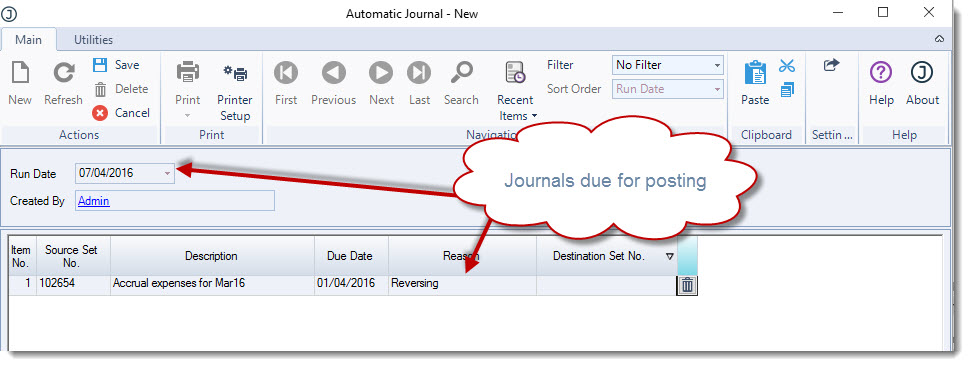
To post your reversing journal/(s) select Save from the menu ribbon.
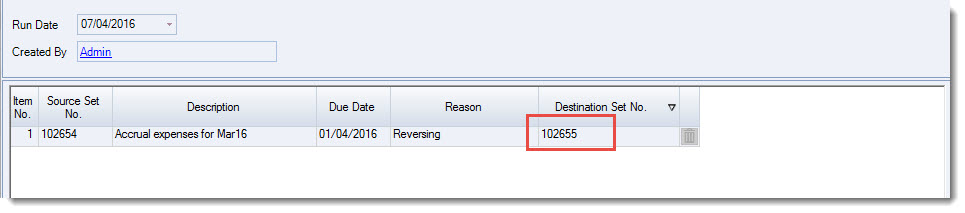
Once the batch is posted to the General Ledger the Destination Set No field is updated with the reversing journal set number.
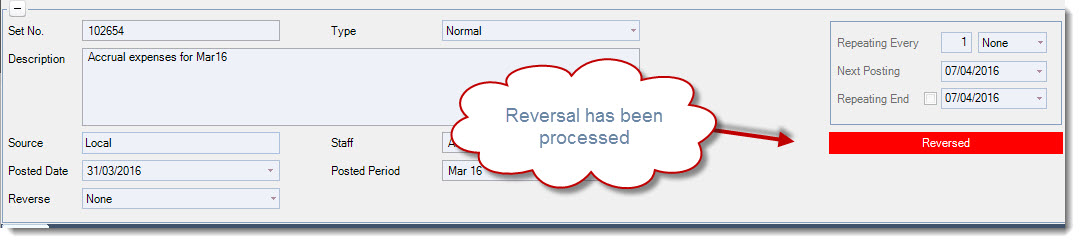
The originating journal set is also updated indicating that the reversal has now been processed.
Reversing Incorrect Journals
Before proceeding it is important to note that only journal sets with the source type of Local should be reversed using this method all other journals must be reversed from the source ledger.
Reversing a journal set that was generated from a sub ledger will result in variances between the sub ledger and control accounts in the General Ledger.
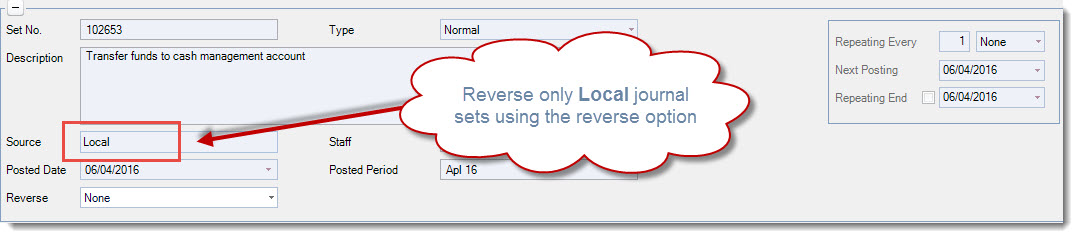
Load the incorrect journal set into the Journal Set form, confirm that the source is Local.
Select the Reverse option On A Specific Date this will allow you to set the date you want the journal set reversed
From the menu ribbon select Save and then process your reversal using the Automatic Journals form as per the instruction's above.