In this article we will be looking at how to create a new Debtor/Customer account in Jiwa. From the Debtors menu select Maintenance

From the menu ribbon select New to create a new Debtor (Customer) account.

Header Information
The header displays general information about your Debtor account.
The key fields to be completed are;
-
Name
-
Phone / Fax No.
-
Email
-
Classification, and
-
Trading Status
The Account No. field can be populated however if left blank Jiwa will automatically assign the next available account number when you save the record.

Field Definitions
|
Field |
Description |
|
Account No. |
User entered or system generated |
|
Name |
Name that will appear on quotes, sales orders, invoices and statements |
|
Phone / Fax No. |
Primary phone and fax number |
|
|
Primary email address this is the default email address that is used to email invoices and statements. Multiple email addresses can be entered into this field by using a semi colon (;) between each address |
|
BO Priority |
Back order priority given to the Debtor |
|
Alternate Account No. |
Manually entered alternate account number |
|
BPay Reference |
This is automatically generated using a BPay algorithm |
|
Tax Exempt No. |
This field should only be populated if your Debtor is exempt from GST. When the Invoicing system setting UseTaxExemption is enabled any data in this field will set the GST rate to zero for quotes and sales orders. |
|
Classification |
Select the classification the Debtor is to be linked to. Debtor classifications control the default General Ledger control accounts and trading terms that will be set against the Debtor record. |
|
Trading Status |
Select if the Debtor account is Active or Inactive. Inactive accounts do not appear on search screens nor can you create transactions against the accounts. |
Main Tab
The Main tab not only allows you to further categorise your Debtors it also contains sub tabs for you to maintain Debtor;
-
Contacts
-
Groups
-
Branch Debtors, and
-
EDI details
The key areas to be completed on this tab are;
-
Categories (if applicable)
-
Contacts
-
Groups
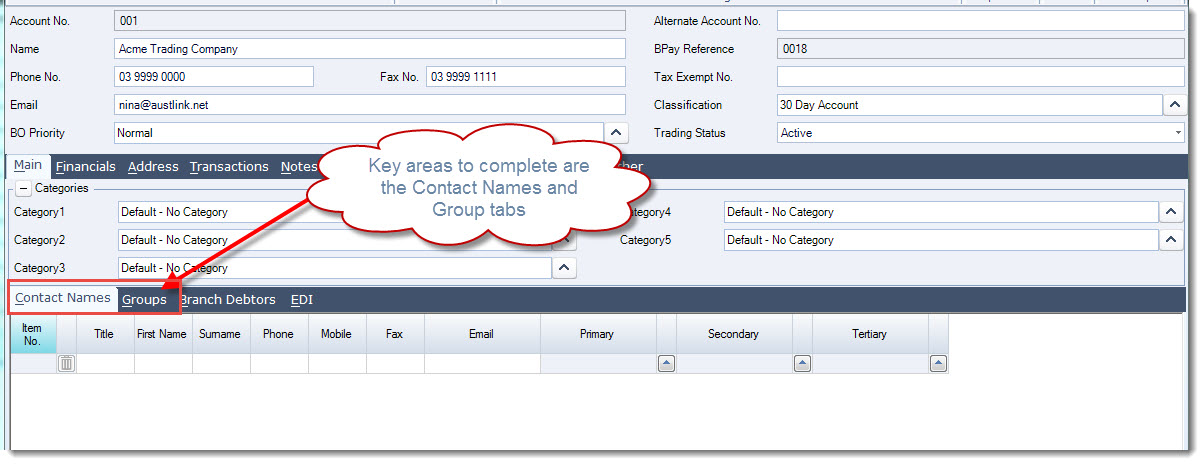
Field Definitions
|
Field |
Description |
|
Contact Names |
This tab is where the Debtors contact list is maintained. Mail-outs can be targeted to specific Debtor contacts based on contact positions |
|
Groups |
Debtor accounts can belong to multiple groups for custom reporting as well as emailing and printing of statements. A staff member is also associated with each group. |
|
Branch Debtors |
If this is a head office account you can list the branch accounts in this tab. Only Debtor accounts with the same financial periods as the head office account can be added as a branch account. |
|
EDI |
Display's EDI address and type if enabled |
Financial Tab
General
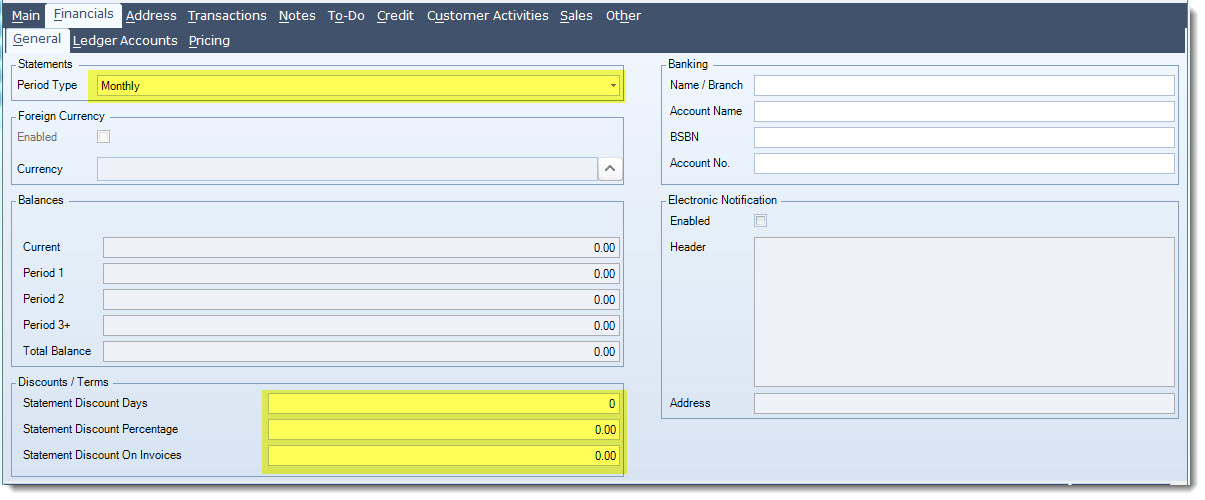
The General sub tab is where financial information relating to the Debtor account is maintained and viewed.
The key areas to be completed on this tab are;
-
Statements
-
Discounts / Terms
Field Definitions
|
Field |
Description |
|
Period Type |
Select the applicable statement frequency. Available options are Weekly, Fortnightly, Monthly and Custom |
|
Statement Discount Days / Percentage |
Settlement discount days from statement and percentage. These fields are currently not used by Jiwa and are only references as this stage, prompt payment discounts need to be applied manually when recording the payment in CashBook Receipts. |
|
Statement Discount on Invoices |
Standing discount on invoices Note: When using standing discounts you may not want other discounts applied to customers that have a standing discount in which case the Invoicing system setting Dont Apply Debtor Discounts should be enabled. Please discuss your requirements with your Jiwa Consultants before implementing this feature. |
|
Banking Details |
Banking details are only applicable if using Direct Debits |
|
Electronic Notification |
Currently these fields are not used by Jiwa. A custom plugin can be developed that will utilise these fields. |
Ledger Accounts
The Ledger Accounts tab lists all the General Ledger control accounts applicable to the Debtor account.
These are automatically set based on the classification that the Debtor is linked to and can be overridden if required.
The configuration of your Jiwa database will dictate which control accounts are actually used by Jiwa.
Pricing
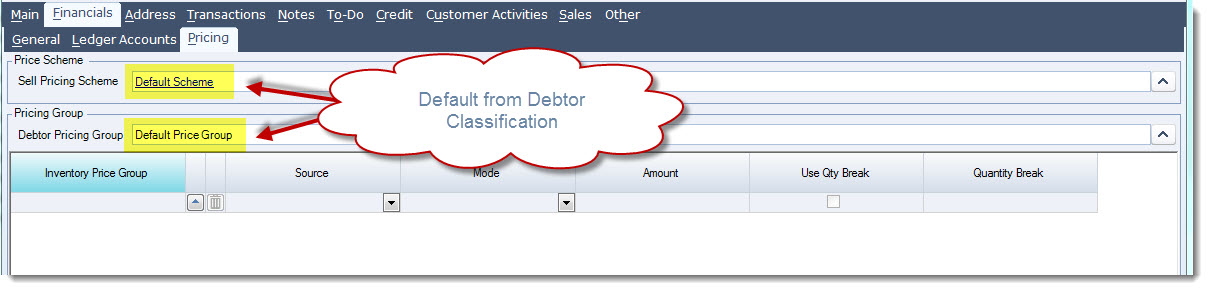
The Pricing tab is where pricing information is maintained on the Debtor account. The Price Scheme and Pricing Group is automatically set based on the classification that is linked to the Debtor account and can be overridden if required.
Address Tab
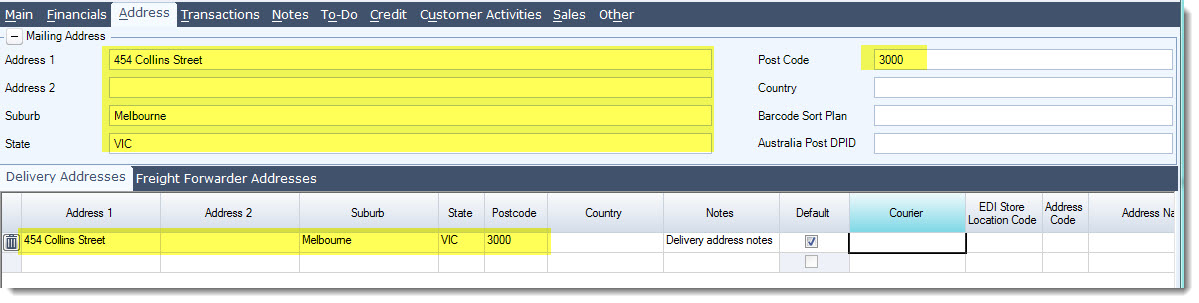
The address tab is where the Debtors primary mailing address and various delivery addresses are maintained.
The mailing address by default is used on all quotes, invoices and statements whereas the selected delivery address is used in picking slips and delivery dockets.
The key areas to complete here are;
-
Mailing Address
-
Delivery Addresses
Credit Tab
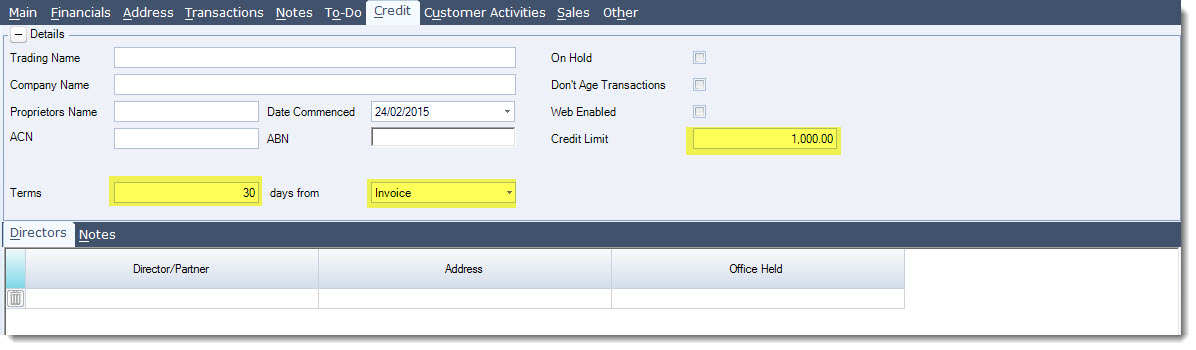
The Credit tab maintains all the credit information relating to the Debtor account.
The key fields to be completed on this tab are;
-
Terms
-
Credit Limit
Field Definitions
|
Field |
Description |
|
Trading Name |
This field holds the registered Debtor trading name and is not mandatory |
|
Company Name |
This field holds the registered Debtor company name and is not mandatory |
|
Proprietors Name |
Business owner |
|
Date Commenced |
This field is automatically populated with the login date when the record is saved, it can be manually overridden if required |
|
ACN |
Australian Company Number |
|
ABN |
Australian Business Number |
|
Terms |
These fields are automatically populated from the classification assigned to the Debtor but can be changed if required |
|
On Hold |
Account can be placed on hold automatically through the Period Roll-Over process or manually. When an account is on hold you will not be able to save Invoice or Activate orders. Reserve orders can be saved if the system setting AllowSaveToReserveWhenDebtorOnHold has been enabled. |
|
Don't Age Transactions |
When enabled allocated transactions are not aged out during the Period Roll-Over. When a transaction is not aged out allocations can be changed. |
|
Web Enabled |
When enabled allows Debtor to access 3rd party web applications. Login details are held and maintained in the Main | Contact Names tab. |
|
Credit Limit |
Debtors credit limit. The Invoicing system setting Use Zero Credit Limit controls if a credit limit of zero is treated as no credit or unlimited credit, please contact your Jiwa consultant for further details. |
Other Tabs on Debtor Maintenance
Transactions Tab
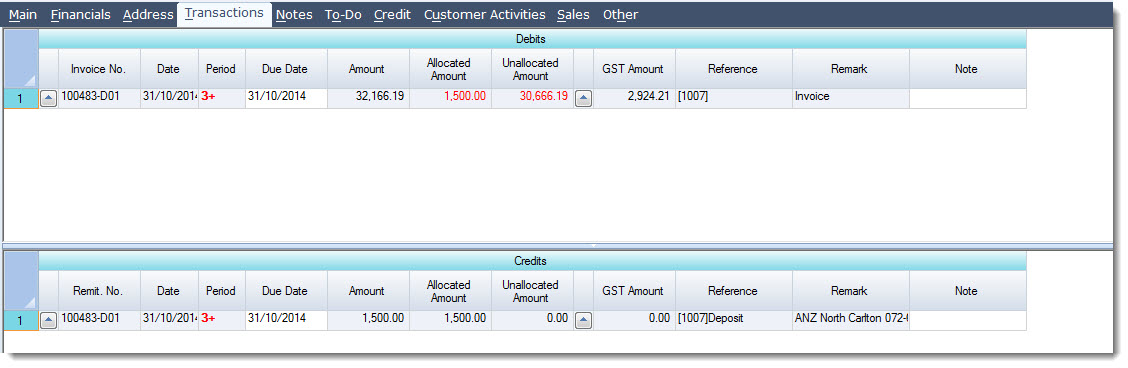
The transaction tab contains a full history of all transactions processed against the Debtors account. Allocations can be made and viewed from this tab also.
Notes Tab
Debtor communication and general comments can be added to the Debtor account in the Notes tab.

To-Do Tab
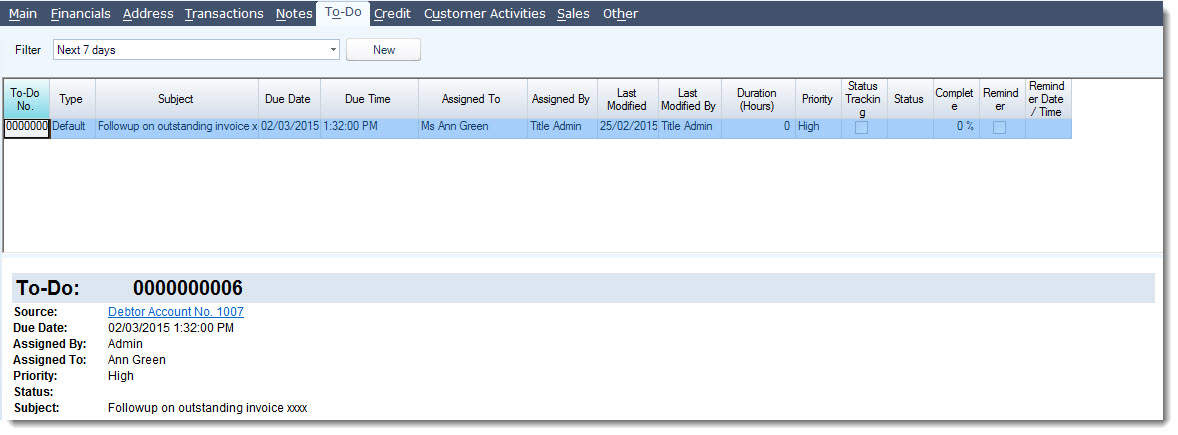
The To-Do tab display's all tasks that have been created for the selected Debtor account. New tasks can also be created from this tab.
Customer Activities Tab

Field Definitions
|
Field |
Description |
|
Back Orders |
Displays all back orders records that have been created from either saved or processed Active orders and processed Invoice Orders |
|
Unprocessed Sales |
This tab displays all items on unprocessed sales order snapshots. Only the current snapshot is displayed on this form |
|
Processed Sales |
This tab displays all the items on processed sales orders. |
|
Jobs |
This tab displays all jobs linked to the Debtor account |
|
Quotes |
This tab displays all quotes that have been created for the Debtor |
|
Debtor Systems |
This tab allows you to create and maintain details of equipment that has been sold to the Debtor. These systems can be attached to Server Manager jobs so that service maintenance records can be maintained against each system. |
|
Service Jobs |
This tab lists all service jobs that have been created against for the Debtor |
|
BackOrder Fulfillments |
This tab not only displays all back order records but also if any of the back orders can be filled on an incoming purchase order. |
Note: With the exception of Debtor Systems the data displayed in each of the sub tabs under Customer Activities can be modified, please contact your Jiwa Consultant for further details on how the grids can be modified to meet with your specific requirements.
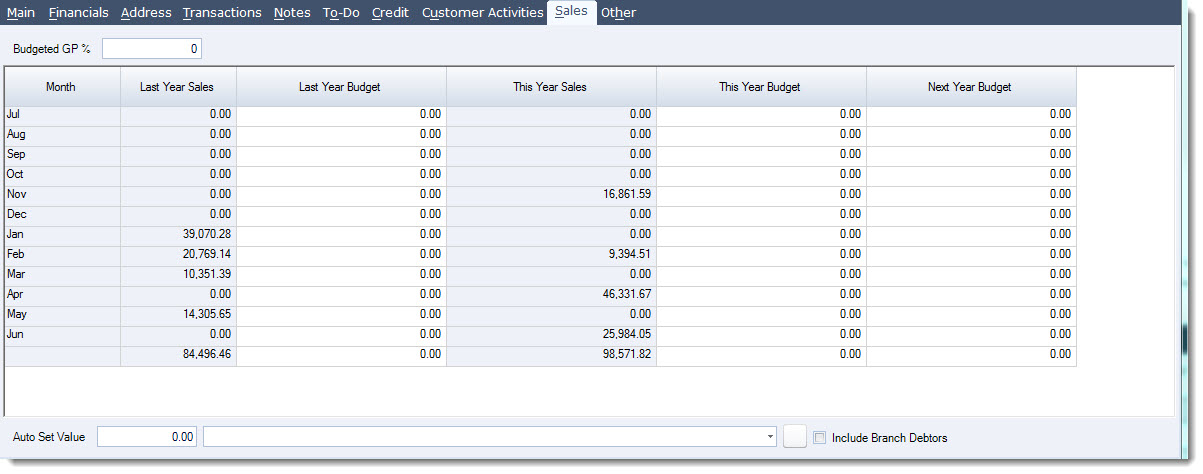
Sales Tab
The Sales tab displays the sales and budget details for Last Year, Current Year and Next Year.
Other Tab

Field Definitions
|
Field |
Description |
|
Documents |
This tab contains all documents and emails that have been attached to the Debtor account |
|
Debtor Part Numbers |
This tab allows you to maintain Debtor part numbers for your inventory items. When using the select query Debtor Part Number in the Inventory Search form then only part numbers allocated to the Debtor will be displayed when in the quote and sales order entry forms. |
|
Custom Fields |
This tab displays all Debtor custom fields that have been added to your database |
|
Web Browser |
This tab is controlled through a plugin, when implemented the tab will display the customers webpage |
|
Freight |
This tab is used to maintain the freight carrier details for the Debtor. Only applicable with integrations to Freight Forwarder systems. |
This video is best seen on the full screen. Just click on the icon at the bottom right of the video (see image below). To exit full screen just press escape