In this article we will be looking at the key details required in order to create a new Creditor record in Jiwa.
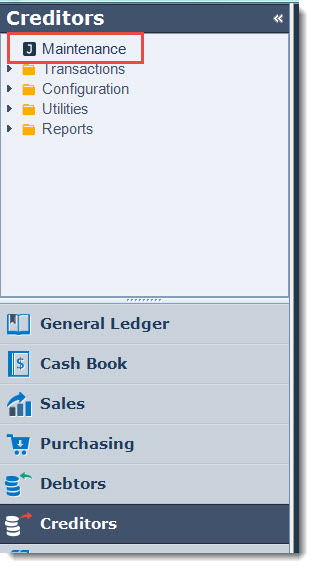
From the menu select Creditors | Maintenance
From the menu ribbon select New to create a new Creditor (Supplier) account.

Header Information
The header displays general information about your Creditor account. The key fields to be completed are;
-
Name
-
Phone / Fax No.
-
Email
-
Classification, and
-
Trading Status
The Account No. field can be populated however if left blank Jiwa will automatically assign the next available account number when you save the record.

Field Definitions
|
Field |
Description |
|
Account No. |
User entered or system generated |
|
Name |
Name that will appear on purchase orders and creditor remittance advice |
|
Phone / Fax No. |
Primary phone and fax number |
|
|
Primary email address this is the default email address that is used to email purchase orders and creditor remittances. Multiple email addresses can be entered into this field by using a semi colon (;) between each address |
|
Alternate Account No. |
Manually entered alternate account number |
|
Classification |
Select the classification the Creditor is to be linked to. Creditor classifications control the default General Ledger control accounts and trading terms that will be set against the Creditor record. |
|
Trading Status |
Select if the Creditor account is Active or Inactive. Inactive accounts do not appear on search screens nor can you create transactions against the accounts. |
Main Tab
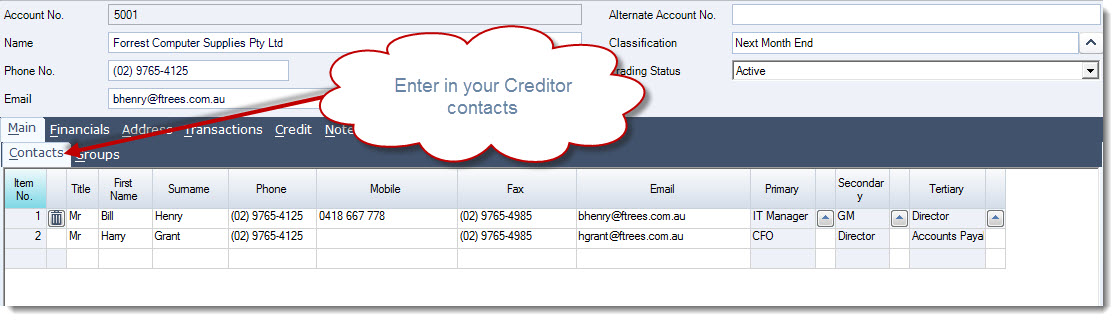
The Main tab is where your Creditor Contacts and Groups are maintained.
The key area to be completed on this tab is Contacts.
|
Tab |
Description |
|
Contact Names |
This tab is where the Creditors contact list is maintained. |
|
Groups |
Creditor accounts can belong to multiple groups for custom reporting |
Financial Tab
General
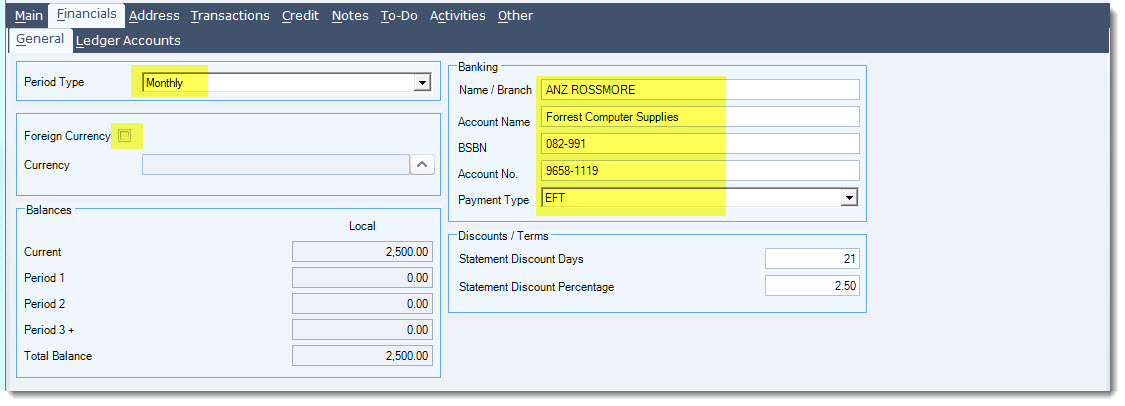
The General sub tab is where financial information relating to the Creditor account is maintained and viewed.
The key areas to be completed on this tab are;
-
Period Type
-
Foreign Currency (only applicable for FX Creditors)
-
Banking details
Field Definitions
|
Field |
Description |
|
Period Type |
Select the applicable statement frequency. Available options are Weekly, Fortnightly, Monthly and Custom |
|
Foreign Currency |
Tick only if the creditor is a foreign currency creditor and the applicable currency |
|
Banking |
Creditors banking details, these details are also used by the Export EFT Batch to ABA File plugin that creates your ABA file through the EFT/Cheque Payments form. |
|
Discount / Terms |
Applicable prompt payment discounts. These fields are currently not used by Jiwa and are only reference fields. |
Ledger Accounts
The Ledger Accounts tab lists all the General Ledger control accounts applicable to the Creditor account. These are automatically set based on the classification that the Creditor is linked to and can be overridden if required. The configuration of your Jiwa database will dictate which control accounts are actually used by Jiwa.
Address Tab
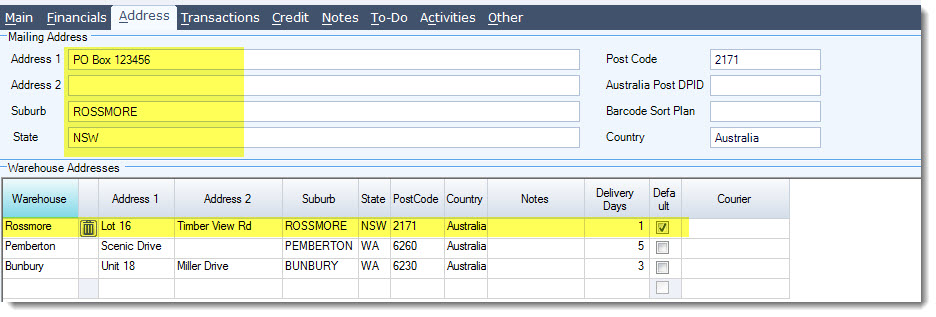
The address tab is where the Creditors primary mailing address and various warehouse addresses are maintained. The mailing address by default is used on purchase orders and creditor remittances.
The key areas to complete here are;
-
Mailing Address
-
Warehouse Addresses
Credit Tab
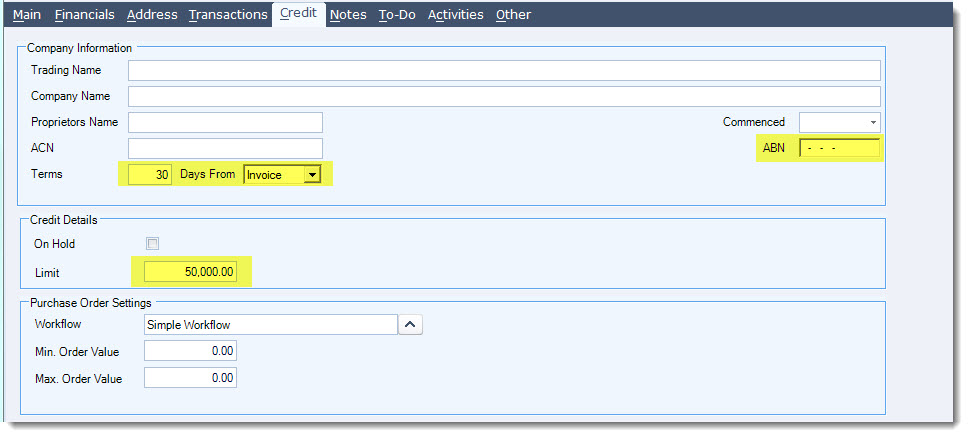
The Credit tab maintains all the credit information relating to the Creditor account.
The key fields to be completed on this tab are;
-
Terms
-
ACN / ABN
-
Credit Details
Field Definitions
|
Field |
Description |
|
Trading Name |
This field holds the registered Creditor trading name and is not mandatory |
|
Company Name |
This field holds the registered Creditor company name and is not mandatory |
|
Proprietors Name |
Business owner |
|
Date Commenced |
This field is automatically populated with the login date when the record is saved, it can be manually overridden if required |
|
ACN |
Australian Company Number |
|
ABN |
Australian Business Number |
|
Terms |
These fields are automatically populated from the classification assigned to the Creditor but can be changed if required |
|
On Hold |
This flag is currently not used by Jiwa it is only used for reference purposes at this stage. |
|
Limit |
Credit limit. This is a reference only and not used by Jiwa |
|
Workflow |
This field is automatically populated from the classification assigned to the Creditor but can be changed if required. This workflow will be applied to all purchase orders created for this Creditor however this can be changed on individual purchase orders if required. Workflows control the purchasing process in Jiwa and can be customised. Please contact your Jiwa Consultant to discuss your specific requirements. Standard Jiwa comes with the following workflows;
|
|
Min Order Value |
The minimum purchase order value that can be placed with the Creditor. Minimum order value warning popup will appear on save and when changing the status on a purchase order under this value, Jiwa will allow you to save the order |
|
Max Order Value |
The maximum purchase order value that can be placed with the Creditor. Maximum order value warning popup will appear on save and when changing the status on a purchase order over this value, Jiwa will allow you to save the order |
Other Tabs on Creditor Maintenance
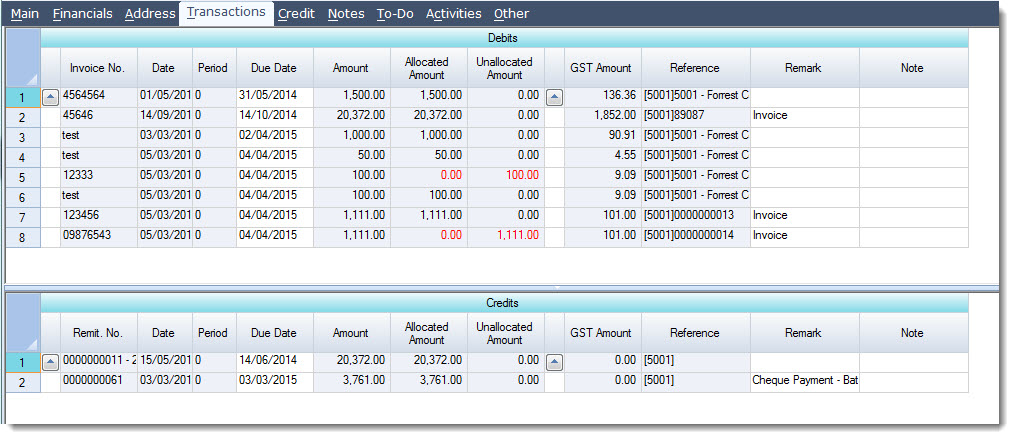
Transactions Tab
The transaction tab contains a full history of all transactions processed against the Creditors account. Allocations can be made and viewed from this tab also.
Notes Tab
Creditor communication and general comments can be added to the Creditor account in the Notes tab.

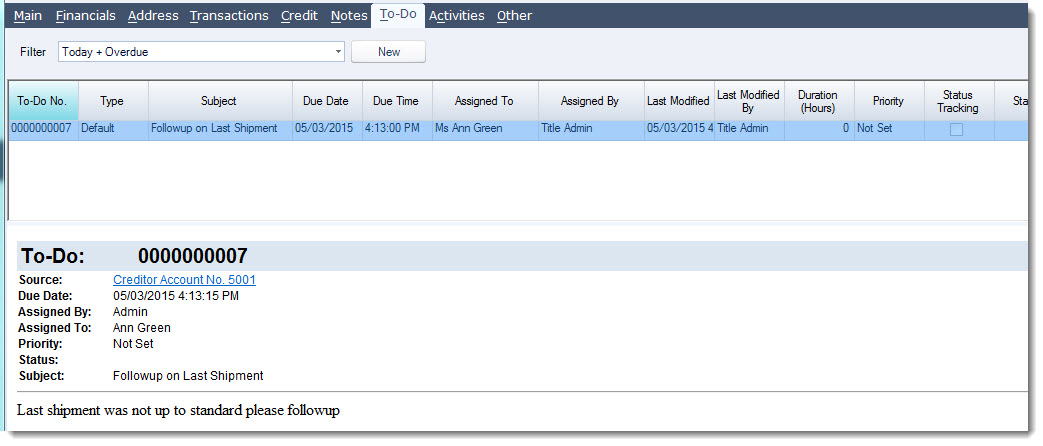
To-Do Tab
The To-Do tab display's all tasks that have been created for the selected Creditor account. New tasks can also be created from this tab.
Activities Tab

|
Tab |
Description |
|
Unprocessed Orders |
This tab displays all physical and non-physical inventory items on purchase orders with a status of Not Sent |
|
Processed Sales |
This tab displays all physical and non-physical inventory items on purchase orders where the status does not equal not sent |
|
Invoiced Orders |
This tab displays activated purchase and shipment invoices, import cost and VOTI invoices are excluded from this grid. |
Note: The grid data displayed in each of the sub tabs under Activities can be customised to meet your specific viewing requirements.
Please contact your Jiwa Consultant to discuss your requirements in detail.
Other Tab

|
Tab |
Description |
|
Documents |
This tab contains all documents and emails that have been attached to the Creditor account |
|
Custom Fields |
This tab displays all Creditor custom fields that have been added to your database |
|
Web Browser |
This tab is controlled through a plugin, when implemented the tab will display the suppliers webpage |
This video is best seen on the full screen. Just click on the icon at the bottom right of the video (see image below). To exit full screen just press escape