
Applies to: Jiwa 8.0.
Requirements: Debtor Maintenance, with permission to edit the debtor account.
When setting up a debtor account for a customer who trades in a foreign currency (FX), select the currency they normally use as the default.
A customer can trade in multiple currencies, but setting their usual currency helps new sales orders start with the correct default.
Review the relevant tax settings separately: trading in a foreign currency does not automatically make a sale tax-free.
Before you begin
-
Start with an existing debtor account. If it has not been created, follow Creating Debtor Accounts first. The steps below cover the additional currency and relevant tax settings, not general account creation.
-
Ensure the required currency is available in the currency lookup. If it is missing, ask your Opal Logic Jiwa Consultant to check the currency setup before continuing.
-
Confirm the currency the customer normally uses and the tax treatment required for their sales.
Set the debtor account's default currency
-
Go to Debtors > Maintenance.
-
Search for and open the debtor account.
-
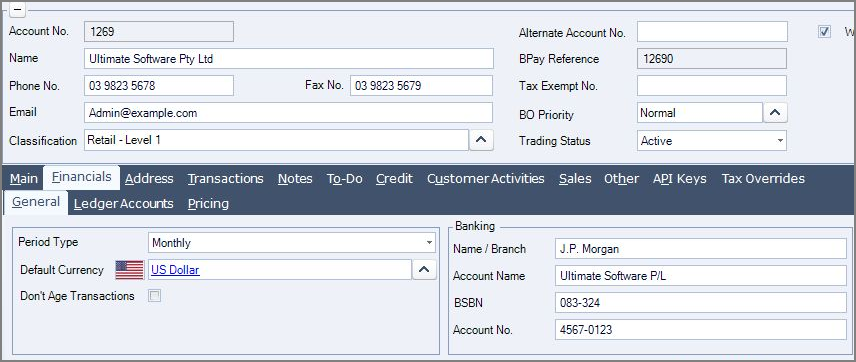
Select Financials > General.
-
Use the Default Currency lookup to select the customer's usual currency.
-
From the menu ribbon, select the Save button.
When Default Currency is blank, Jiwa uses the database's local currency. This is AUD only where Australian dollars are configured as the local currency.
To change the default, repeat the steps above and select a different currency.
Clear the default currency
-
Right-click Default Currency.
-
Select Clear.
-
Select Main > Actions > Save.
New sales orders will use the database's local currency by default.
A customer can trade in more than one currency. You can change the currency on an individual sales order without changing the debtor account’s default. After changing an order’s currency, check the exchange rate, prices, tax and totals before processing it.
Review the debtor account's tax overrides
Important — check tax treatment and exemption settings
Foreign-currency sales are not automatically tax-free. Set an override only where it matches the customer's approved tax treatment.
If UseTaxExemption is enabled and the customer's Tax Exempt No. is set, Jiwa uses the first 0% rate in the tax group instead of the debtor's tax override. Ask your Opal Logic Jiwa Consultant to check these settings if the resulting rate is unexpected.
-
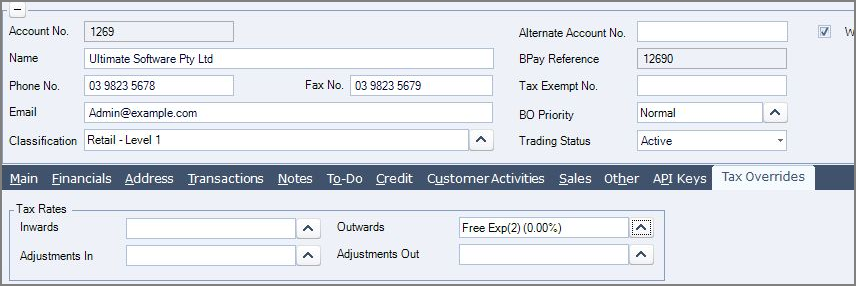
In the debtor account, select Tax Overrides.
-
In Tax Rates, review Outwards. This sets the default tax rate for sales orders and credit notes.
-
Select the appropriate tax rate using the lookup.
-
From the menu ribbon, select the Save button
These are defaults, not a substitute for checking the transaction. Tax rates can be changed on individual sales orders and quotes where appropriate.
Clear the tax override
-
Right-click the Outwards tax-rate lookup.
-
Select Clear.
-
From the menu ribbon, select the Save button.
Check the resulting tax rate on a new transaction before processing it.
Existing unprocessed sales orders
Changing or clearing the debtor account’s default currency or Outwards tax override does not change the currency or existing line tax rate on a saved, unprocessed sales order. Reopen any existing unprocessed sales orders and review those values separately. The new defaults apply when you create new sales orders.
Check the configuration
-
Reopen the debtor account and confirm the saved Default Currency and Tax Overrides values.
-
In your test database, create a new sales order for the customer.
-
Check the sales order's currency. It should match Default Currency, or the database's local currency if the field is blank.
-
Check the sales order's tax rates against the approved tax treatment, the Outwards override and any applicable tax-exemption setting before processing it.
-
If your workflow uses sales quotes or credit notes, test the relevant tax defaults on those document types as well.
View balances by currency
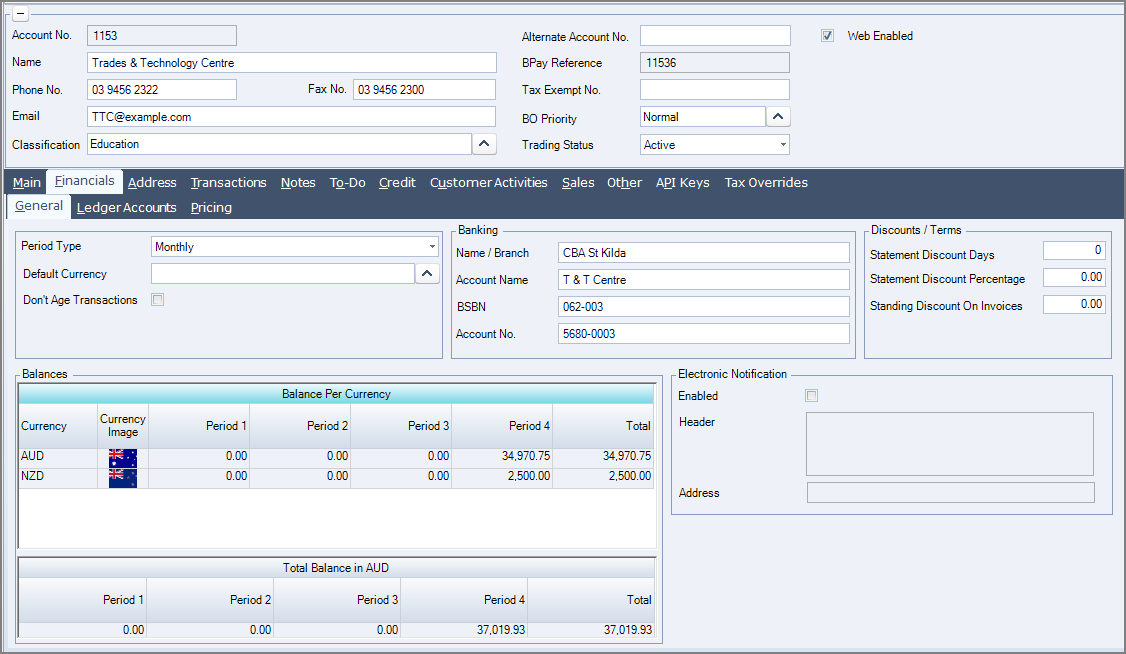
On Financials > General, the Balance Per Currency grid shows the debtor’s balances by currency and period. A debtor can have balances in several currencies, regardless of the account’s Default Currency.
The Total Balance in AUD grid shows the combined balances expressed in the database’s local currency. In this example, the local currency is AUD.
Video walkthrough
Related articles