Overview
Jiwa allows you to keep your inventory in multiple bin locations within a warehouse.
This is useful if:
-
You run a small warehouse and cannot have dedicated locations for individual stock items
-
You have bulk stock that is stored in once location in your warehouse and picking stock in another
By default Jiwa is set-up to only use a single location, in other words stock is receipted into and sold from the bin location that is set-up as the default bin location for the specific warehouse.
To enable multi bin management in Jiwa the following system settings need to be enabled, your Jiwa consultant can assist you with this.
-
System > ForceInventorySelect = Yes
-
Inventory > BinLocationMode = Change from Lookup
-
Inventory > GrabSOHFromDefaultBin = No
Warehouse Maintenance
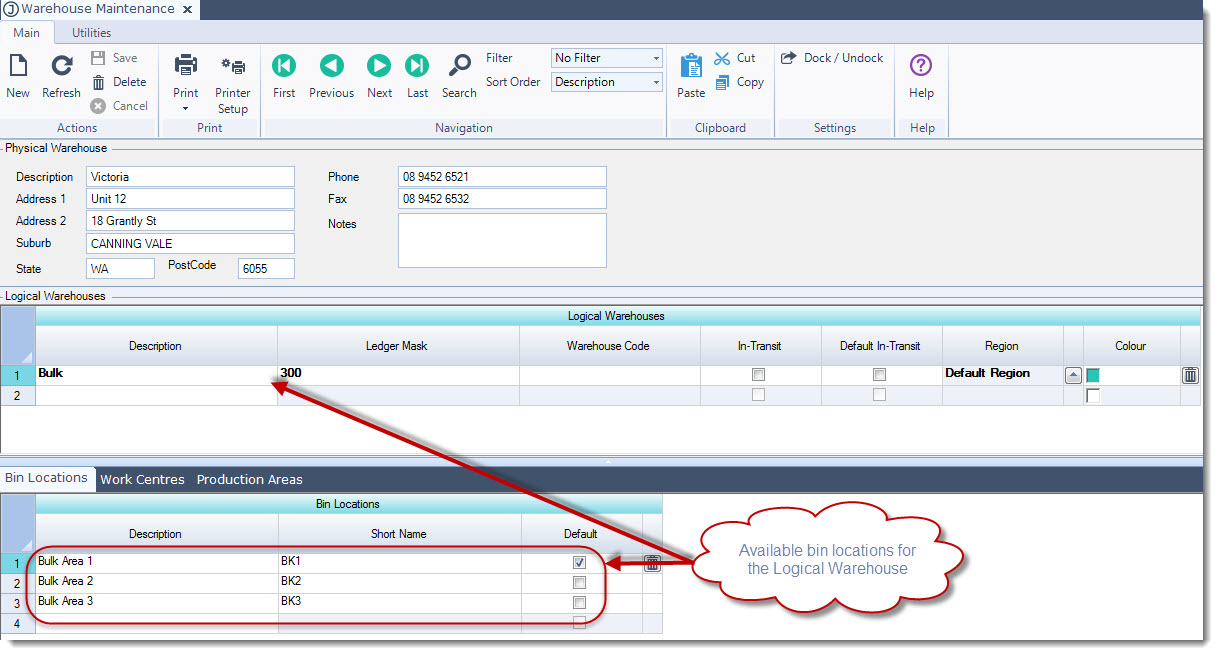
Ensure that you have the Warehouse bin locations set-up.
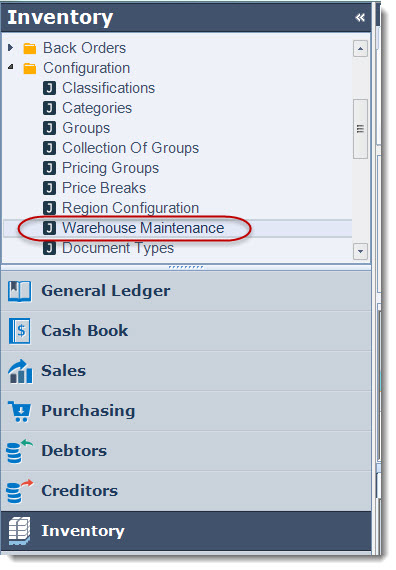
Select Inventory > Configuration > Warehouse Maintenance
Set the available Bin Locations in the Bin Locations area for each logical warehouse within each physical location. Ensure you select the default Bin
Inventory Maintenance
Once your bin locations have been set-up ensure that correct default bin location is assigned to each inventory item.
By default Jiwa will use the default bin location you have set against the logical warehouse
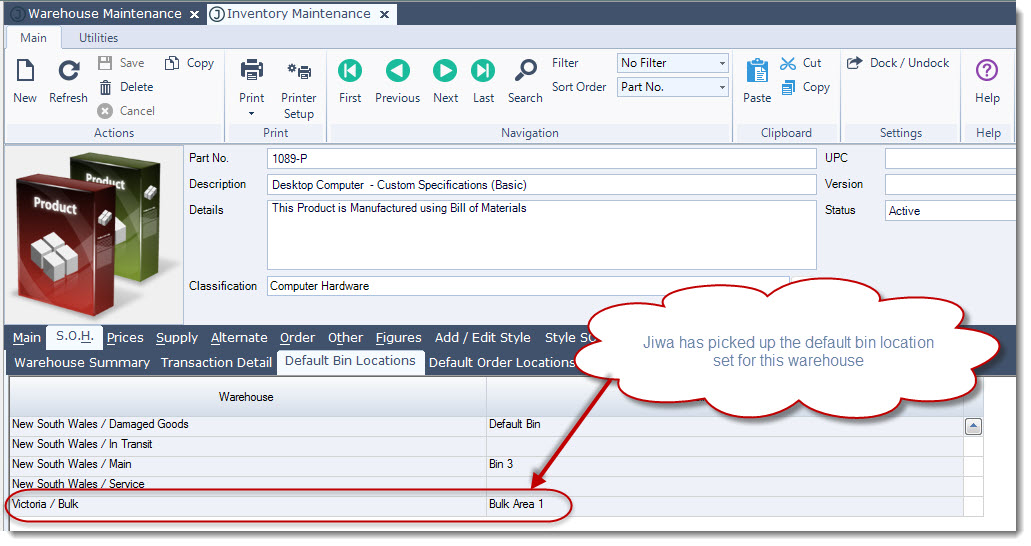
To change the bin location for this item click on the arrow icon next to the required warehouse to activate the Bin Search screen.
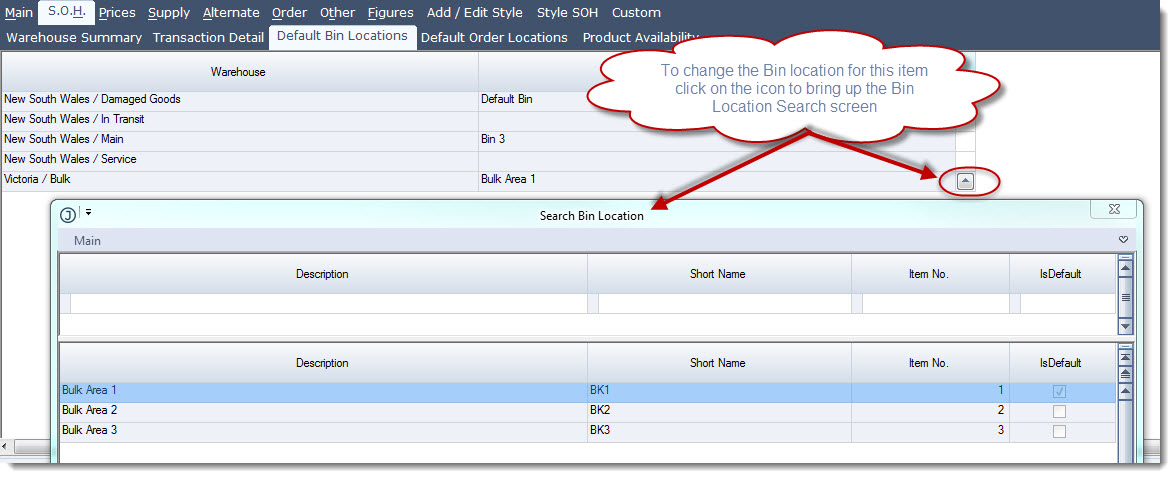
Double click on the required bin location to update your stock item then save the change.
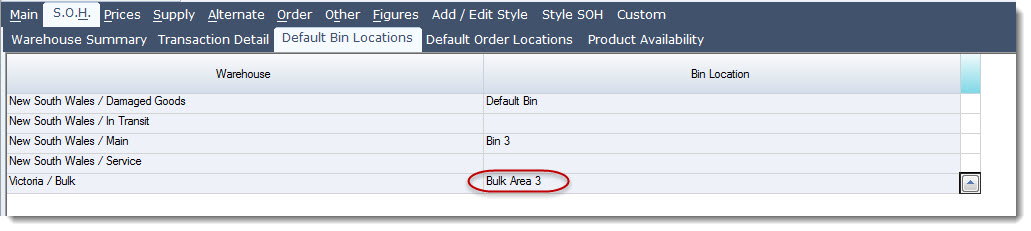
Receiving Stock
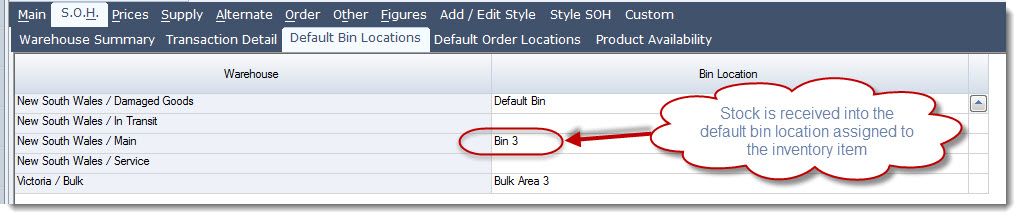
When receiving stock Jiwa assumes that the stock will be received into the bin location assigned to the inventory item.
To change the default bin location on the Goods Received Note or to split the quantity over multiple bins, double right click on the Qty This Del field.
This will bring up the Serial Number / Bin location popup.
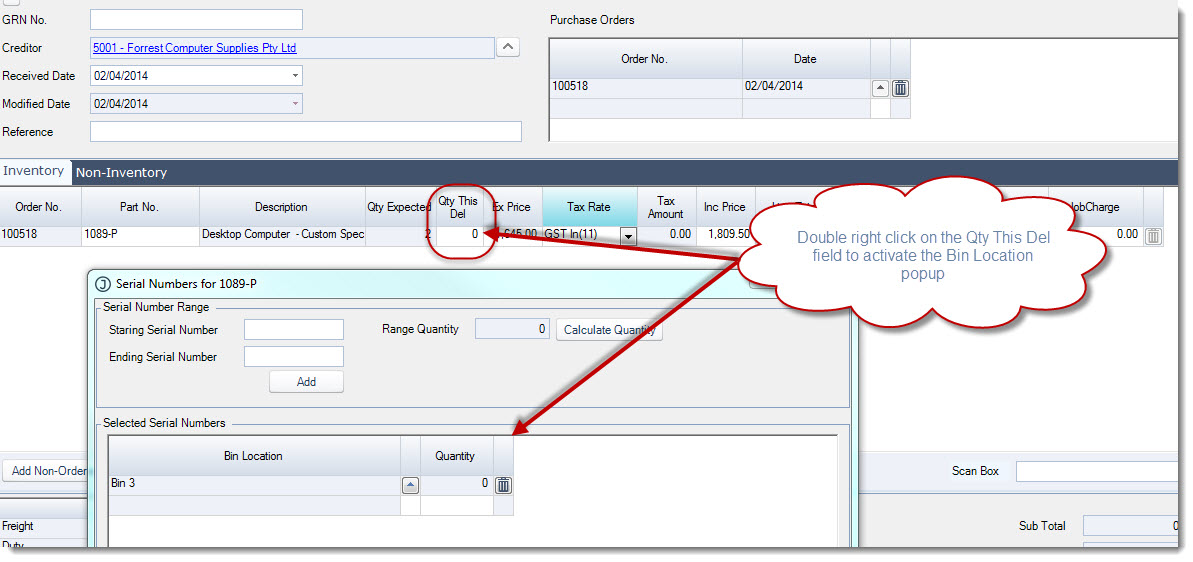
Enter in the Quantity received then bring up the bin location popup to select the bin you require.
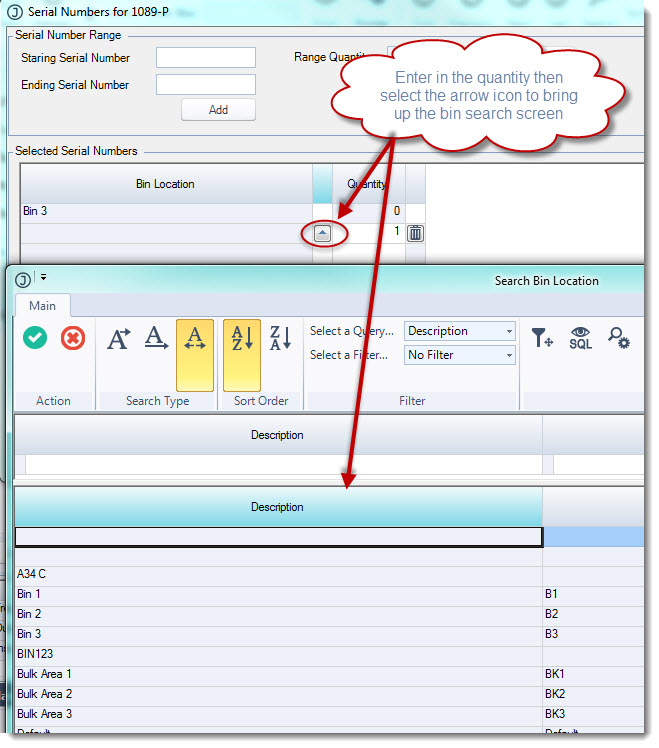
Repeat this process as required, then select OK to accept your changes.
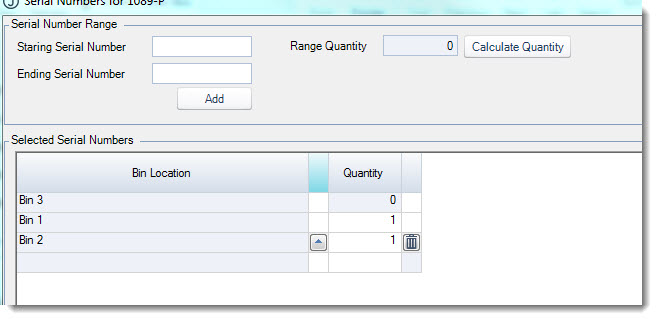
Once the receipt has been activated the bin locations cannot be changed.
The bin location receipt details are available from the Transaction Detail tab from Inventory Maintenance.

Stock Transfers
When processing stock transfers you will be required to select which location stock is being transferred from / to.
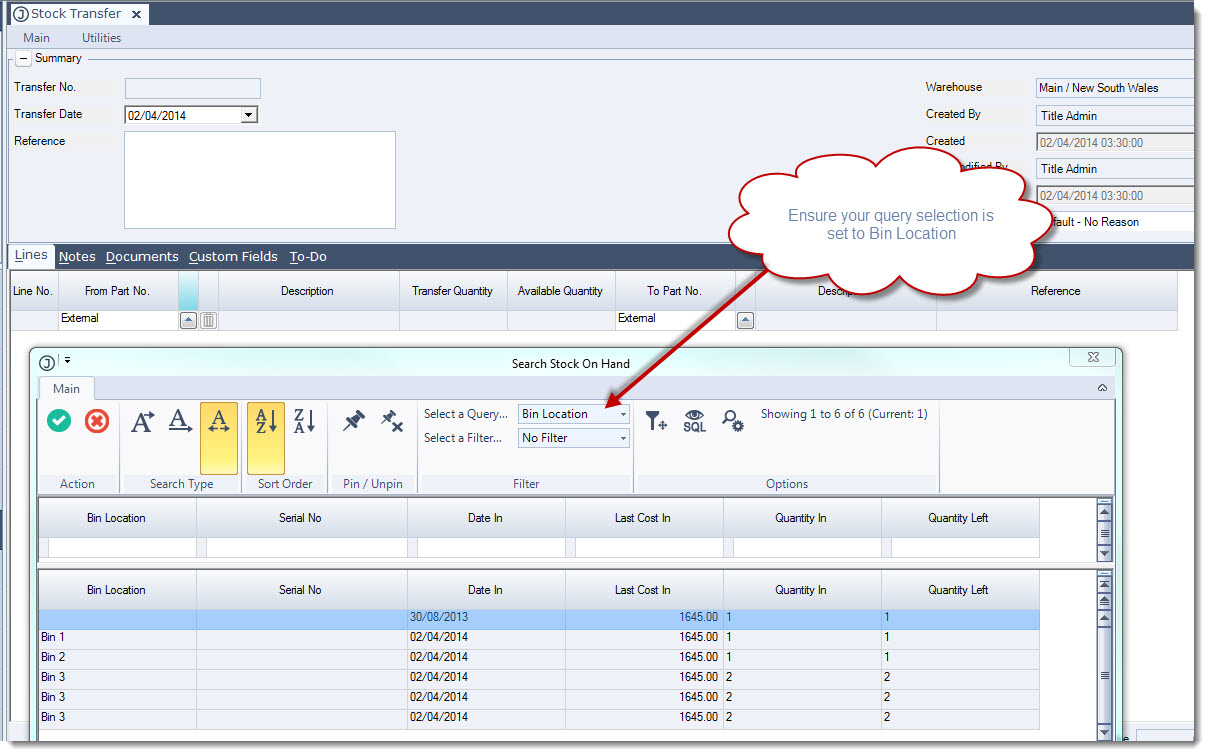
When in the stock transfer screen and the stock item is selected the Search Stock on Hand popup will appear.
Select the bin location you are transferring stock into / from
Sales Orders
When entering sales orders you will be asked which bin location the stock is be to selected from
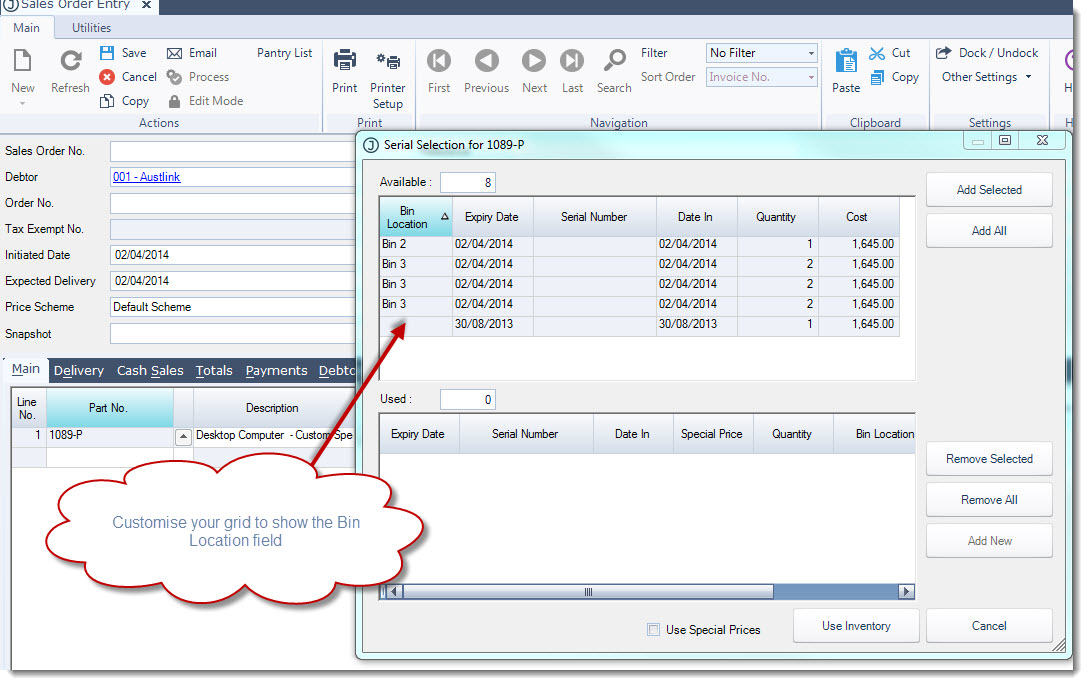
If a bin location is not selected at this stage the line will go to back order.
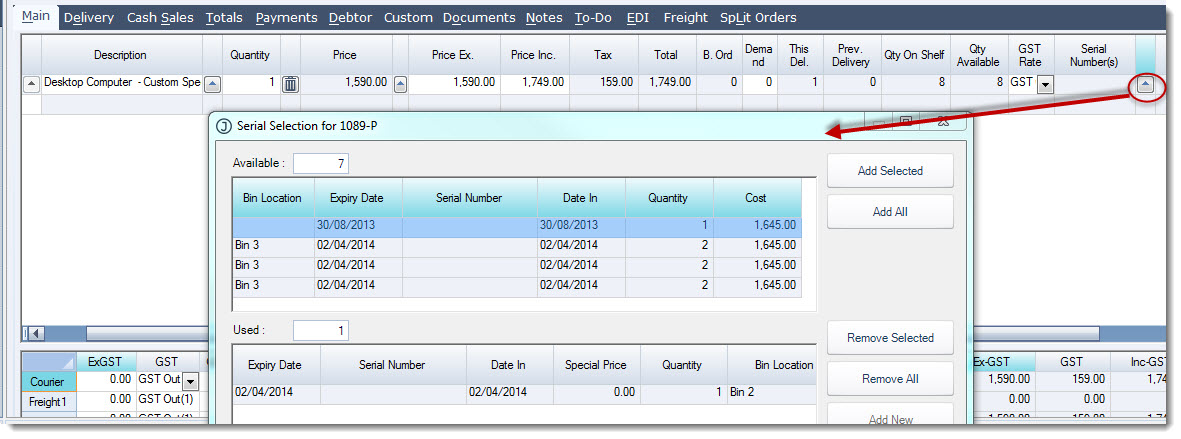
Prior to processing the order to invoice the bin location that this stock is being picked from can be change by clicking on the Serial Number Lookup icon