
Jiwa Service Manager - Credit Notes
Source title: Jiwa Service Manager - Credit Notes
Status: draft
Author: markian
Published: Fri, 06 May 2016 06:45:35 +0000
Original link: https://jiwatraining.com.au/?page_id=1300
In this article we look at how credit notes can be created through Service Manager using;
-
Customer Returns, and
-
Process Make Credit Note
Before proceeding please ensure that you have reviewed our article Jiwa Service Manager - Creating Service Jobs
Customer Returns
Customer returns are used when items are being returned that are either faulty or incorrect. A credit note is issued and the replacement parts are re-invoiced to the customer through the service job. Items listed in the Customer Returns tab will appear in the Failure of Product report.
Returning Parts & Labour
Bring up the service job that you wish to return parts and/or labour against. Select the applicable task that the return is to be entered against. Alternatively, you may create a task that is specific to the return. Click on the Customer Returns tab
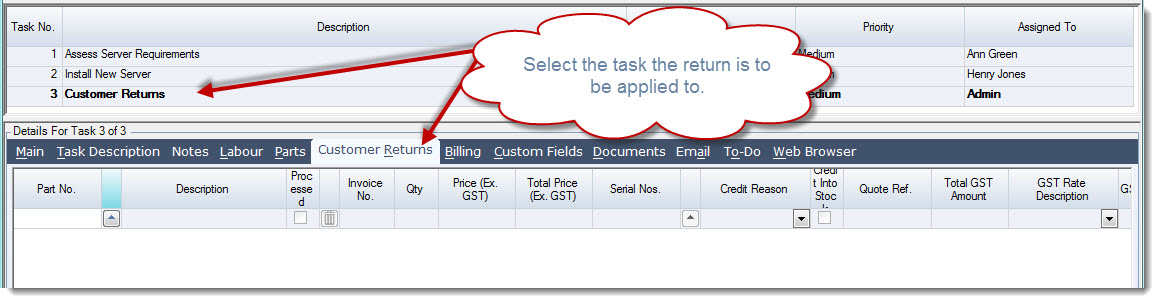
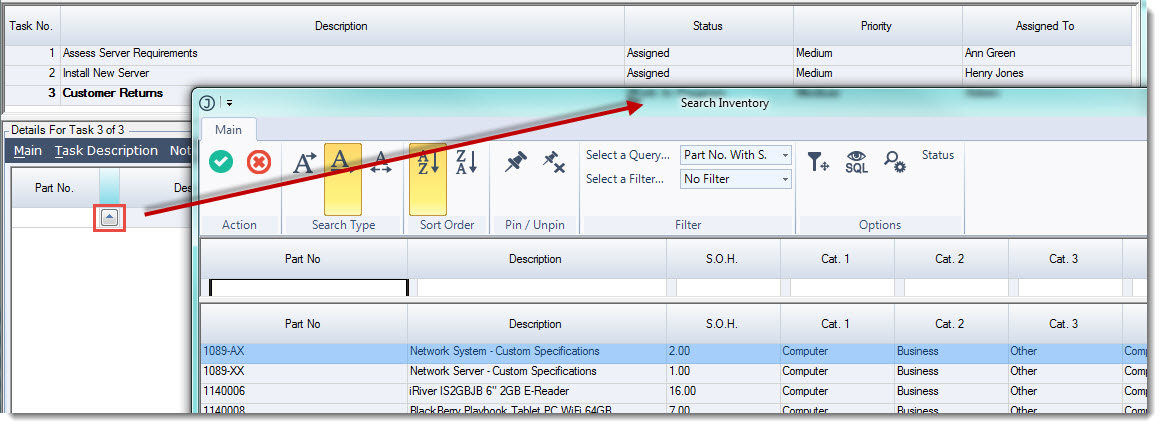
[MM_Member_Decision isMember='true'] Add the parts and or labour that is to be credited by clicking on the lookup icon next to the Part No. field.
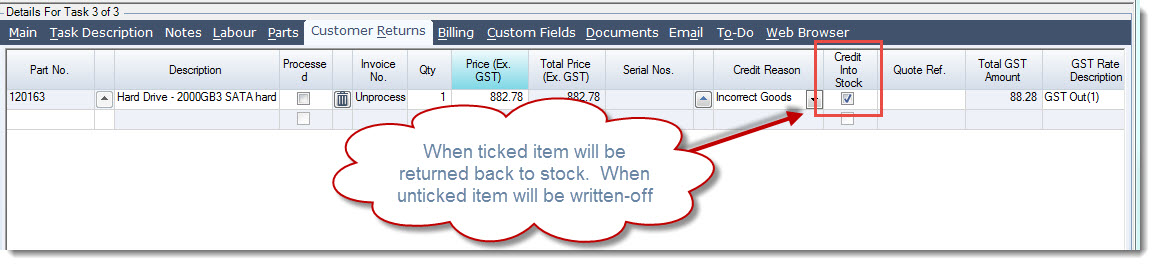
Enter in the Qty being returned and confirmed the unit price Price (Ex. GST)

Select the Credit Reason and confirm if the item is to be returned to stock or written off. Credit Into Stock when ticked will put the returned item back into stock on hand Credit Into Stock when unticked will not return the item to stock
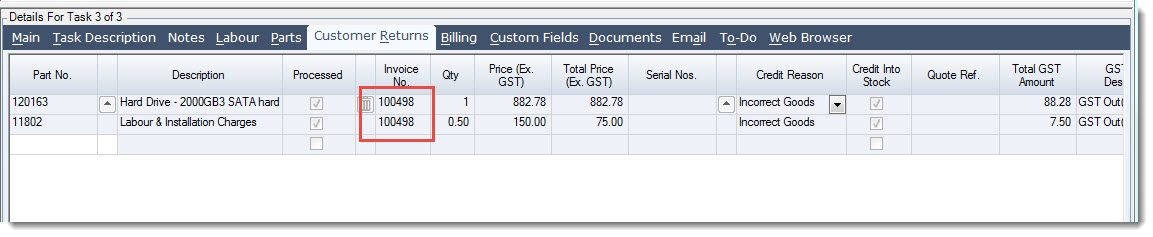
Save your changes Processing Returns to Credit Order To process our return we tick the Processed check box against the required lines

NOTE: If you have 2 items that are to be returned and one item is to be credited into stock and the other item is not being returned to stock then the 2 lines must be processed separately. From the menu ribbon select Save to process the returns. The Invoice No. field will be updated with the credit order number and the lines disabled from further editing.
Process Make Credit Note
The Process Make Credit Note option which is available from the menu ribbon is used to credit out labour only at this stage on invoices that have already been raised against the service job. Select the task that the labour charged from. In this example the customer has been over invoiced on the service job and a credit note needs to be issue for the Training & Development labour charged.

From the menu ribbon select Process & Make Credit Note

The Process & Make Credit Note popup will appear Expand out the task and select the labour lines that a credit note is to be issued against.
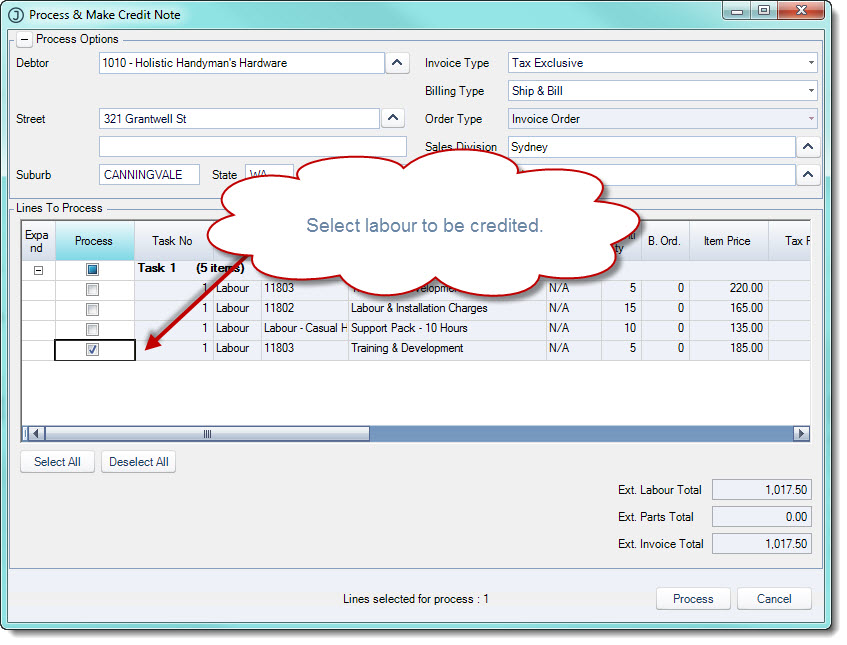
Click on Process when you are ready to create the credit note The following popup will appear
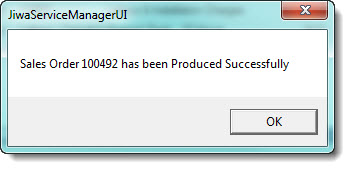
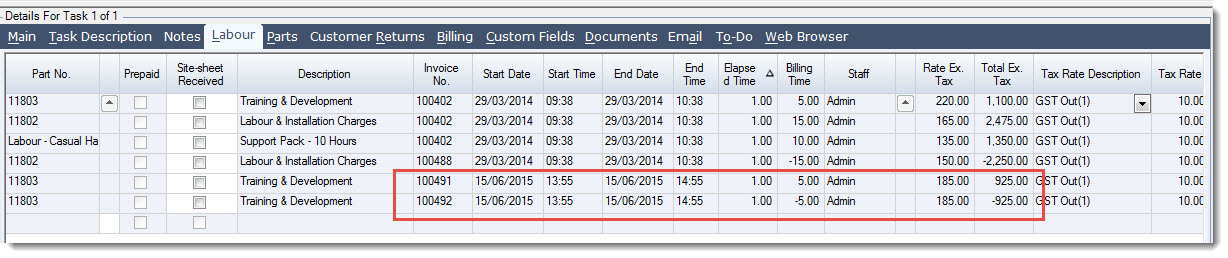
Press OK to clear the popup. The Labour grid is updated with the credit details.
Processing Service Job Credit Orders When Customer Returns are processed or the option Process Make Credit Note is used on a service job an unprocessed credit sales order is created. To update our Debtors ledger with the credit note the credit order must be processed. To begin open the Sales Order Entry form and load your service job order into the form. The Order No. field is populated with the service job reference and the Reference field with the service job and task number.
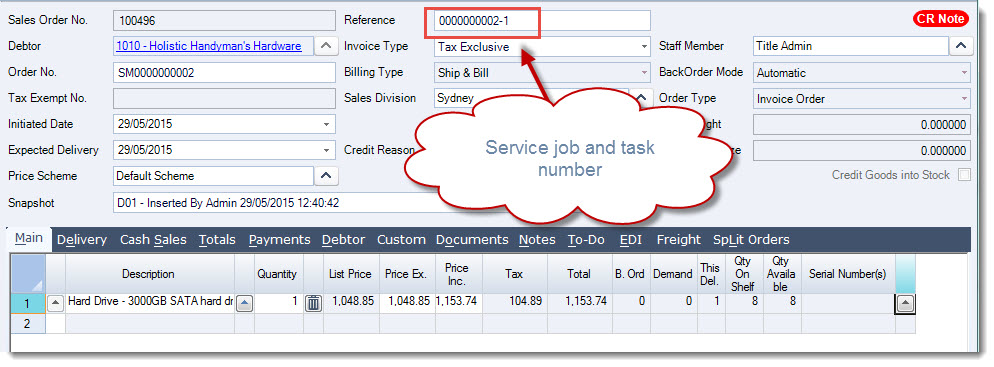
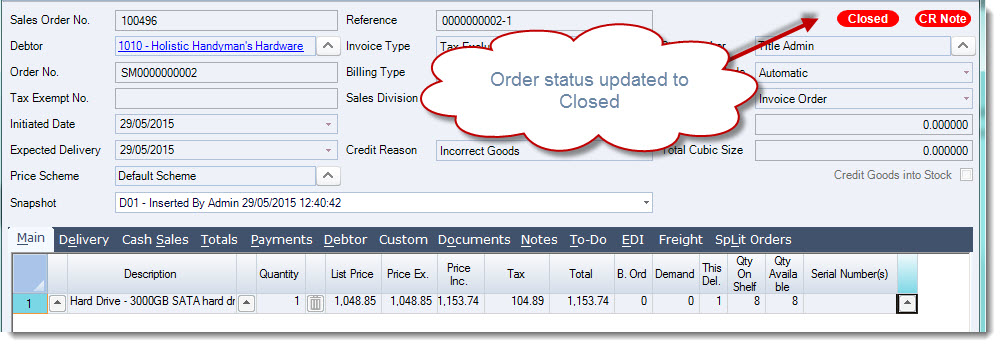
From the menu ribbon select Process Once the credit note is generated the order status will be updated with Closed
NOTE: It is recommended that service job related credit orders are not edited as the service job will not be updated with the changes. For example if the quantity or price is changed on credit order the service job will not be updated to reflect this change. [/MM_Member_Decision] [MM_Member_Decision isMember='false'] [/MM_Member_Decision]