In this article we look at the standard Jiwa POS form.
Overview
The Jiwa POS form has been designed as an alternative to the standard Jiwa sales order entry form. The new form is not a replacement for a fully integrated Point of Sale system but rather a simplified version of the sales order entry form that allows users to quickly process sales and take payment if required.
The POS form is not enabled by default and will need to be configured prior to use, your Jiwa Consultant will be able to provide assistance in this area.
POS Form v Point of Sale
Choosing between the Jiwa POS form and a fully integrated Point of Sale system will be dependent upon your point of sale requirements. The table below provides a brief overview of the key differences however, we highly recommended that you discuss your specific requirements with your Jiwa Consultant.
|
Function |
Jiwa POS Form |
Integrated POS System |
|
Easy to use POS Screen |
✓ |
✓ |
|
Print out docket receipt |
✓ |
✓ |
|
Process cash sales |
✓ |
✓ |
|
Process account sales |
✓ |
✓ |
|
Process account payments |
|
✓ |
|
Parking transactions |
|
✓ |
|
Create shifts |
|
✓ |
|
Customer special orders |
|
✓ |
|
EFTPOS Integration |
|
✓ |
|
Lay-by management |
|
✓ |
|
Refunds, credit notes and deposits |
|
✓ |
Debtor Accounts
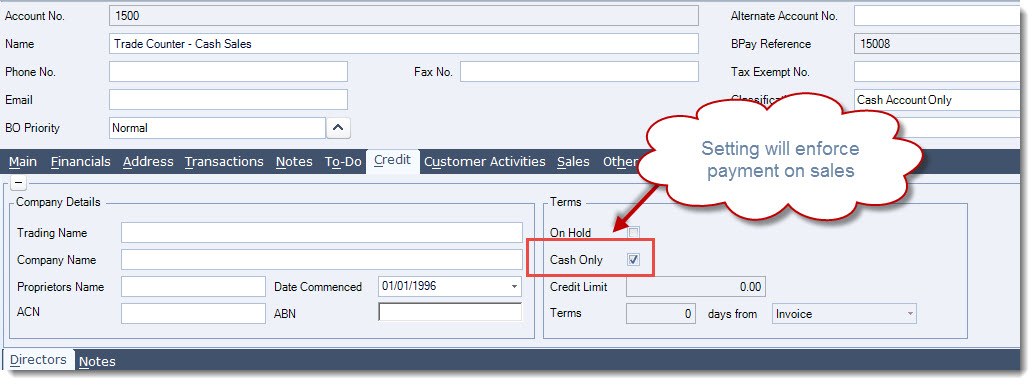
Debtor accounts can be set up as Cash Only accounts, this means users cannot process a sale through POS or the standard Jiwa Sales Entry form without a payment being recorded against the sale.
Cash only accounts including your default Cash Sale account must have the trading terms set to Cash Only in Debtor Maintenance.
Cash Sales
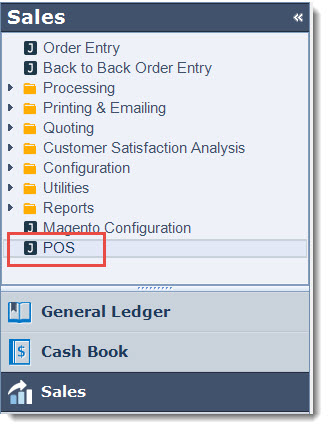
From your menu select Sales| POS
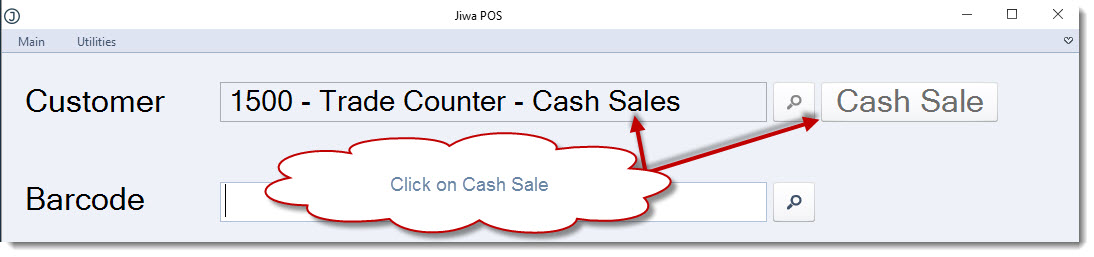
To process a cash sale click on the Cash Sale icon, this will load the default cash sale customer into the customer field.
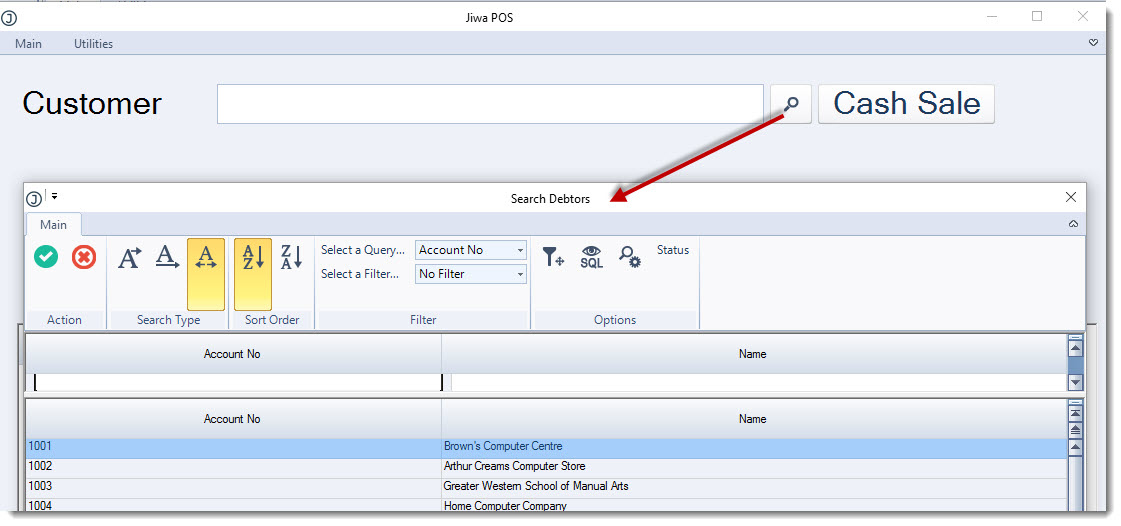
If you want to record the sale against a cash only customer account enter the customer name in the customer field, or click on the search icon next to the customer field to bring up the Search Debtors form.
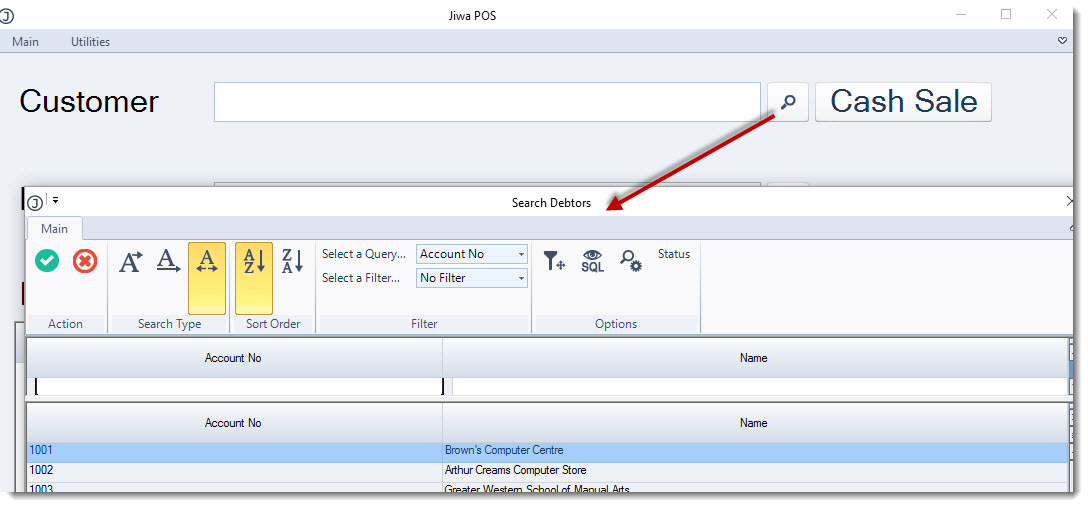
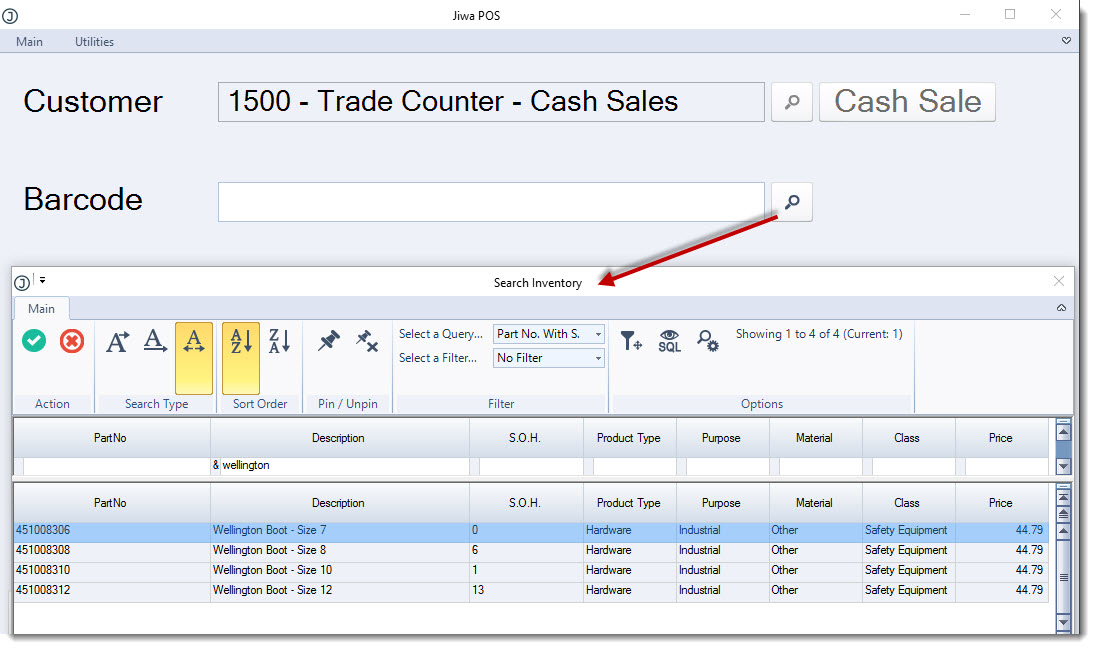
To add items to the sale you can;
-
Scan each item using a bar code scanner,
-
Type in the part number in the bar code field, or
-
Click on the search icon next to the bar code field
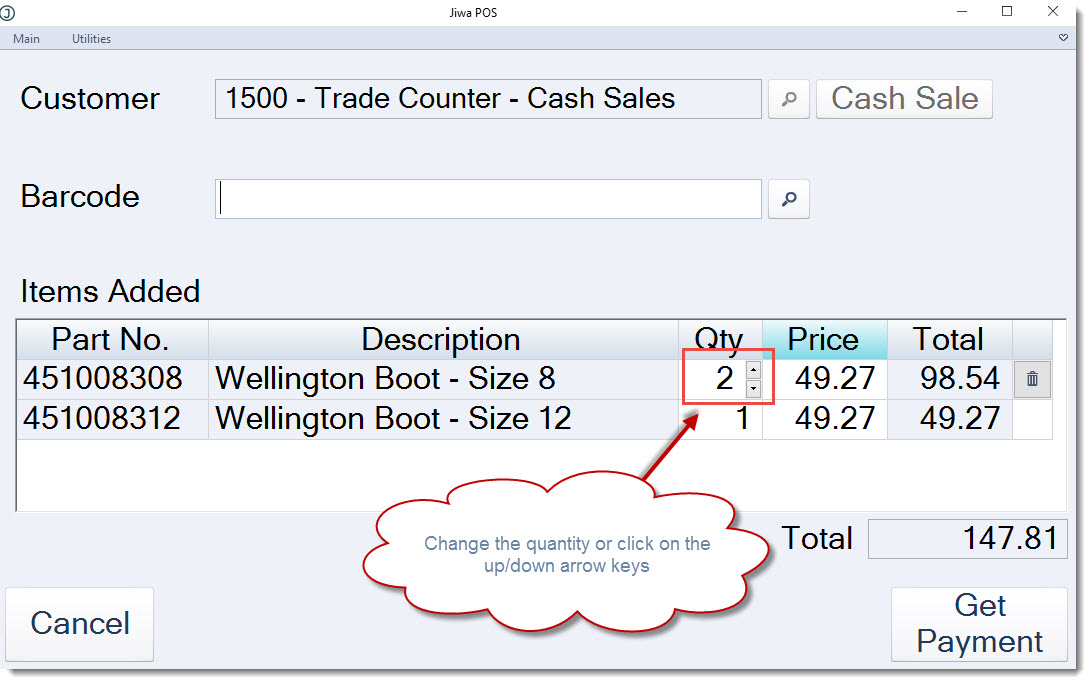
Enter in the quantity by moving the arrow keys up/down or simply overriding the quantity.
If you are scanning multiples of the same item Jiwa will automatically increment the quantity with each scan.
The unit price can be changed by overriding the price or a discount can be applied by right mouse clicking over the required line that the discount is to be applied to.
Note: The unit price and totals displayed on the POS form is GST inclusive.
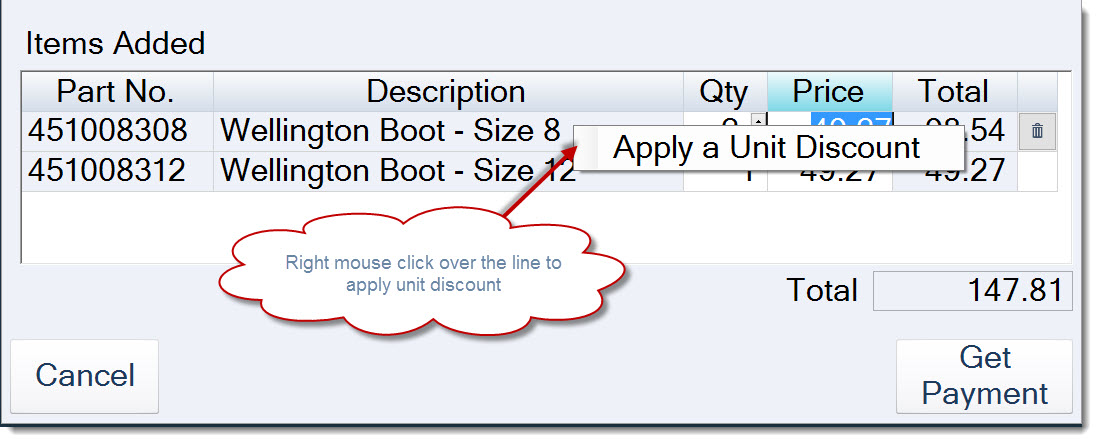
This will activate the discount popup and a discount can be applied either as a percentage or fixed dollar amount.
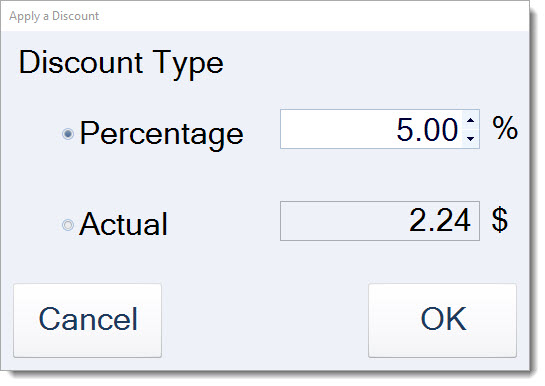
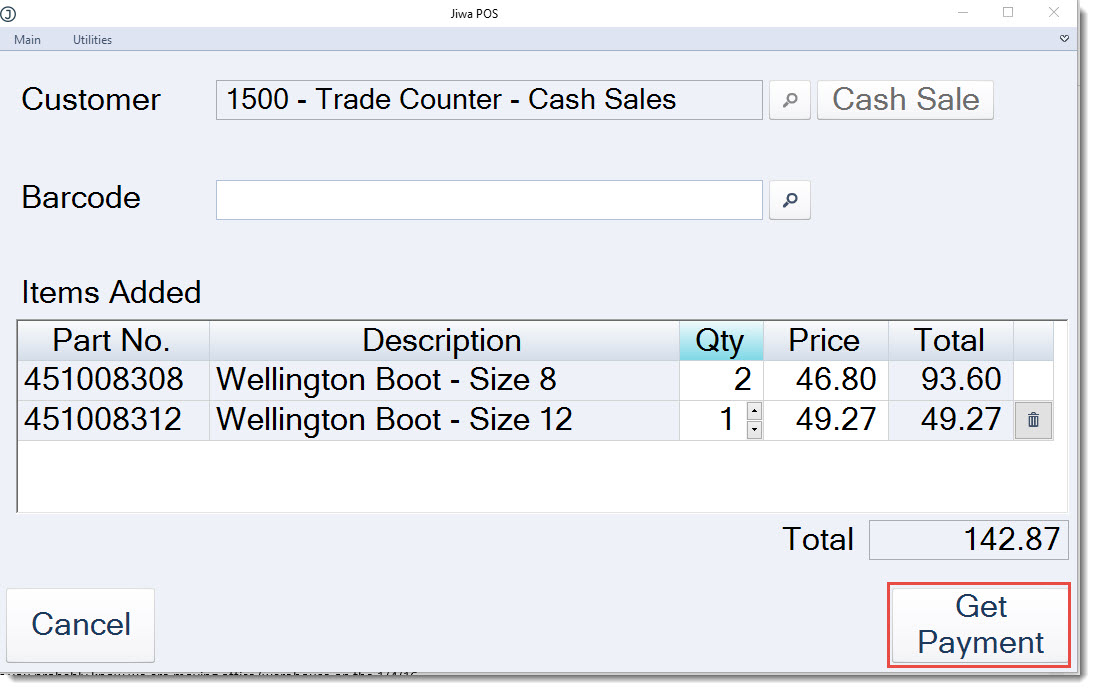
Press OK to save the discount. When you have finished entering your items click on the Get Payment button
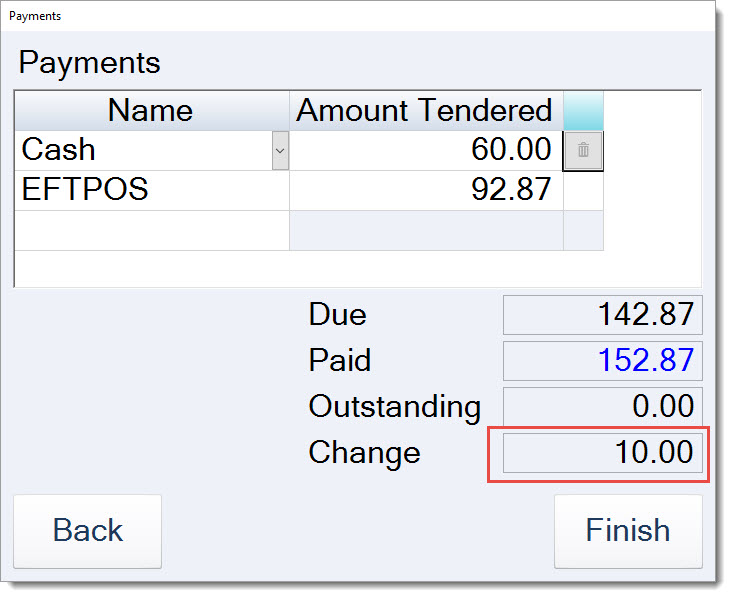
At the payments popup enter in the amount tendered.
Mixed payment can be entered by entering the amount paid against each payment type.
Any change due will be displayed in the Change field
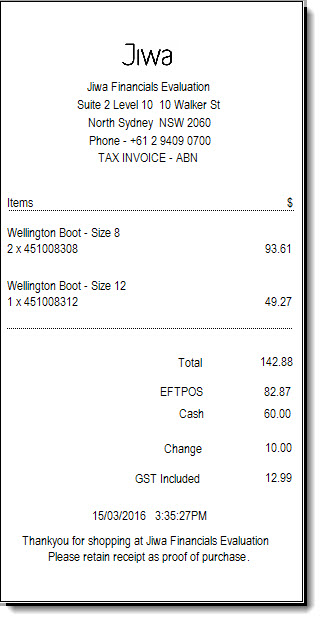
To complete the transaction and print out the receipt press Finish
Account Sales
Account sales are processed in exactly the same way as cash sales with the exception that the invoice can be put on account or part paid if the Debtor account is set-up with trading terms.
Enter in your Customer name in the Customer field or click on the lookup icon next to the field to bring up the Search Debtors form.
Enter in the items sold and then select Get Payment
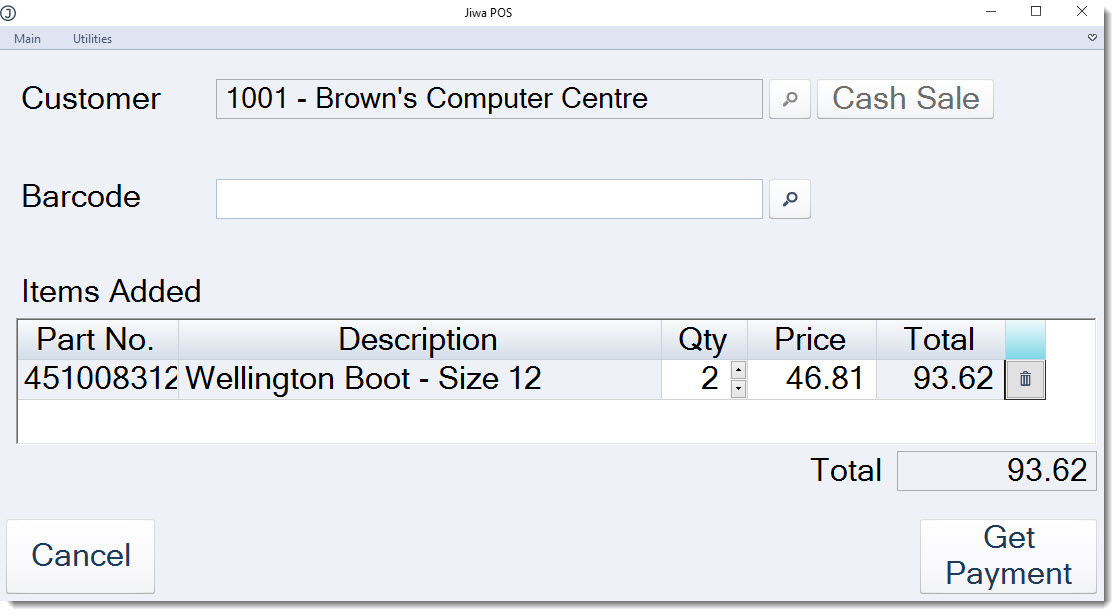
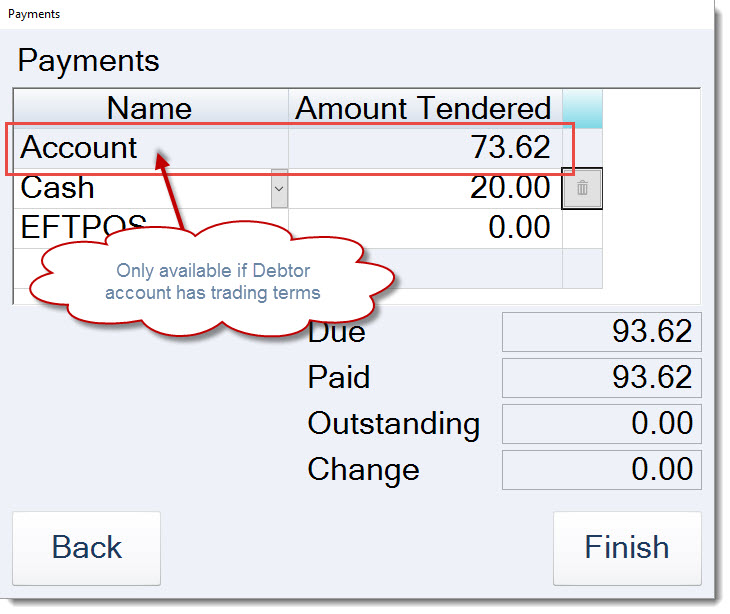
You will notice that in the payments form the Account payment type is available, this means that the invoice can be put on account and no payment is required.
Remember that the Account payment type is only available on Debtor accounts with training terms.
The invoice can be paid in full by entering the payment amount against the appropriate payment type or part paid as in the example below.
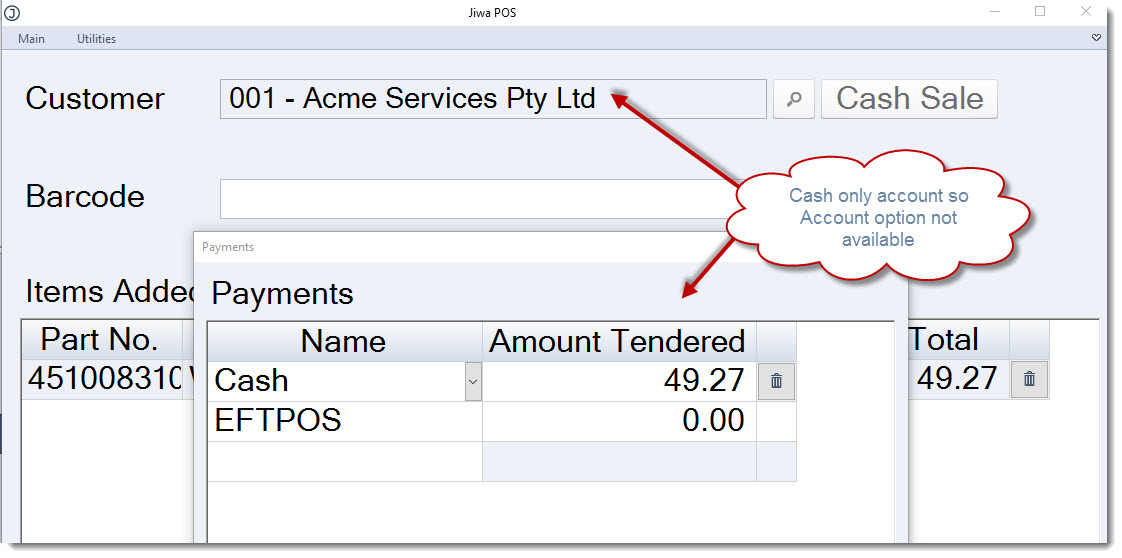
In the following example a sale is being recorded against a Debtor account however because the account has been flagged as Cash Only the account payment type is not available.
Sales Orders
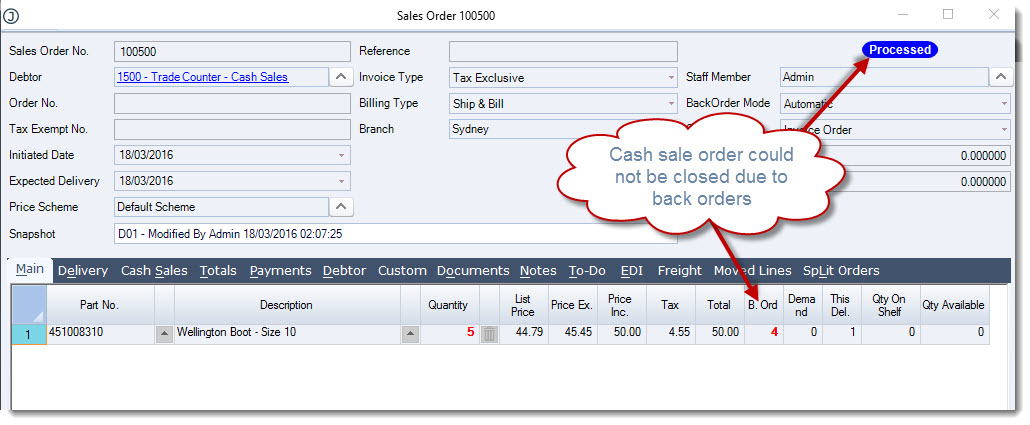
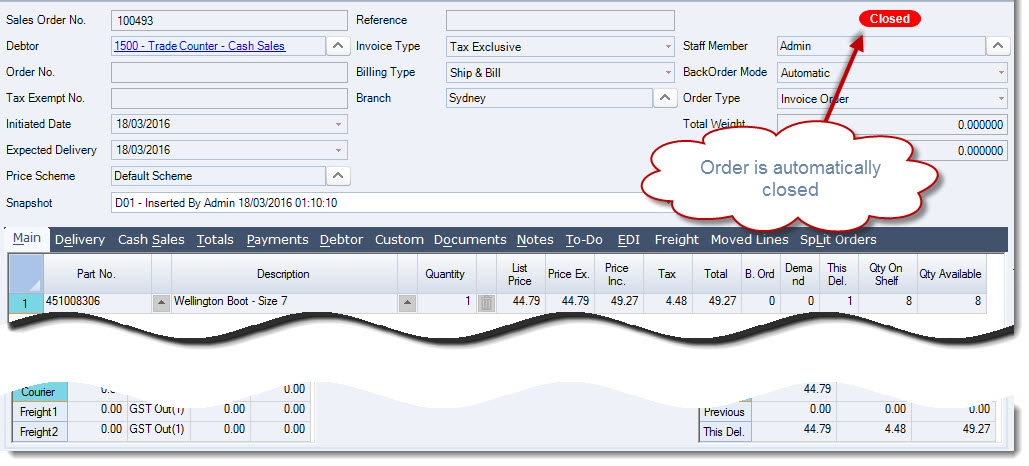
Even though the POS form is a simplified version of the standard Jiwa Sales Order entry form when a sale is recorded a sales order is automatically created.
If stock can be fully supplied the sales order is then automatically processed and Closed.
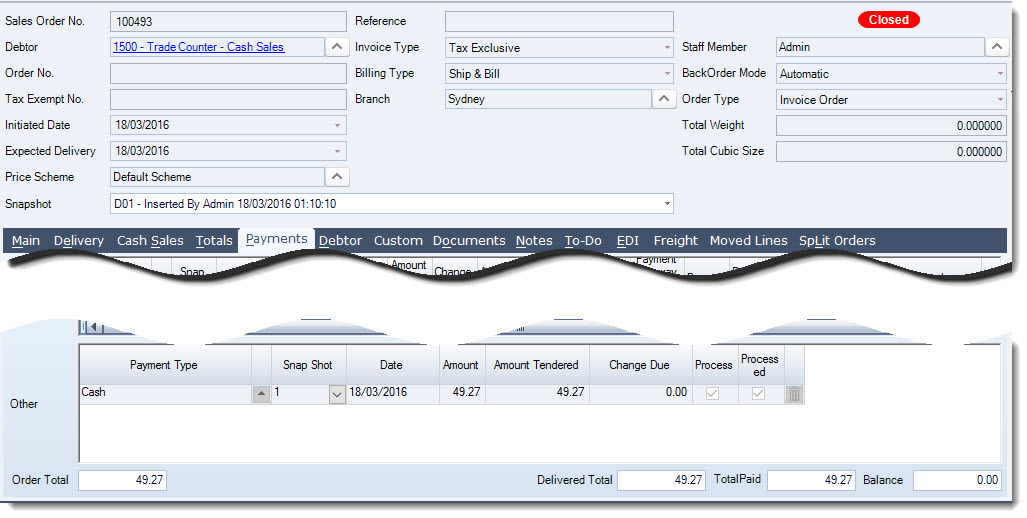
The payment details are recorded against the sales order in the Payments tab.
Where an order cannot be closed due to stock not being received into Jiwa for example the order remains open for back-office staff to process at a later time.