
Jiwa Manufacturing - Work Order Scheduling
Source title: Jiwa Manufacturing - Work Order Scheduling
Status: draft
Author: nina@austlink.net
Original link: https://jiwatraining.com.au/?page_id=2032
In this article we look at the Work Order Scheduling form in Jiwa 7. The Work Order Scheduling form is used to view work centre under and over capacities by reviewing all work orders with a status of Not Started. The form also allows users to reschedule work orders using the gantt chart, and apply those changes to work orders in bulk.
Work Orders
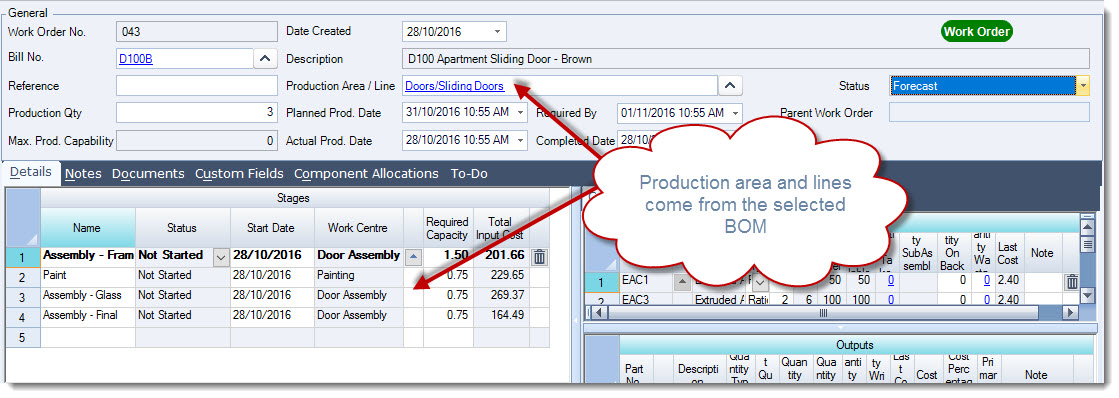
When creating your work order from a BOM the production area and line details are automatically loaded into the work order from the BOM.
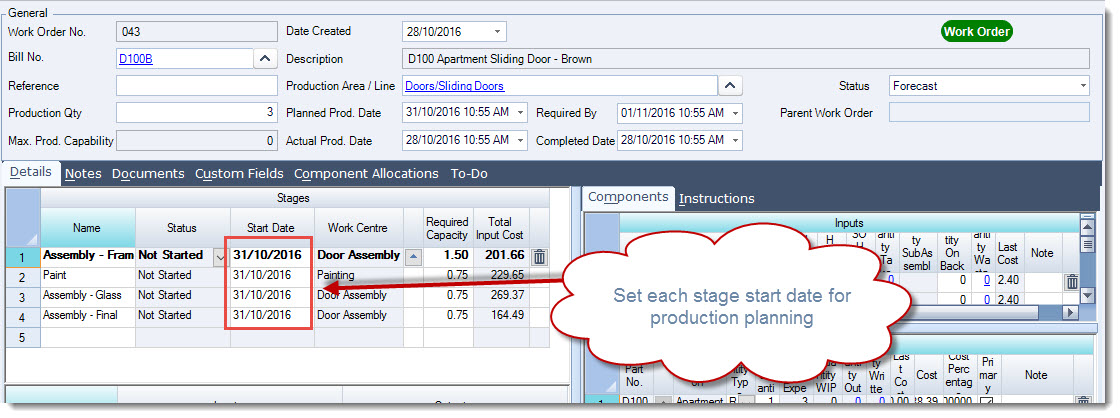
The Work Order Scheduler uses the Stage Start Date for scheduling. When a work order if first created the stage start date is by default set to the work order planned production date. The stage start date can be changed on the work order itself or through the Work Order Scheduler.
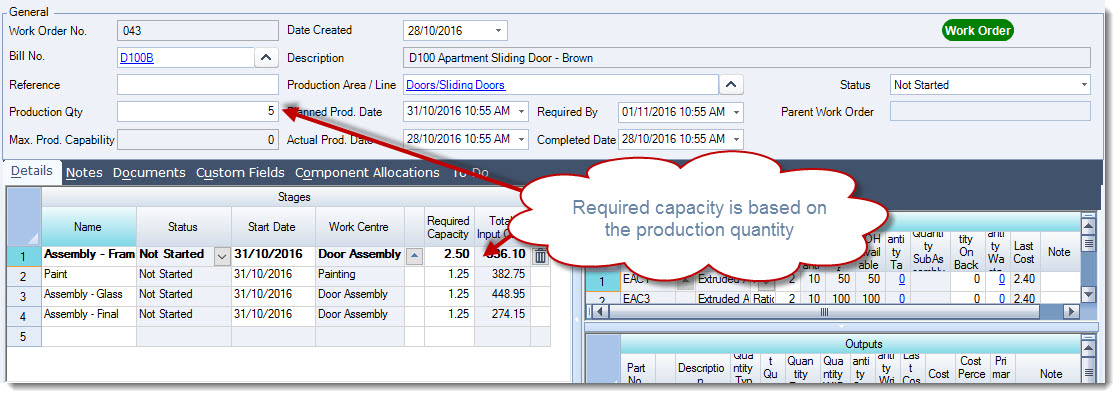
Only work orders with a status of Not Started will appear on the Work Order Scheduling form.

The Required Capacity on each stage is used by the scheduling form and is based on the work order production quantity.
[MM_Member_Decision isMember='true']
Work Order Scheduling
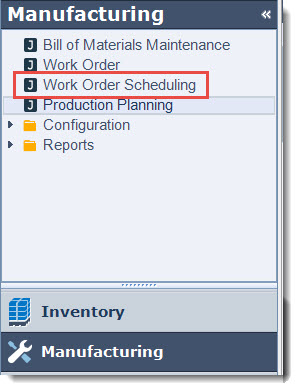
From the menu select Manufacturing | Work Order Scheduling
The form is divided into 3 different sections;
-
General information,
-
Gantt chart, and
-
Work centres and capacities
When the form is first loaded all work orders with the status of Not Started are loaded into the form.
General
The General section of the form allows you to filter work orders by production area and line, in addition to this you can;
-
Set the time interval on for the Gantt charge,
-
Highlight over or under capacity, and
-
Select the shifts to view

Set the production area/line that you are working with by clicking on the lookup icon next to the Production Area / Line field to bring up the selection form.
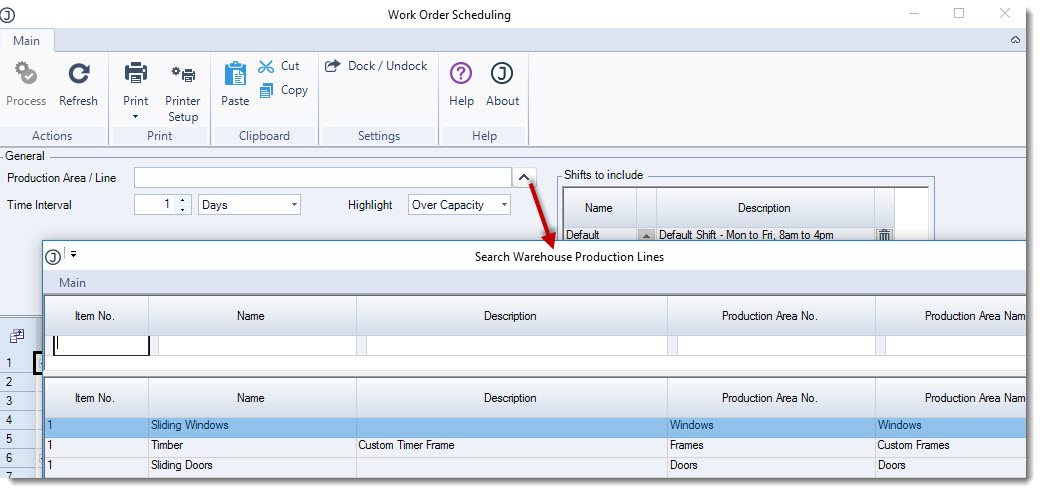
Set your required time interval for the gantt chart and shifts to be included.
Gantt Chart
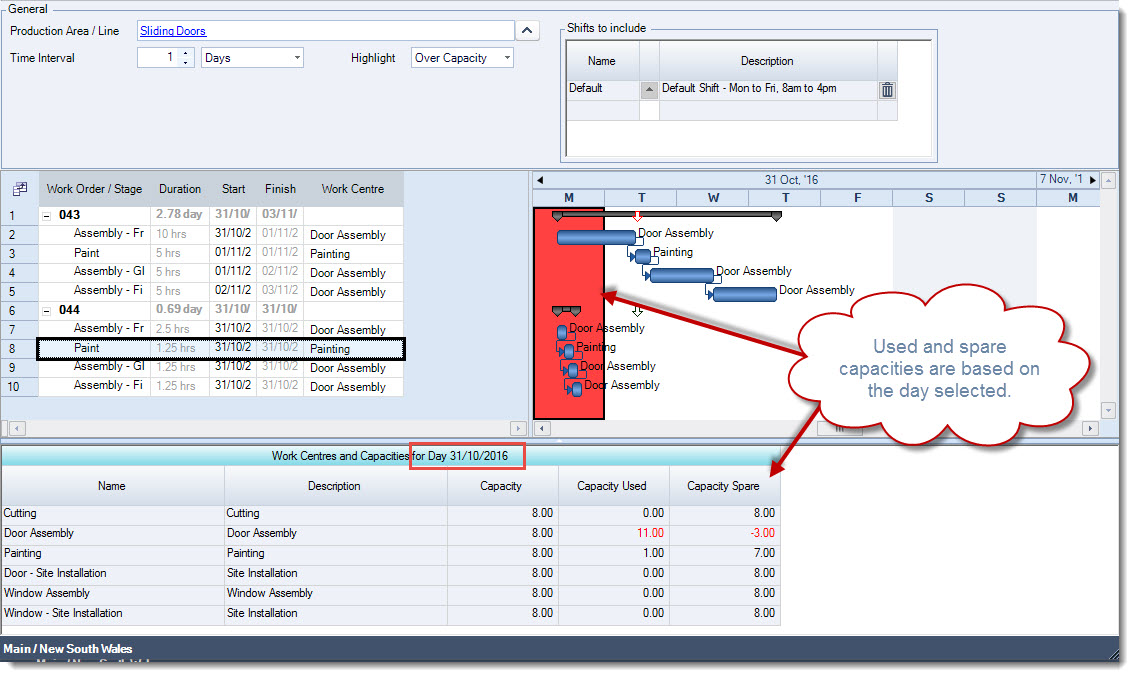
In the example below we have selected to view our over capacity for production area Sliding Doors which is highlighted in red. Note: Over and under capacities will not be highlighted if you have not selected a production area / line. As you make changes in the General section of the form the gantt chart is updated accordingly.
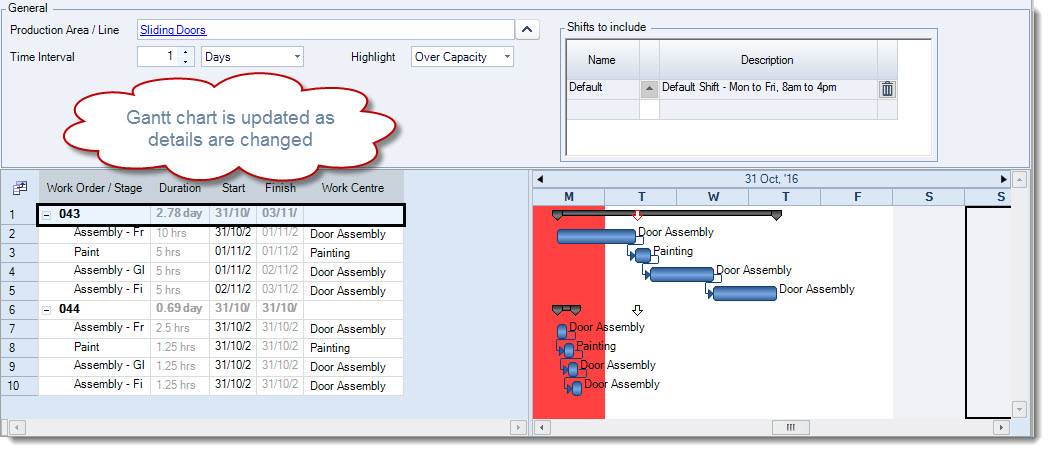
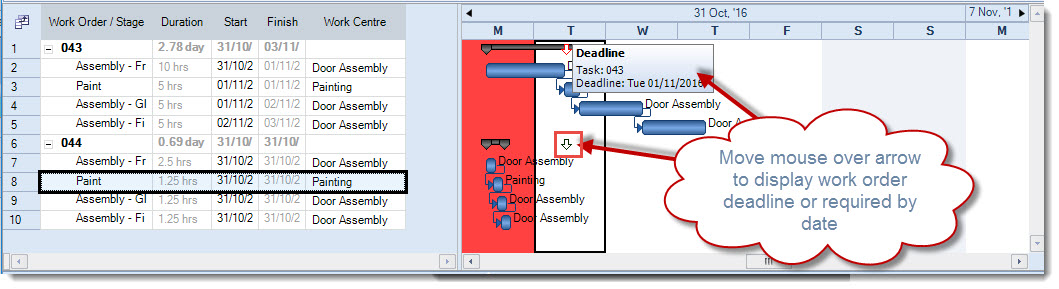
In the gantt chart you will notice arrows appear on specific dates, this represents the work order Deadline which is the Required By date from the work order.
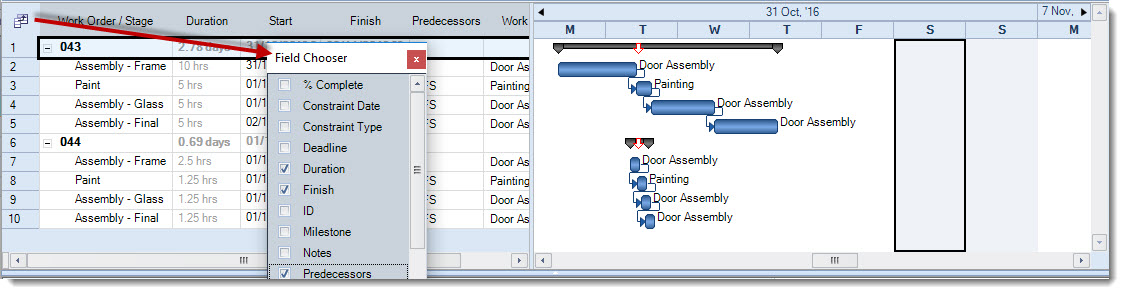
Choose the fields to display on the work order/stage grid by selecting the field chooser icon to bring up the Field Chooser
Work Centre Capacities
The work centre and capacities grid displays all the work centres linked to your warehouse. The Capacity Used and Capacity Spare fields are updated based on the work orders that are displayed on the gantt chart and the day selected.
Rescheduling Work Orders
Managing your over and under capacities can be done through the gantt chart . In the example above we have an over capacity in our Door Assembly work centre on the 31st Oct. We can see that work order 043 is a large job so we want to reschedule work order 044 to start the following day.
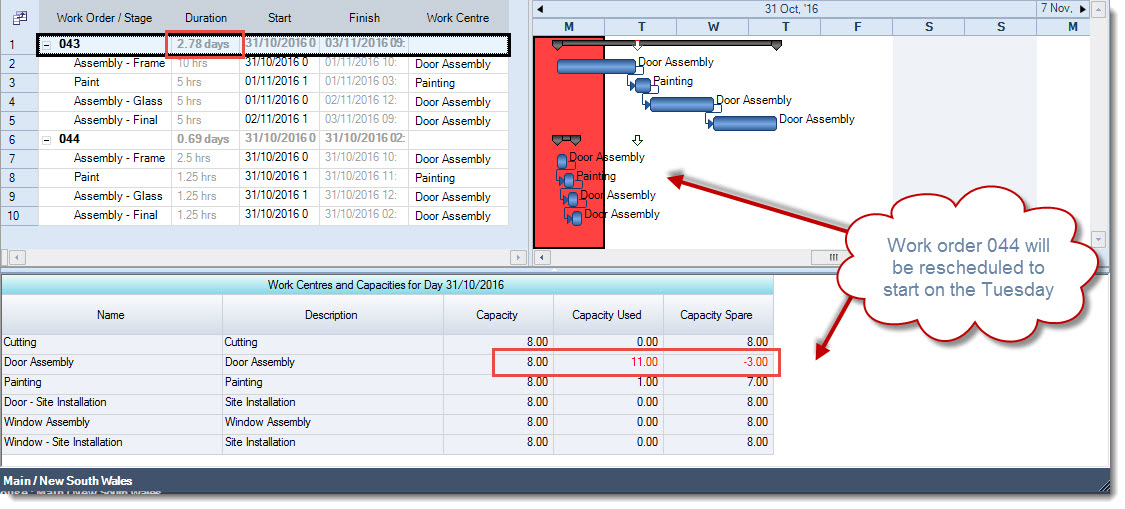
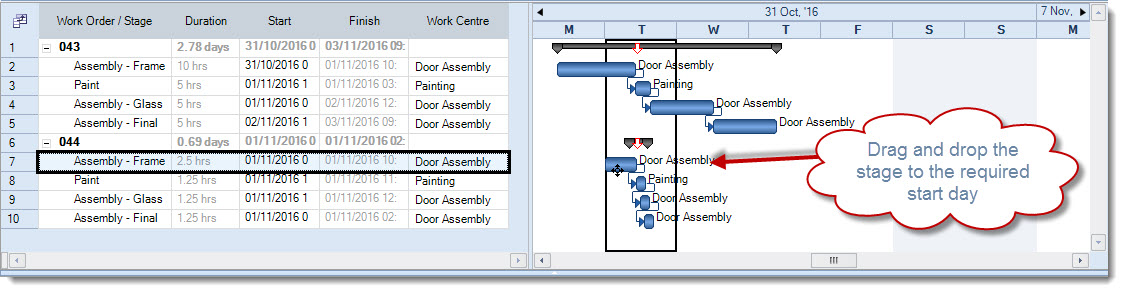
Work order stages can be rescheduled by either changing the Start date on the stage in the work order stage grid. 2016-10-31_11-40-45.jpg Or moving your mouse over the stage on the gantt chart that needs to be rescheduled, then drag and drop the stage to the required day. The start date on the following stages will also be updated.
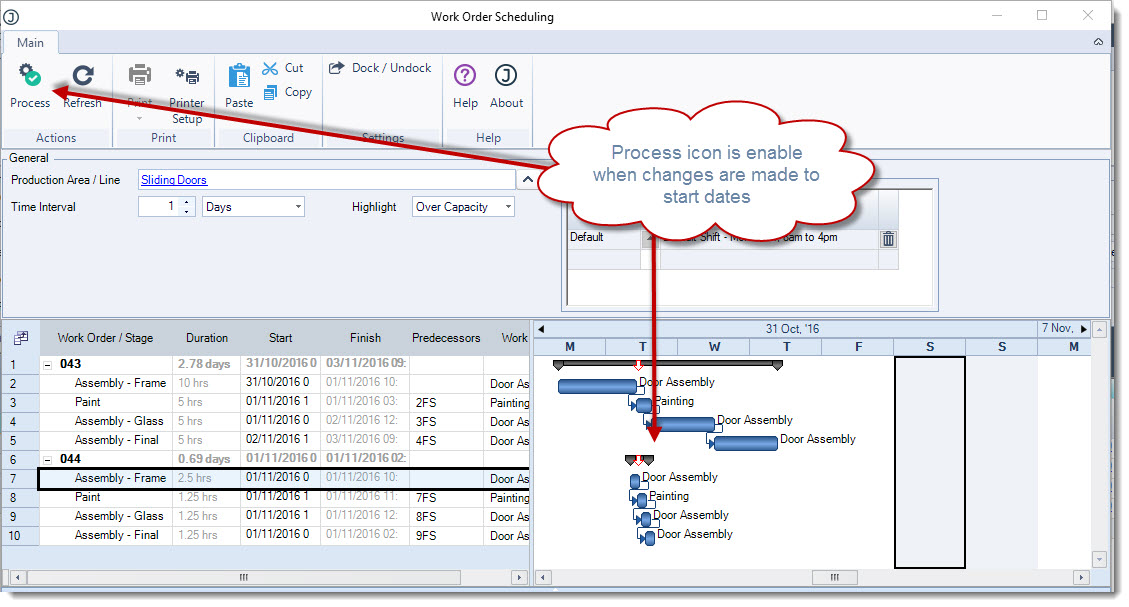
When a stage is moved to a new day the Process icon on the menu ribbon is enabled. To update your work order with the stage new start date press the Process icon.
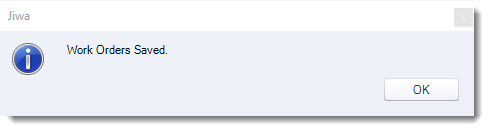
Once the updates are complete the following message is displayed, select OK
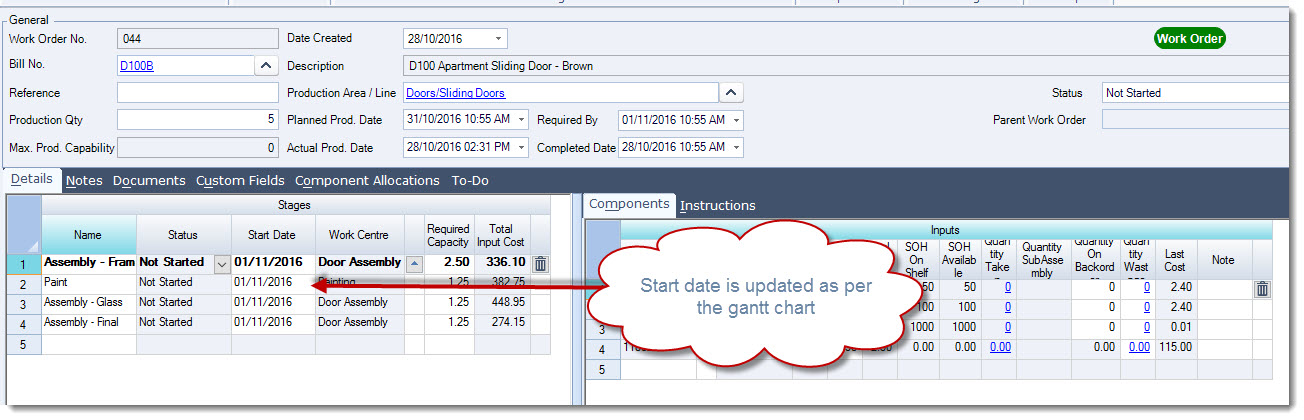
Back on your work order the Start Date on each applicable stage on your work order is updated
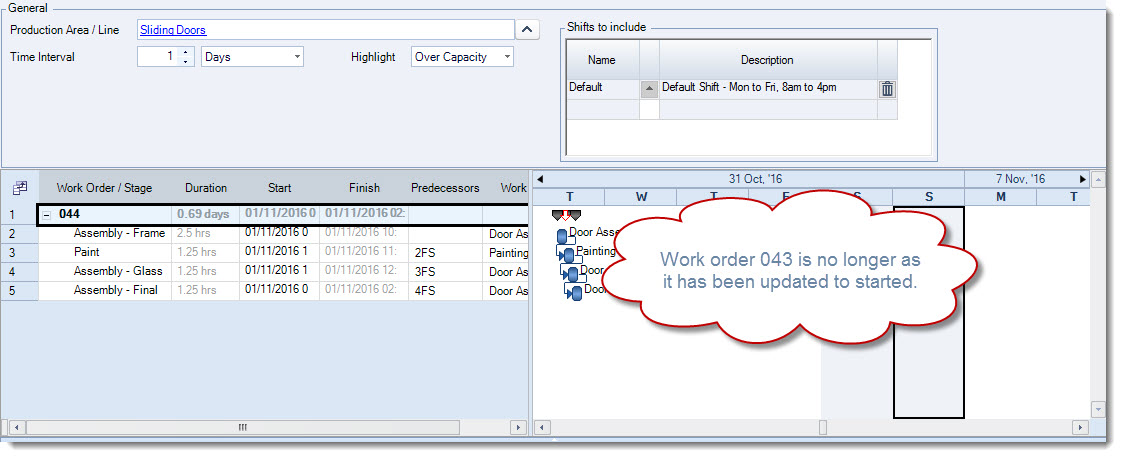
When the work order status is changed to Forecast, Started, or On Hold the work order is no longer displayed on the scheduler.
[/MM_Member_Decision] [MM_Member_Decision isMember='false'] [/MM_Member_Decision]