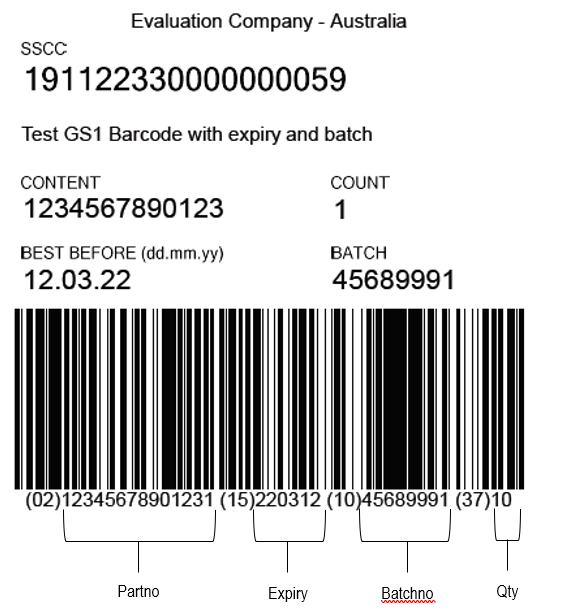
For ASPluris users that need to scan serial numbers or batch codes with expiry dates then a GS1 Barcode is required.
In order to use a GS1 barcode you must be a member of the GS1 organisation.
Details on GS1 barcodes and how to register can be found at https://www.gs1au.org/.
You will also need;
-
A label printer such as a Zebra printer
-
Label printing software such as ASPluris Label Printing or Bartender
ASPluris and Jiwa
Before you can use GS1 barcodes with ASPluris ensure that the Barcode Translation is set to 0 in the ASPluris Configuration module.
If your item is batch tracked and you use expiry dates, in Jiwa ensure that the following flags are ticked in Inventory Maintenance.
-
Use Serial/Batch No.s
-
Use Expiry Dates
-
Physical Item
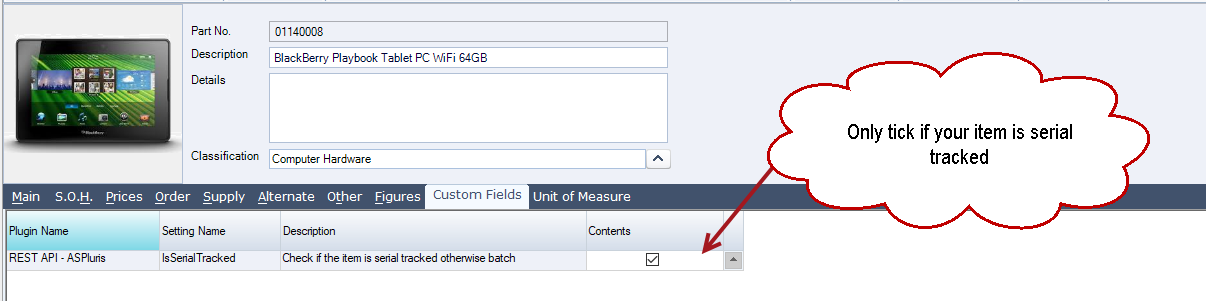
If your item is serial tracked then ensure that the following flags are ticked.
-
User Serial/Batch No.s
-
Physical Item
-
Is Serial Tracked (this is a custom field that is created when implementing ASPluris and can be found in the Custom Fields tab)

In the following example we have created a GS1 barcode that has the following fields encoded;
-
Partno / UPC
-
Batch Number
-
Expiry
-
Quantity (this is the number of units in the batch)