
Jiwa Landed Costing - Shipment Over Supply
Source title: Jiwa Landed Costing - Shipment Over Supply
Status: draft
Author: markian
Published: Mon, 16 May 2016 02:39:51 +0000
Original link: https://jiwatraining.com.au/?page_id=1352
In this article we look at how to record over supply received in a shipment in Jiwa. An understanding of the Jiwa shipment process is recommended before proceeding with this article.
Over Supply Received at No Additional Cost
In this example we look at how an over supply is received in a shipment. The additional stock will be kept and you are not charged extra by the supplier. Physical quantity received is Booked in.
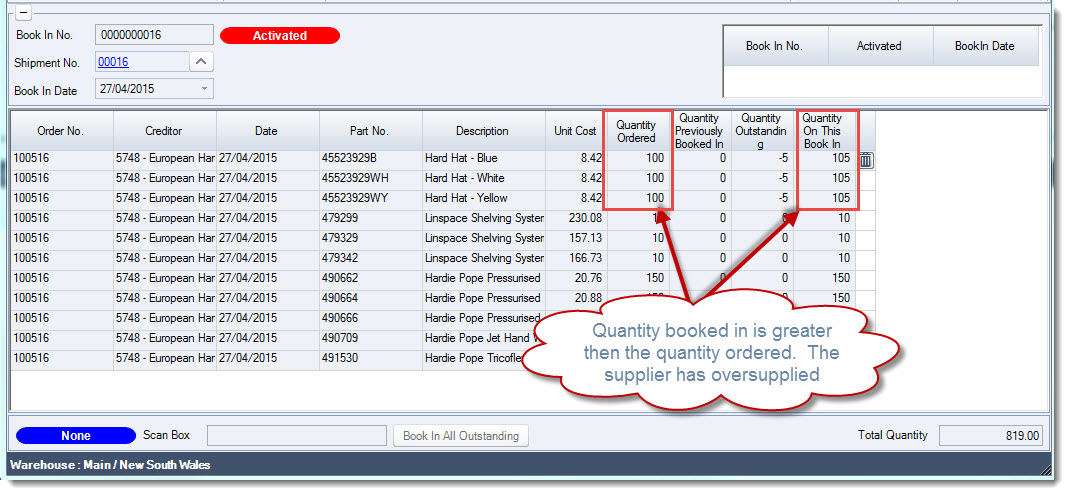
On the Shipment Lines tab it is the Qty This Shipment that is used to calculate the landed unit cost therefore it is this tab that will be updated to reflect the over supply at no additional cost. Move to the Shipment Lines tab the Line Total Ex GST is based on the Qty This Shipment
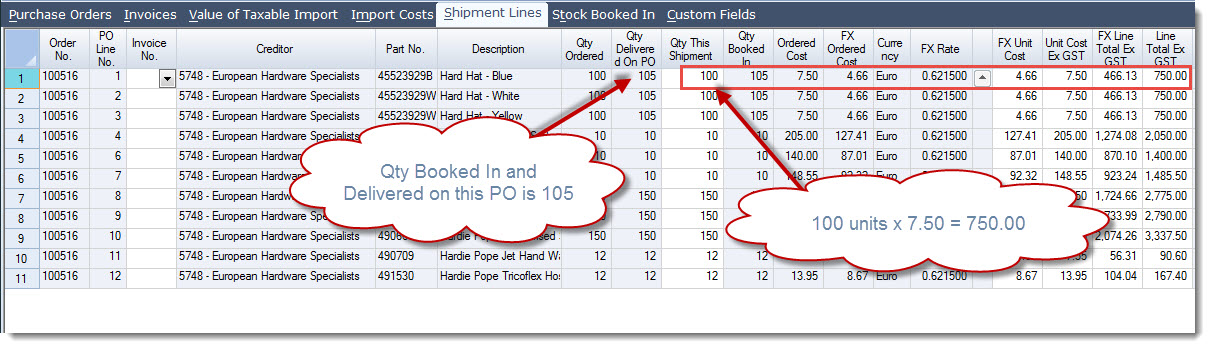
[MM_Member_Decision isMember='true'] As a shipment cannot be invoiced until the Qty This Shipment equals the Total Booked In quantity, it is this field that will first be updated. Click on the lines with over supply and update the Qty This Shipment field to match the quantity booked in.
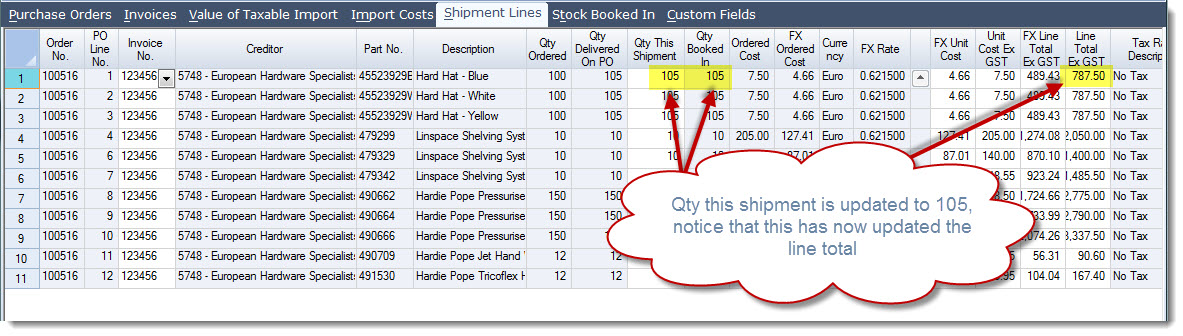
When the quantity this shipment field is updated you will also notice that the Line Total Ex GST amount is also updated. In this example we have not been changed for the extra units so the line total needs to remain at 750AUD (466.13 FX value) which is what will be paid to the supplier in local value. Update the Line Total Ex GST field to the required value in this example the field is changed back to 750.
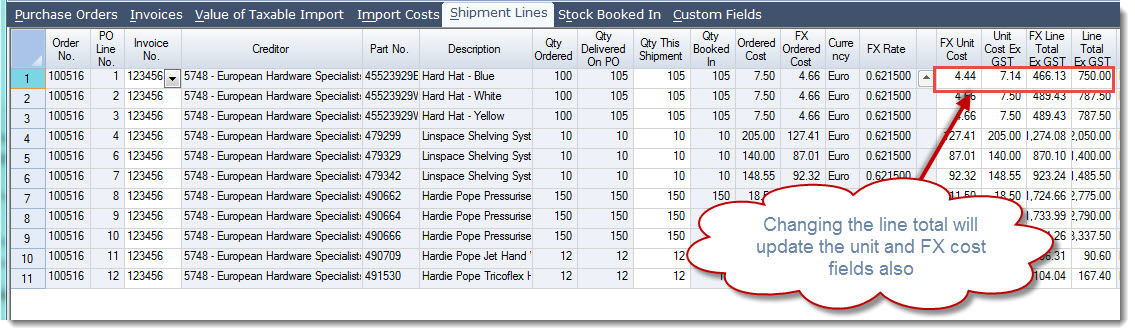
The free stock has now been absorbed into the total stock received reducing both the supplier and landed unit costs. Save your changes.
Over Supply Received at an Additional Cost
In this example we look at how an over supply is received in a shipment. The additional stock will be kept and the supplier will send you another invoice for the extra stock. There are two (2) different methods in which such invoices can be recorded in a shipment. The option selected will be dependant upon;
-
How you want to see the invoices displayed against the Creditor account, and
-
If the over supply is given at a discounted rate do you want to absorb that discount with the original order quantity or bring it in separately
Updating the Invoice No Field
This is the simplest of the two methods as it involves combining the 2 invoice numbers this is done because shipment lines can only be linked to a single invoice. In this example the over supply is invoiced at the same price. The total stock received is booked in. On the Invoices tab update the Invoice No. field to show both invoices.

The shipment lines are updated with the new invoice number.
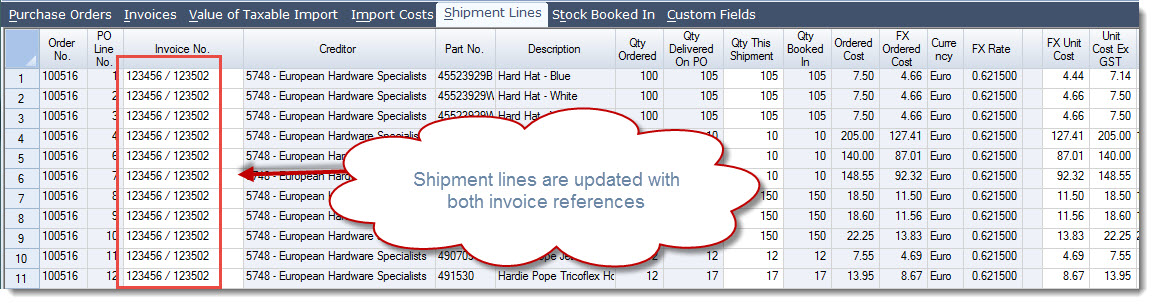
When the shipment is invoices a single invoice with be created against the Creditor account.
Non Ordered Items
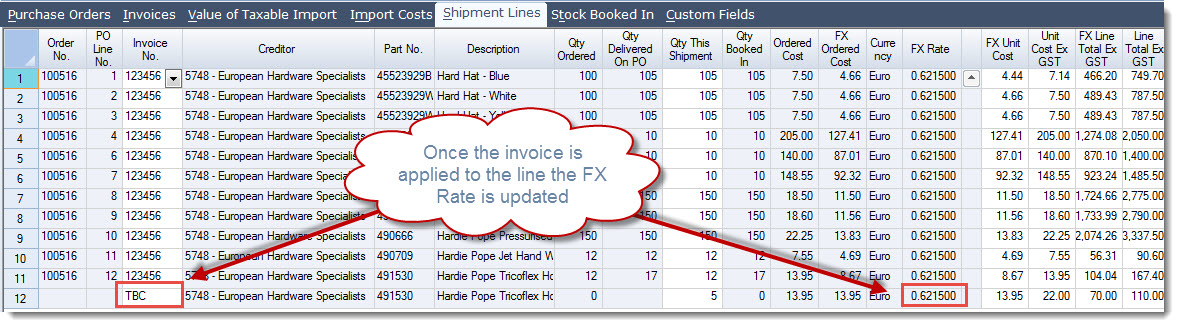
This option is more complex however it does give you more flexibility in that you can bring in the over supplied items in at different price if required and the end result is that 2 invoices will be created against the Creditor account. In this example the over supply is brought in at the same price. The process involves adding an additional invoice line and non ordered items to the shipment. We first begin by adding the supplier invoice to the Invoices tab on the shipment. This is important when importing stock because the FX rate on the shipment lines is taken from the FX rate applied to the invoice the line is linked to.
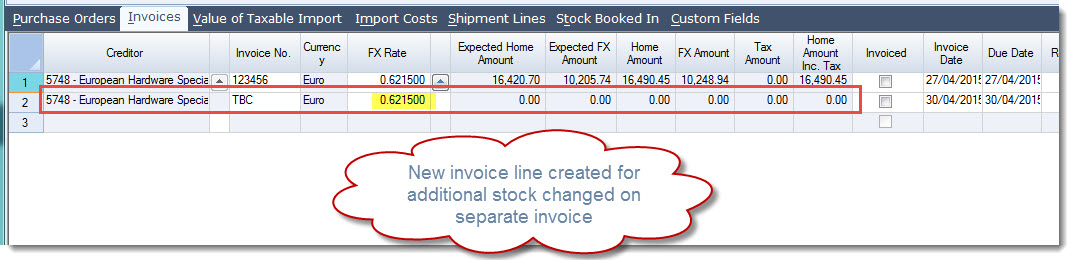
In the Import Costs tab remove the tick from the Apportioned check box. The import costs need to be re-apportioned once the non ordered items are added to the shipment. If import costs are not re-apportioned then your non ordered items will be brought in at the converted supplier cost without any import costs applied.

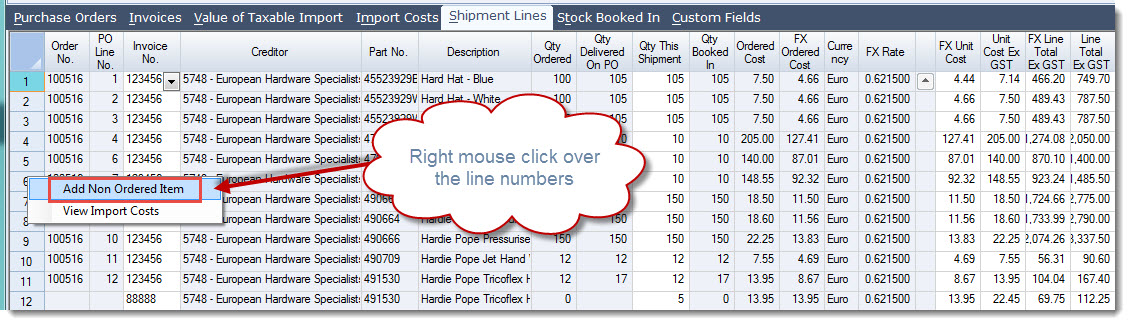
In the Shipment Lines tab right mouse click over the shipment line numbers and select Add Non Ordered Item
Select your item making ensure the correct Creditor account is selected.
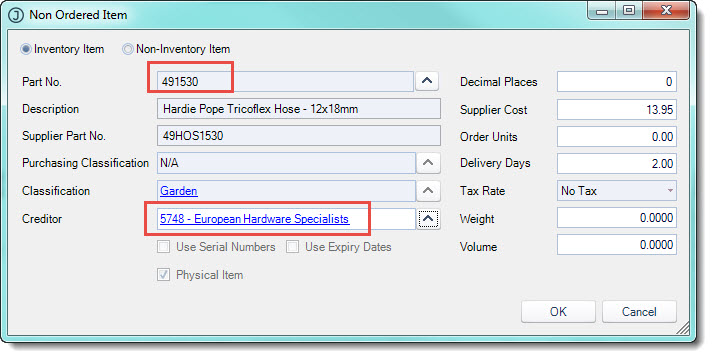
Select OK Add in the over supply quantity in the Qty This Shipment field
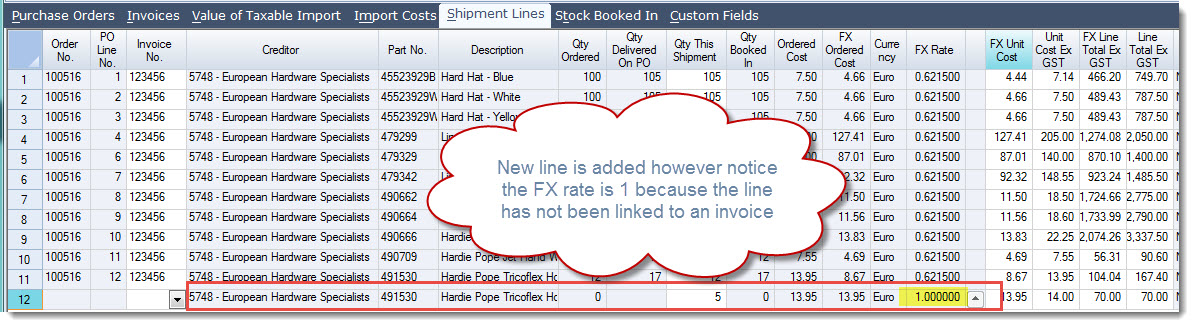
Link the new shipment line to the supplier invoice
Right click over the non order item line and select View Import Costs tick the import costs that are to be included for the new shipment line.
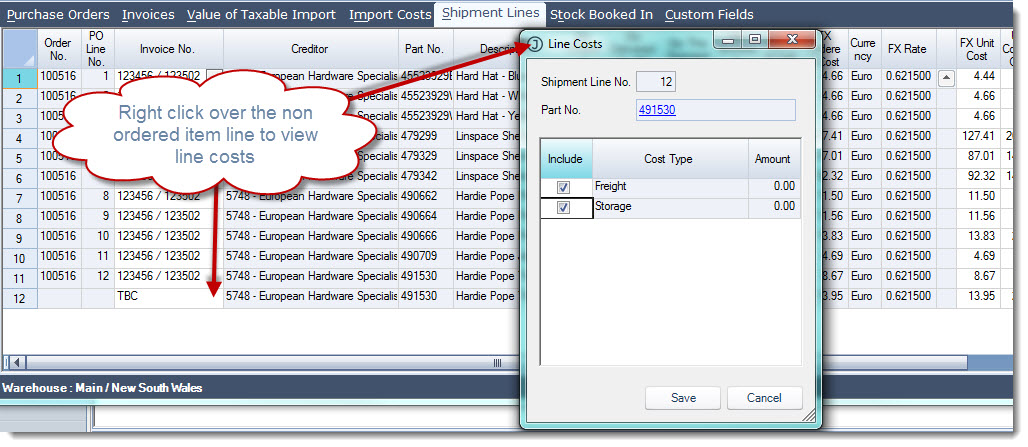
Select Save Re-apportion your import costs and book in your stock [/MM_Member_Decision] [MM_Member_Decision isMember='false'] [/MM_Member_Decision]