We’re currently updating our website to a new platform. We’re still operating as usual, but some pages may be under construction. Thank you for your patience.
Jiwa Training Centre

Draft - Processing Cash Sales

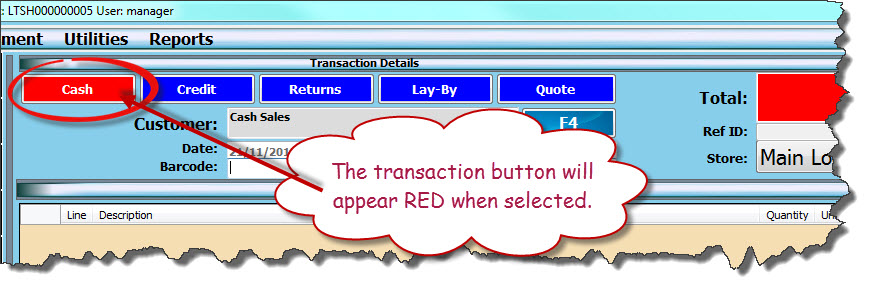
Select CASH button to indicate you are about to process a cash sale

NOTE: The transaction button that is active will appear in RED
https://austlinkwebresources.s3.amazonaws.com/www.jiwatraining.com.au/articles/Jiwa-Point-of-Sale-Processing-Cash-Sales/1.jpg

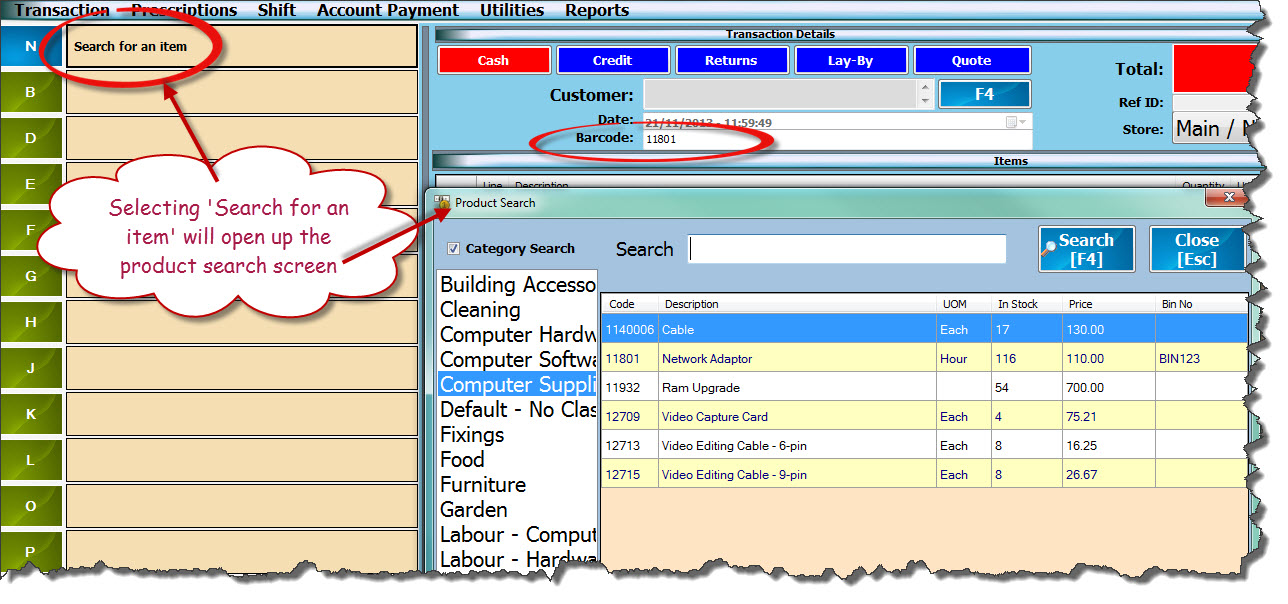
To select you item you can

  • Scan in the bar code using your bar code scanner

  • Type in the product code into the BARCODE field

  • Search for an item by selecting the 'Search for an item' button
https://austlinkwebresources.s3.amazonaws.com/www.jiwatraining.com.au/articles/Jiwa-Point-of-Sale-Processing-Cash-Sales/2.jpg


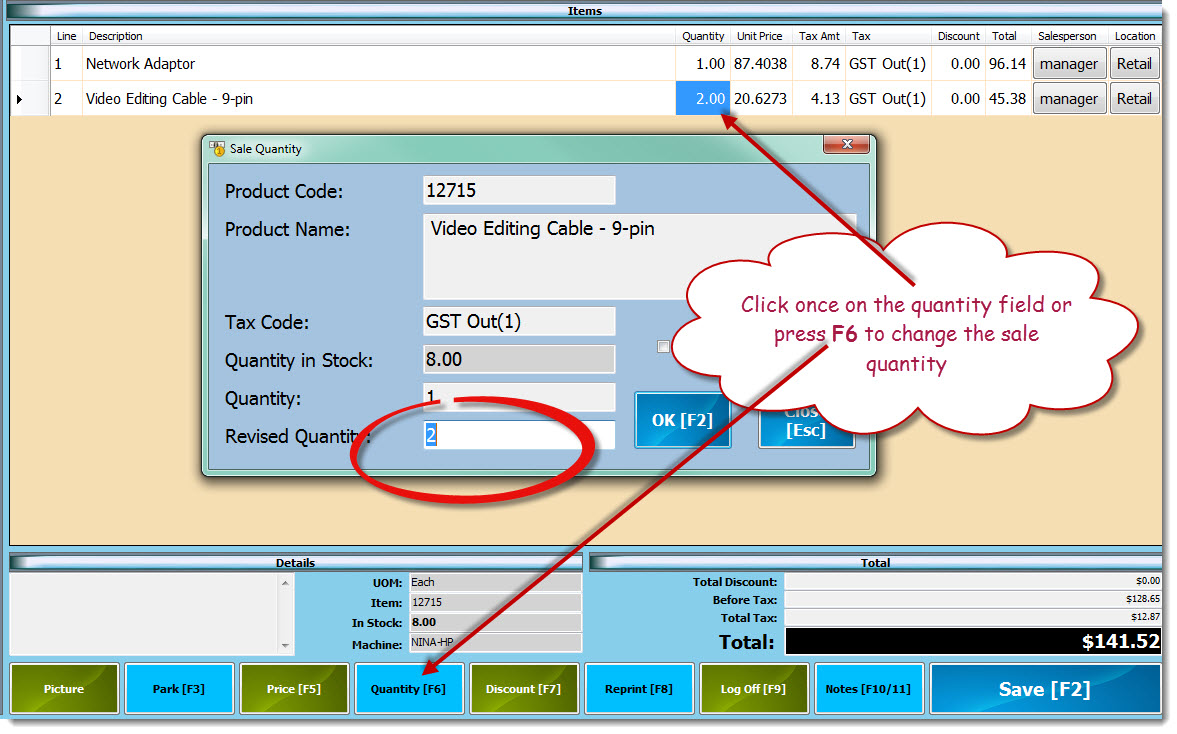
To change the quantity select you can

  • Scan the item again

  • Type in the product code into the BARCODE field again

  • Select the item you want to change the quantity on and select the F6 key

  • Click once on the quantity field

https://austlinkwebresources.s3.amazonaws.com/www.jiwatraining.com.au/articles/Jiwa-Point-of-Sale-Processing-Cash-Sales/3.jpg


Select OK when you have updated the quantity.

When all items have been entered select SAVE to enter in the payment details
https://austlinkwebresources.s3.amazonaws.com/www.jiwatraining.com.au/articles/Jiwa-Point-of-Sale-Processing-Cash-Sales/4.jpg


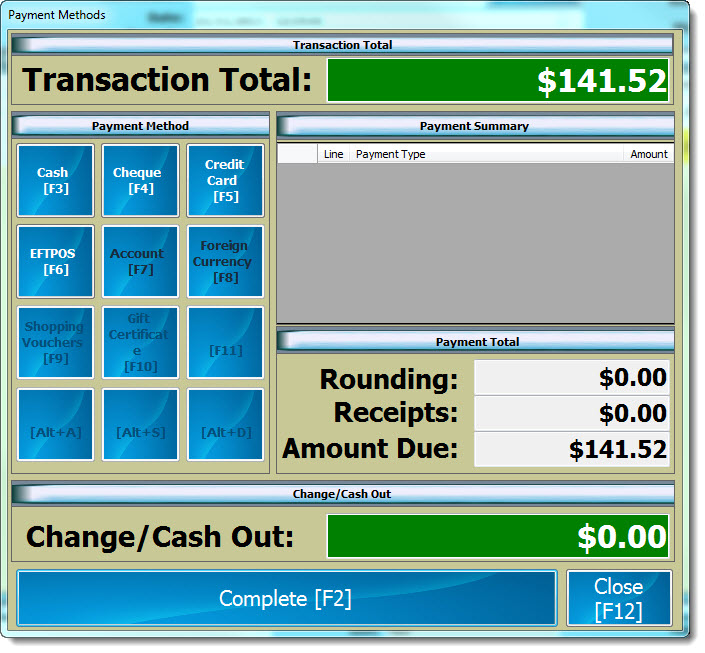
Select the payment type and enter in the payment amount.
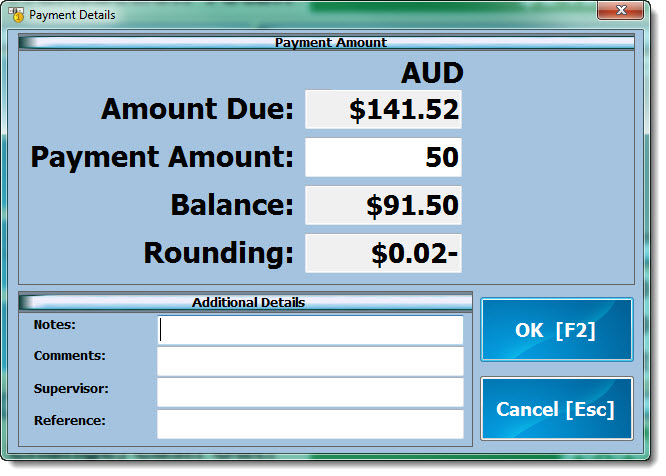
https://austlinkwebresources.s3.amazonaws.com/www.jiwatraining.com.au/articles/Jiwa-Point-of-Sale-Processing-Cash-Sales/5.jpg

Repeat the process if the customer is paying by more than one method
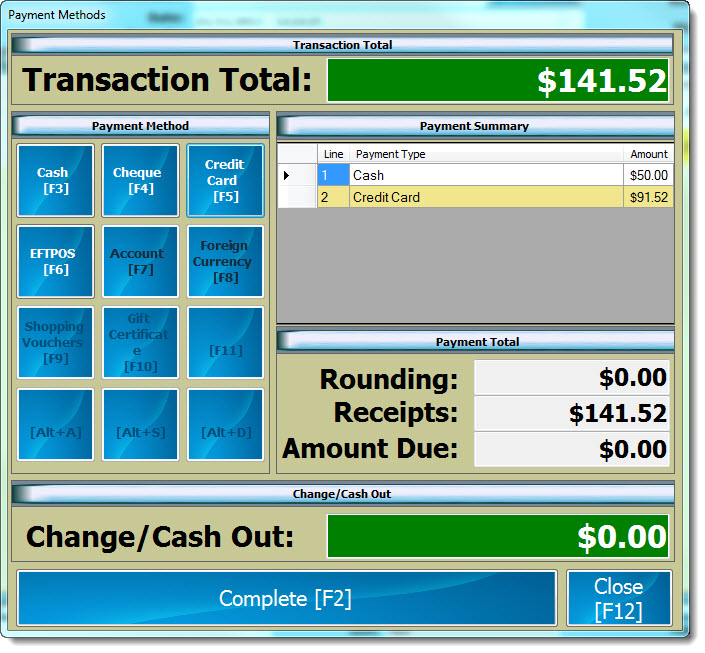
https://austlinkwebresources.s3.amazonaws.com/www.jiwatraining.com.au/articles/Jiwa-Point-of-Sale-Processing-Cash-Sales/6.jpg

Select COMPLETE or F2 to finalise the transaction and print the receipt
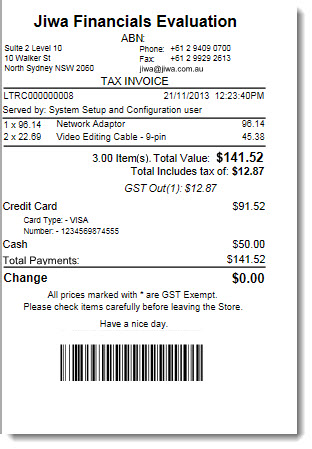
https://austlinkwebresources.s3.amazonaws.com/www.jiwatraining.com.au/articles/Jiwa-Point-of-Sale-Processing-Cash-Sales/7.jpg