This feature is no longer available in Jiwa 7
In this article we will be looking at how to create non stock related Debtor invoices in Jiwa. The Debtor Invoices form is typically used for miscellaneous and/or adhoc invoicing such as;
-
Management Fees
-
Rent
For subscription or recurring invoicing please contact your Jiwa Consultant to discuss your requirements.
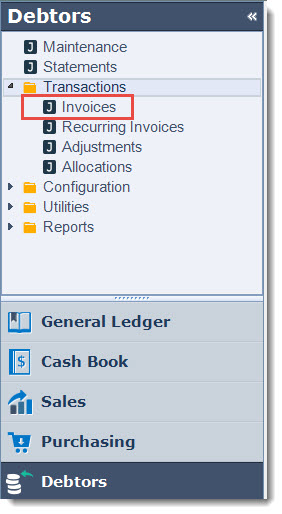
From the Debtors module select Transactions | Invoices
From the menu ribbon select New

Header Information
The header information displays key details about the batch being created for non stock Debtor invoices.

|
Batch No. |
This field is greyed out and is automatically populated when the form is first saved. |
|
Type |
Specifies the type of batch. The two (2) batch types available are
|
|
User |
This field is greyed out and is automatically populated with the user creating the batch when the form is first saved. |
|
Description |
User entered batch description field |
|
Auto Activate |
When this check box is ticked and the batch is saved it will also be activated updating both the General and Debtors Ledgers and changing the status of the batch to CLOSED. It is recommended that this option is not ticked if you are unfamiliar with this function, once a batch is closed it cannot be changed. |
|
Repeating Every |
This field is enabled when the batch type is set to Template. Available repeating options are Days and Months |
|
Next Posting |
The first posting date for the template (recurring) batch. This field is then subsequently updated automatically based on the repeating cycle (Repeating Every) when the Recurring Invoices process is run |
|
Repeating End |
Tick this option and set the end date for the recurring cycle if the template (recurring) batch is to have an end date. |
Invoices Grid
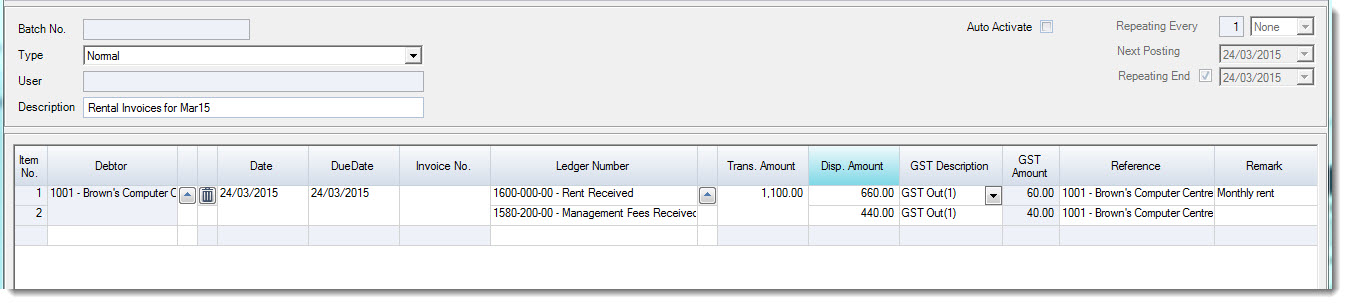
Record you invoice/(s) by completing the fields in the invoices grid.
|
Item No. |
This field is greyed out and is automatically allocated as transactions are added to the grid |
|
Debtor |
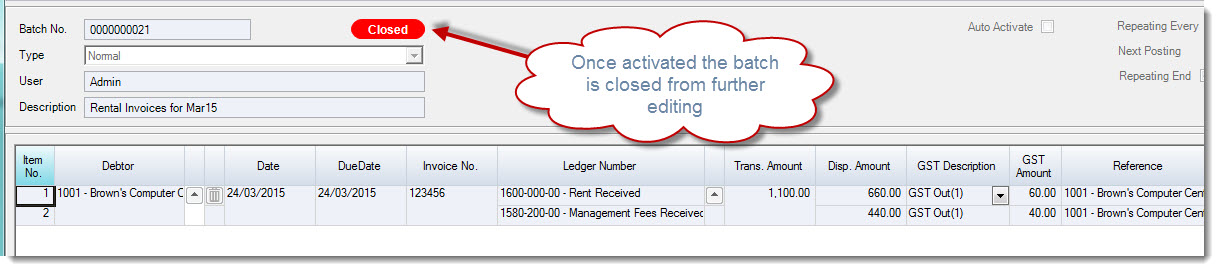
Debtor account that the invoices is to be created against. Click on the lookup icon next to the field to bring up the Debtors search form. |
|
Date |
This field is automatically populated with the current login date however can be changed if required. NOTE: When creating multiple entries in the same batch the invoice dates must all be within the same General Ledger period. For example you cannot have March dated transactions in the same batch with February dated transactions. |
|
Due Date |
This field is automatically calculated based on the terms on the Debtor account. The date can be changed if required. |
|
Invoice No. |
Manually entered invoice number, this field cannot be left blank. The batch cannot be activated when this field is blank. NOTE: A custom plugin can be implemented to automatically populate this field please contact your Jiwa Consultant to discuss your requirements. |
|
Ledger Number |
This field is automatically populated from the Debtor Sourced Invoices control account assigned to the Debtor record. This default account can be overridden by using the lookup icon next to the field or manually entering the account number. |
|
Trans Amount |
The total invoice value including GST |
|
Disp Amount |
GST inclusive value to be posted to the selected account. The 'Trans Amount' can be dispersed across multiple ledger accounts |
|
GST Description |
GST code assigned to the transaction, this can be manually changed by clicking on the lookup icon next to the field to bring up the available list |
|
GST Amount |
This field is greyed out and is automatically populated based on the GST Description assigned to the line |
|
Reference |
This field is automatically populated but can be overwritten manually if required. Data in this field will appear in the Reference field on the Transaction tab in Debtor Maintenance |
|
Remark |
This field is manually populated. Data entered into this field will appear in the Remark field on the Transaction tab in Debtor Maintenance |
Repeat the process for each Debtor invoice
When the batch is complete from the menu ribbon select Save
Activate the batch to generate the Debtor invoice and update both the Debtors and General Ledgers.
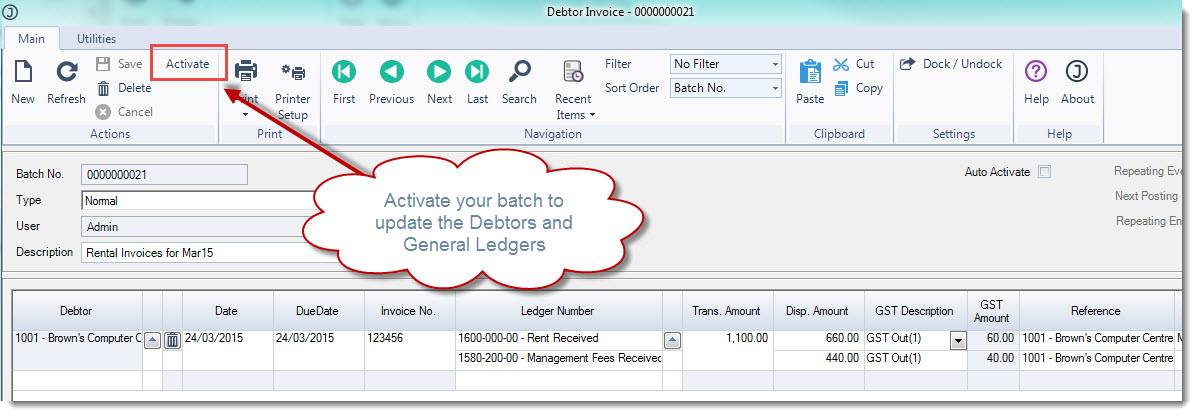
Once the batch is activated it is closed from further editing.
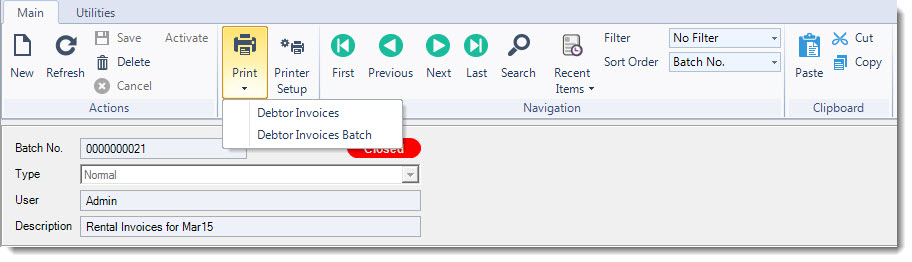
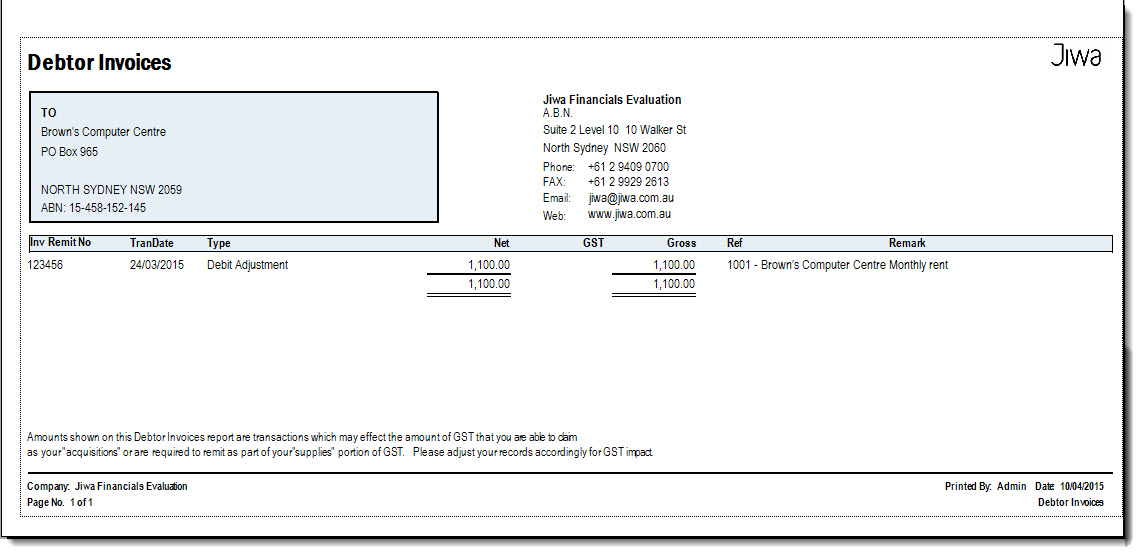
Invoices can be printed by selecting the Print icon from the menu ribbon and selecting the invoice report to be used.
This video is best seen on the full screen. Just click on the icon at the bottom right of the video (see image below). To exit full screen just press escape